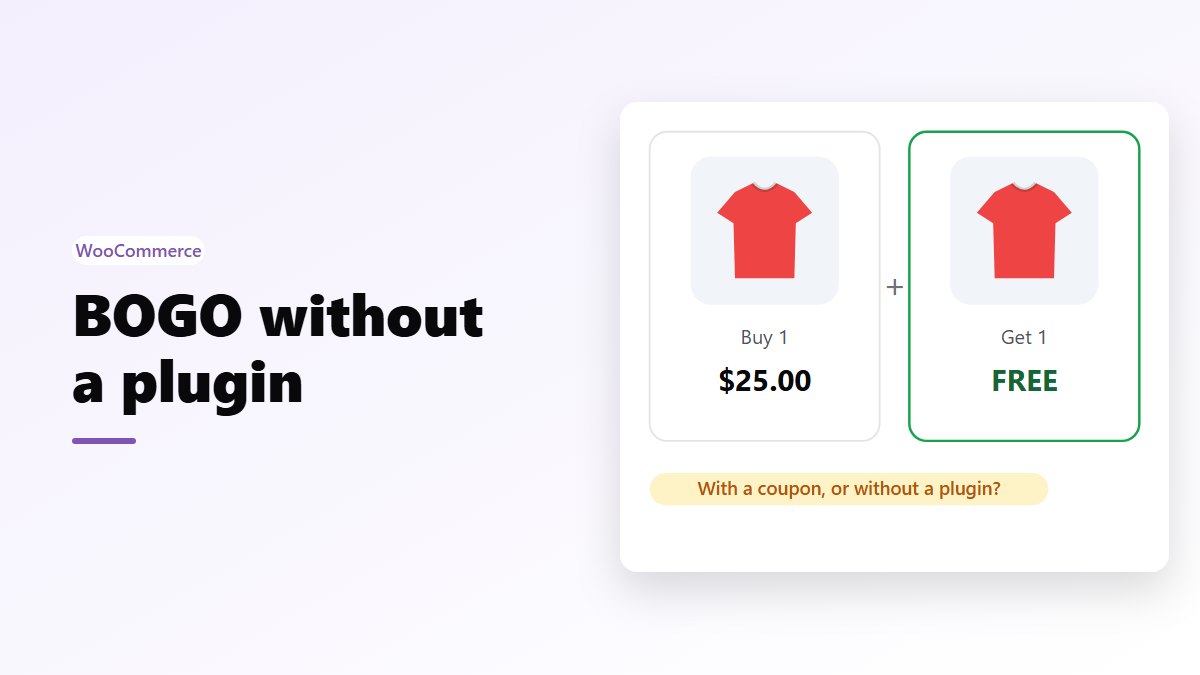
In short: WooCommerce has no BOGO setting, but a coupon gets close. Make a Percentage discount of 100% (or 50% for half price), restrict it to the product, and set Limit usage to X items to 1. It works for a simple promo, with four catches: shoppers must type the code, nothing checks they bought two, WooCommerce discounts the most expensive items first, and the free item is never added for them. For a BOGO that applies itself, Nanflows Bundles Pro builds it into the price.
Does WooCommerce have BOGO built in?
No. WooCommerce’s discounts are coupons, and a coupon has three types:
- Percentage discount: a percentage off the products it applies to.
- Fixed cart discount: an amount off the whole cart.
- Fixed product discount: an amount off each product it applies to.
What makes a coupon behave like BOGO is its restrictions, especially Limit usage to X items, which caps how many items get the discount.
How to set up a BOGO coupon in WooCommerce
Say you sell a $25 Graphic Tee and want “buy one, get one free”.
- Go to Marketing → Coupons and click Add coupon.
- Enter a code shoppers can remember, such as TEEBOGO.
- Under General, set Discount type to Percentage discount and Coupon amount to 100. For “buy one, get one half price”, use 50.
- Under Usage restriction, add the tee in Products. For a variable product, add the main product to cover every size.
- Still under Usage restriction, set Minimum spend to $50, the price of two tees. This is a rough guard, explained below.
- Under Usage limits, set Limit usage to X items to 1.
- Publish, and tell shoppers the code: in a banner, an email or on the product page.
With two tees in the cart and the code applied, one tee is free. That is the good case.
Where a BOGO coupon goes wrong
Shoppers have to type the code
A coupon only works if the shopper knows the code and remembers it at checkout. Anyone who arrives from a search or an ad, and never saw your banner, pays full price for both. Some will find the code later and ask for a refund.
Nothing checks that they bought two
WooCommerce can require that a product is in the cart and that the cart reaches a minimum spend. It can’t require two of a product. With a $50 minimum, a shopper who buys one tee and $25 of something else qualifies, and gets the one tee free.
The most expensive item comes free
When a coupon is limited to a number of items, WooCommerce gives the discount to the most expensive qualifying items first. Restrict the coupon to two tees at different prices, and the dearer one is the free one.
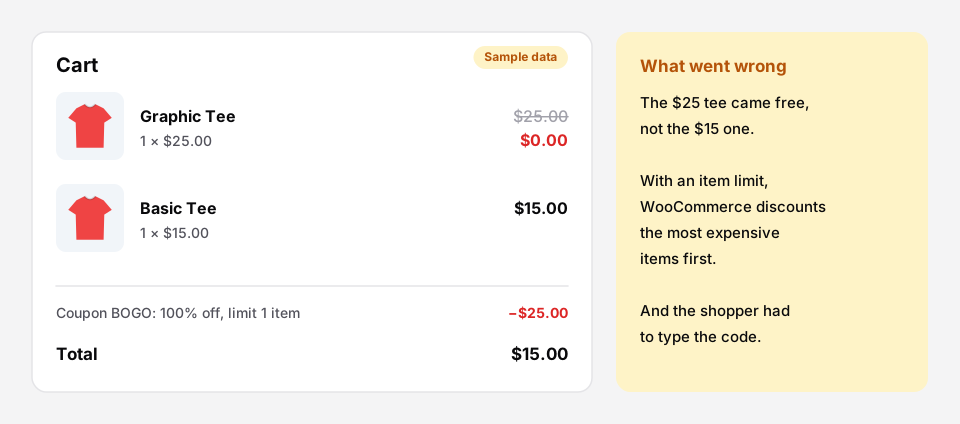 Sample cart. Most BOGO offers give away the cheaper item; a coupon does the opposite.
The same thing breaks “buy X, get Y”. Put both products in the coupon’s Products list and the item limit lands on whichever costs more, which is usually the X.
The free item isn’t added for them
A coupon only discounts what is already in the cart. The shopper has to add the second item themselves. If they don’t, the coupon either fails or, with the minimum met by other products, discounts the one tee they have.
Common offers with a coupon, and the catch
| Offer | Coupon settings | The catch |
|---|---|---|
| Buy 1, get 1 free | Percentage 100, limit 1 item | Code needed; one item is enough if the minimum is met |
| Buy 1, get 1 half price | Percentage 50, limit 1 item | The dearer item gets the 50% |
| Buy 2, get 1 free | Percentage 100, limit 1 item, minimum spend of 3 items | The minimum counts other products too |
| Buy X, get Y free | Percentage 100 on Y only | Nothing requires X in the cart |
When a coupon is good enough
A BOGO coupon is fine when the offer is short, goes out to people who will see the code, such as your email list, and covers one product at one price. Then the catches rarely come up.
It isn’t a good fit for an offer you show to everyone on the product page, for products with sizes at different prices, or for “buy this, get that free” across two products.
A BOGO that applies itself
Nanflows Bundles Pro makes BOGO and buy X get Y a bundle on the product page. The shopper sees the offer, chooses the items, and the price already includes the free or discounted one. There is no code, the free item is the one you chose rather than whichever costs more, and you can set start and end dates and a limit per order.
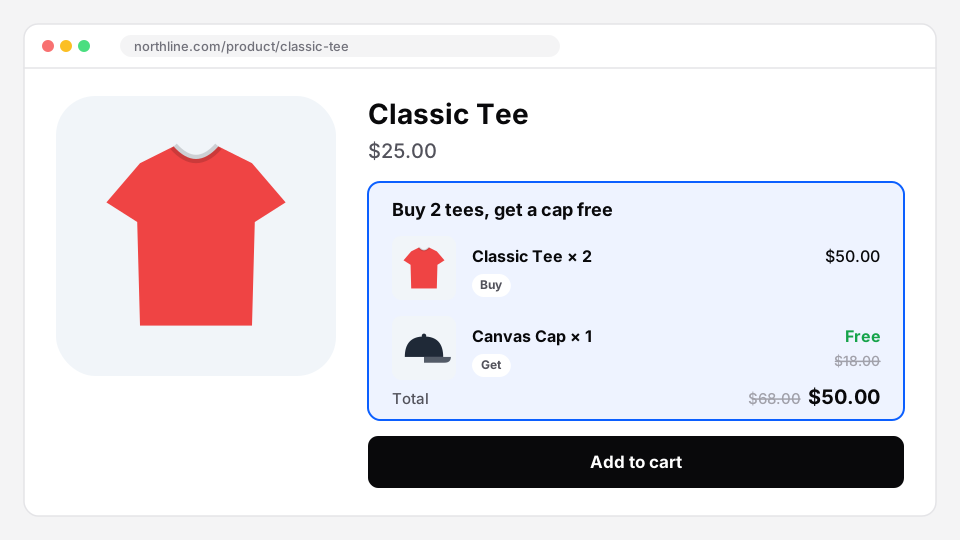 Buy X get Y as one offer on the product page, priced before checkout.
Before you run any BOGO, check what it leaves you. “Buy one, get one free” is a 50% discount on two items, and on a thin margin it can lose money.
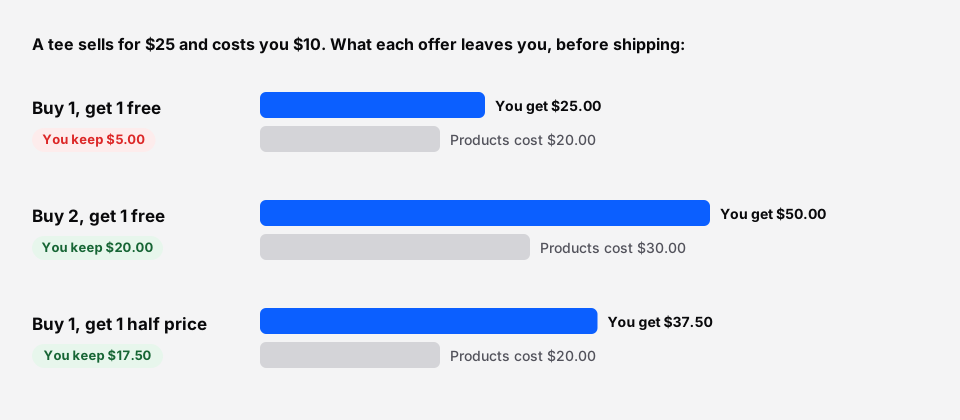 Sample product. Buy 2, get 1 free often keeps more than buy 1, get 1 free.
More in BOGO and buy X get Y in WooCommerce and bundle pricing strategy.
Get it
- Free: Nanflows Bundles on WordPress.org, with fixed bundles and frequently bought together.
- Pro: Nanflows Bundles Pro, $39 a year for one site or $149 for five, with BOGO, buy X get Y, quantity breaks and mix and match, and a 14-day refund.
- See it: WooCommerce BOGO and buy X get Y.
FAQ
Can WooCommerce do BOGO without a plugin?
Partly. A Percentage discount coupon of 100%, restricted to the product and limited to 1 item, gives one item free. But shoppers must enter the code, WooCommerce can’t require two of the product, and the free item isn’t added for them.
How do I make a buy one get one free coupon in WooCommerce?
Go to Marketing → Coupons → Add coupon. Choose Percentage discount, enter 100, add the product under Usage restriction, set a minimum spend of two items’ price, and set Limit usage to X items to 1.
Why did my BOGO coupon make the expensive item free?
Because WooCommerce applies an item limit to the most expensive qualifying items first. If the coupon covers products at different prices, the dearest one gets the discount.
Can a WooCommerce coupon add the free product to the cart?
No. Coupons only discount products already in the cart. The shopper has to add the free item, or you need a plugin that builds the offer into the product page.
Is BOGO a good idea for my store?
Only if your margin can carry it. Buy one, get one free is a 50% discount on two items. Buy 2, get 1 free (33%) or buy one, get one half price (25%) usually keep more.