In short: a sticky add-to-cart bar keeps the product name, price, quantity and an Add to cart button on screen once the shopper scrolls past the normal button. It helps most on long product pages viewed on phones. It should only appear after the real button has scrolled away, and for products with sizes or colors it should send the shopper back to the options first. Nanflows Sliding Cart Pro adds one that does both, at the bottom or the top of the screen.
What a sticky add-to-cart bar is
On a product page, the Add to cart button sits near the top, next to the price. Below it come the description, photos, size guide, reviews and questions. A shopper who reads all of that and decides to buy has to scroll back up to find the button.
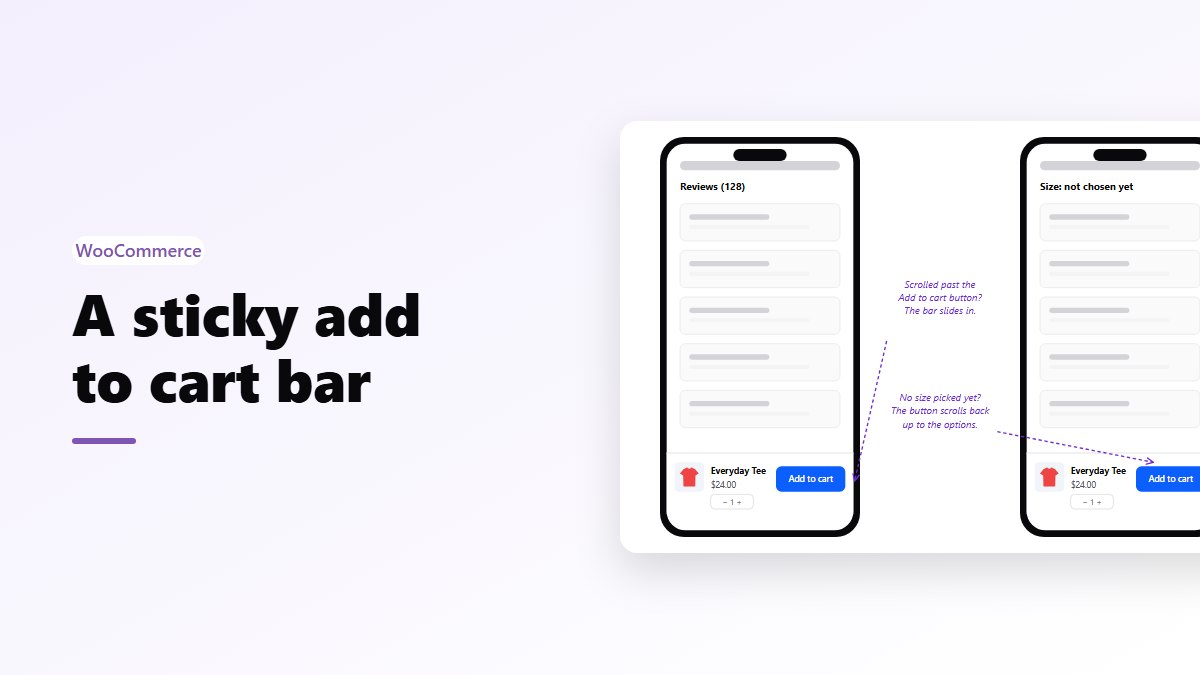
A sticky bar solves that. Once the real button scrolls off the screen, a slim bar slides in at the bottom (or top) with the product, the price and its own Add to cart button.
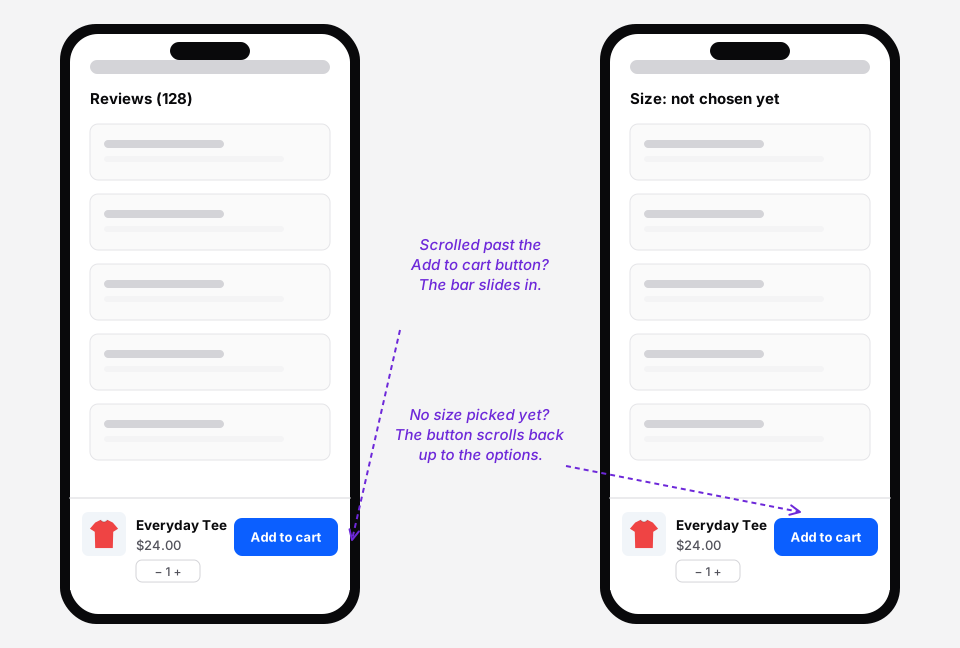 Left: the bar after scrolling down to reviews. Right: the same bar on a product with sizes.
When it helps, and when it doesn’t
It helps when:
- Your product pages are long. Reviews, size guides, ingredients, FAQs. The longer the page, the more scrolling it saves.
- Most of your traffic is on phones. On a phone, the real button is off screen after one swipe.
- People decide while reading. Furniture, skin care, apparel, gear: products where details and reviews close the sale.
It doesn’t help much when:
- Your product pages are short. If the button is never far away, the bar is clutter.
- Your theme already has one. Two bars stacked on top of each other is worse than none.
- The bottom of the screen is busy. A chat button, a cookie banner and a sticky bar fighting over the same space make all three harder to use.
What a good sticky bar does
- Appears only after the real button is out of view. Showing both at once is just noise.
- Handles variable products properly. If the shopper hasn’t picked a size, the bar shouldn’t add a random one or fail silently. It should take them back to the options.
- Uses the same add to cart as the page, so quantities, stock checks and error messages work the same.
- Doesn’t cover your content. At the bottom of the screen, the page needs extra space so the bar never hides the footer or the last review.
- Is reachable by keyboard only when visible, so people using a keyboard or screen reader don’t tab into a hidden button.
- Is small on phones. One row, not a second header.
Setting it up in WooCommerce
WooCommerce doesn’t have a sticky add-to-cart bar of its own, and many themes don’t either. With Nanflows Sliding Cart Pro, go to NanCart → Settings → Engagement and turn on Show a sticky add-to-cart bar on product pages. The options:
- Position: bottom of the screen (the usual choice on phones) or top.
- Mobile only: show it on phones only, if your desktop layout keeps the button in view.
- Button text: “Add to cart” by default. “Add to bag” or “Buy now” if that matches your store.
How it behaves:
- It appears once the regular Add to cart button scrolls out of view, and hides again when the button is back on screen.
- It shows the product name, price, a quantity field and the button.
- It works for simple and variable products, and for subscription products. It doesn’t show for products that are out of stock or can’t be bought.
- On a variable product with no size or color picked, the button scrolls back to the options and puts the cursor in the first one.
- Otherwise it copies the quantity into the real form and clicks the real Add to cart button. With the side cart on, the product goes in without a reload and the cart opens.
- At the bottom of the screen, the page gets extra space so the bar never covers the end of the page.
- While hidden, its buttons can’t be reached with the keyboard.
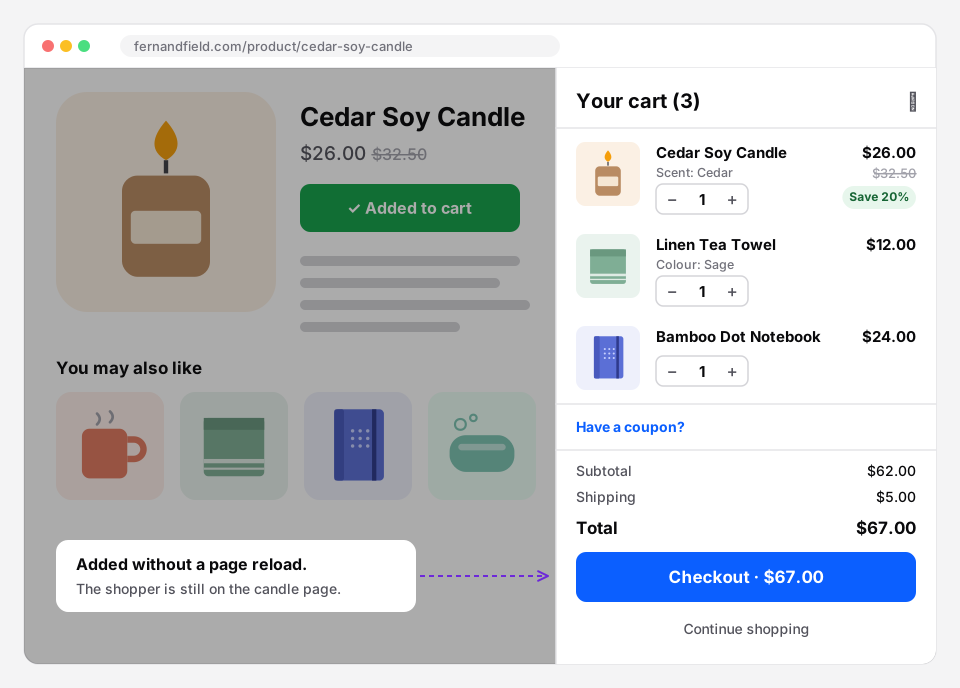 What the shopper sees after tapping the bar: the side cart, on the same page.
How to tell if it’s working
Compare the share of product page visits that end in an add to cart, for two weeks before and two weeks after, looking at phones separately from desktop. Avoid weeks with a sale or a holiday, which change everything at once. If the mobile add-to-cart rate went up and desktop stayed level, keep it, and consider Mobile only.
Get it
- Free side cart: Nanflows Sliding Cart on WordPress.org, with AJAX add to cart on product pages.
- Pro: the sticky add-to-cart bar, upsells, a free shipping bar and rewards on the Nanflows Sliding Cart page, $39 a year for one site or $149 for five.
- Related: AJAX add to cart on product pages and how to reduce cart abandonment.
FAQ
What is a sticky add to cart button?
A bar or button that stays on screen while the shopper scrolls a product page, so they can add the product to the cart without scrolling back to the top. Good ones appear only once the normal button has scrolled out of view.
Does a sticky add to cart bar increase conversions?
It can on long product pages viewed on phones, where the normal button is quickly off screen. On short pages it adds little. Measure the add-to-cart rate on mobile before and after.
How do I add a sticky add to cart bar in WooCommerce?
WooCommerce has no built-in option. Some themes include one; otherwise use a plugin. In Nanflows Sliding Cart Pro it is under NanCart → Settings → Engagement, with a choice of top or bottom and a mobile-only option.
Should the sticky add to cart bar be at the top or the bottom?
The bottom on phones, where thumbs reach it and it doesn’t compete with the header. At the top it can work on desktop if your header isn’t sticky too.
How does a sticky add to cart bar work with variable products?
It shouldn’t add anything until a size or color is chosen. In Nanflows Sliding Cart Pro, tapping it with no variation picked scrolls back to the options instead.