In short: add to cart can’t come from a page cache. Every click runs WordPress, WooCommerce and your plugins on the server, which makes it one of the slowest clicks in a store. Measure it in your browser’s Network tab. If it takes more than about a second, the usual causes are slow hosting, a plugin doing work on every cart change, or no object cache. Fix the server side first, then make the wait feel shorter with a side cart such as the free Nanflows Sliding Cart, which opens on the click.
Why add to cart is slower than opening a page
A product page can be built once and served from a cache to thousands of shoppers. Add to cart can’t, because every shopper’s cart is different. On each add, the server has to:
- Start WordPress and load every active plugin.
- Find or create the shopper’s session and save the cart to the database.
- Recalculate the cart: prices, coupons, taxes and often shipping.
- Build the updated cart pieces for the page, the “cart fragments”.
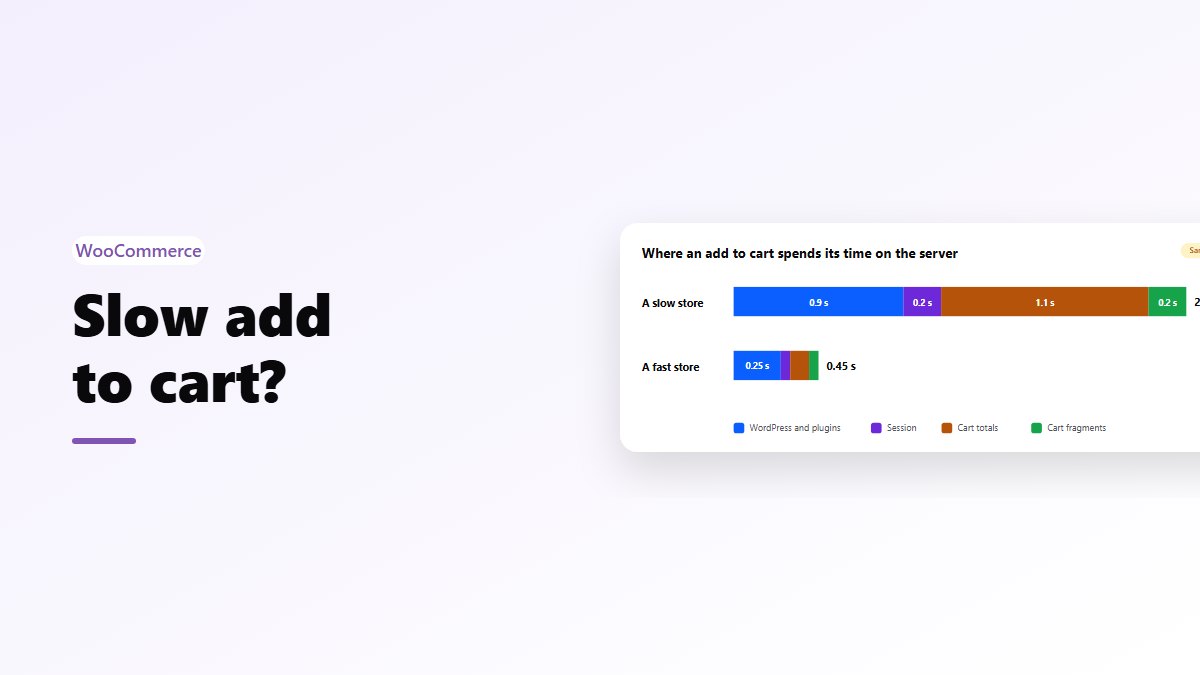
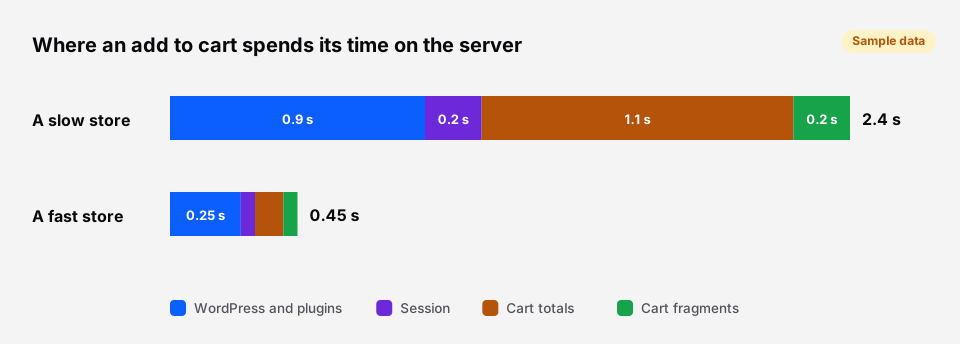 Sample timings from a slow store. Yours will differ.
Most of that is fast on a good server. It turns slow when one step does much more than it should.
Step 1: measure it
Don’t guess. Open a product page in Chrome, right-click and choose Inspect, open the Network tab, then click Add to cart.
- On shop and category pages, look for a request ending in
?wc-ajax=add_to_cart. - On a product page, WooCommerce sends the form and loads the page again, so look at the first request to the product URL. A side cart plugin uses its own request instead.
- Right after an add you will often see
?wc-ajax=get_refreshed_fragments, which updates the header cart.
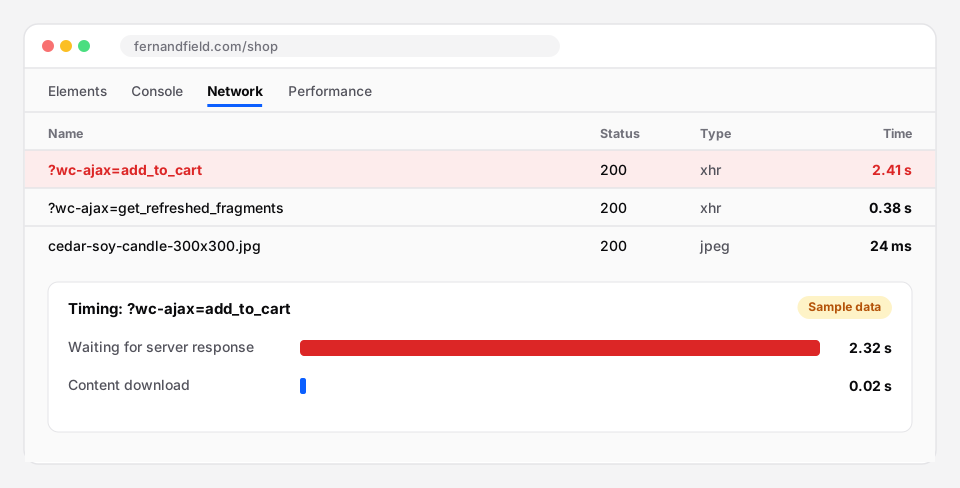 The “Waiting for server response” time is the part your server controls.
Click the request and open Timing. “Waiting for server response” is the time your server took. Aim for well under a second. If it is over two, keep reading.
For the server side, the free Query Monitor plugin shows the slowest database queries and which plugin made them, including on AJAX requests like add to cart. Use it on a staging copy if you can.
The usual causes
| What you see | The usual cause | What to do |
|---|---|---|
| Every page is slow, even the admin | Slow hosting, an old PHP version, too few PHP workers | Move to a better host or plan, and run a current PHP version |
| Only add to cart is slow | A plugin that runs on every cart change: dynamic pricing, live shipping rates, tracking | Switch plugins off one at a time on staging, or check Query Monitor |
| Slow while shipping is shown in the cart | Live rate requests to a carrier on every cart change | Under shipping options, tick “Hide shipping costs until an address is entered” |
| Slow on every request, worse when busy | No persistent object cache | Turn on Redis or Memcached; many hosts have a one-click option |
| Two cart updates after each add | Theme and a plugin both refreshing the cart | Remove the duplicate; check the Network tab after the fix |
| A slow database overall | Huge autoloaded options, a very large sessions table | Clean up with your host; WooCommerce removes expired sessions on its own |
The fixes, in order
- Hosting and PHP. If the whole site is slow, nothing else will fix it. A current PHP version and enough PHP workers for your traffic come first.
- A persistent object cache. It keeps the results of repeated database queries in memory between requests. On WooCommerce it usually makes the cart and checkout noticeably faster.
- Find the heavy plugin. On a staging copy, switch plugins off one by one and measure again. Dynamic pricing, shipping rate and analytics plugins are the usual suspects. Keep the plugin, but look for a lighter setting or an alternative.
- Keep cart and checkout out of the page cache, and nothing else. Some stores switch off caching completely to “fix” a cart problem. That makes every page slow. Exclude only cart, checkout and My account, and let the cache skip shoppers with items in the cart.
- Load the cart script only where it is needed. Since WooCommerce 7.8, the cart fragments script is no longer loaded on every page by default. An old theme that forces it everywhere adds a request to every page view. More in how the mini cart stays up to date.
Make the wait feel shorter
Once the server is fast, how the store shows the wait still matters. A frozen button for a second feels broken. A cart that opens straight away and fills in feels quick.
The free Nanflows Sliding Cart opens the side cart the moment the shopper clicks Add to cart, with a loading state, and fills it in when the server answers. On product pages it adds without reloading the page, for simple and variable products, and its script loads only where the cart is shown.
To be clear about what it doesn’t do: it can’t make your server faster. If the server takes three seconds, the add still takes three seconds. The shopper just sees the cart arriving instead of a button that seems to do nothing.
Get it
- Free: Nanflows Sliding Cart on WordPress.org: add to cart without a reload on every page, and a side cart that opens on the click.
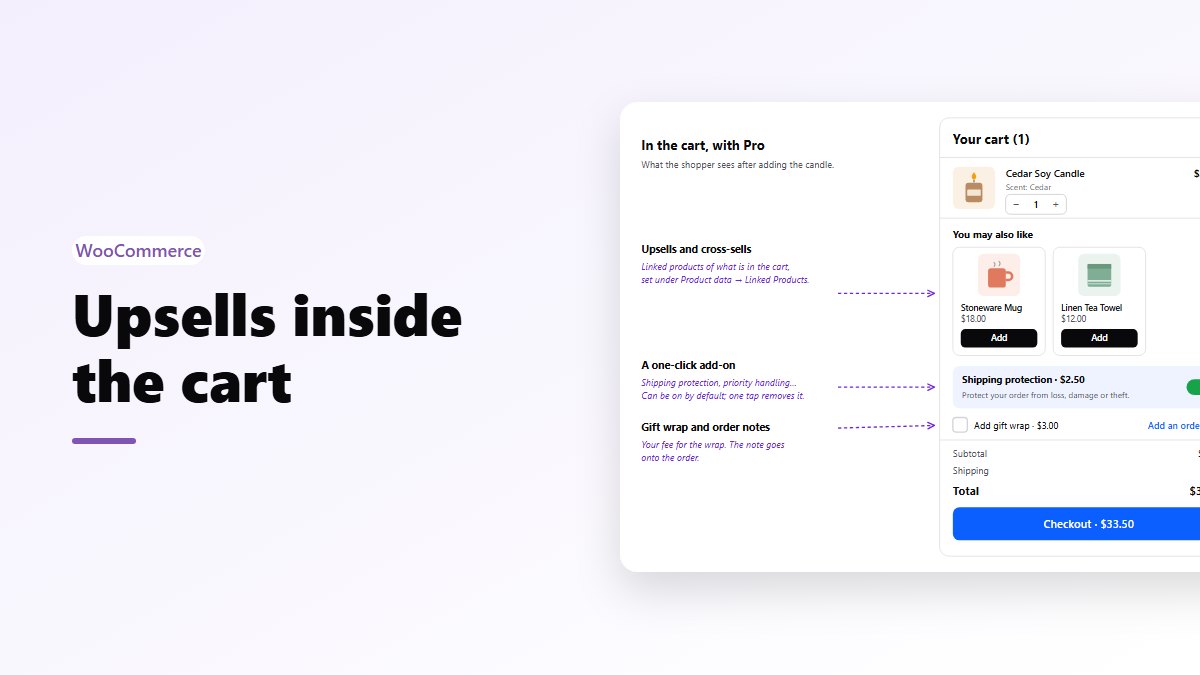
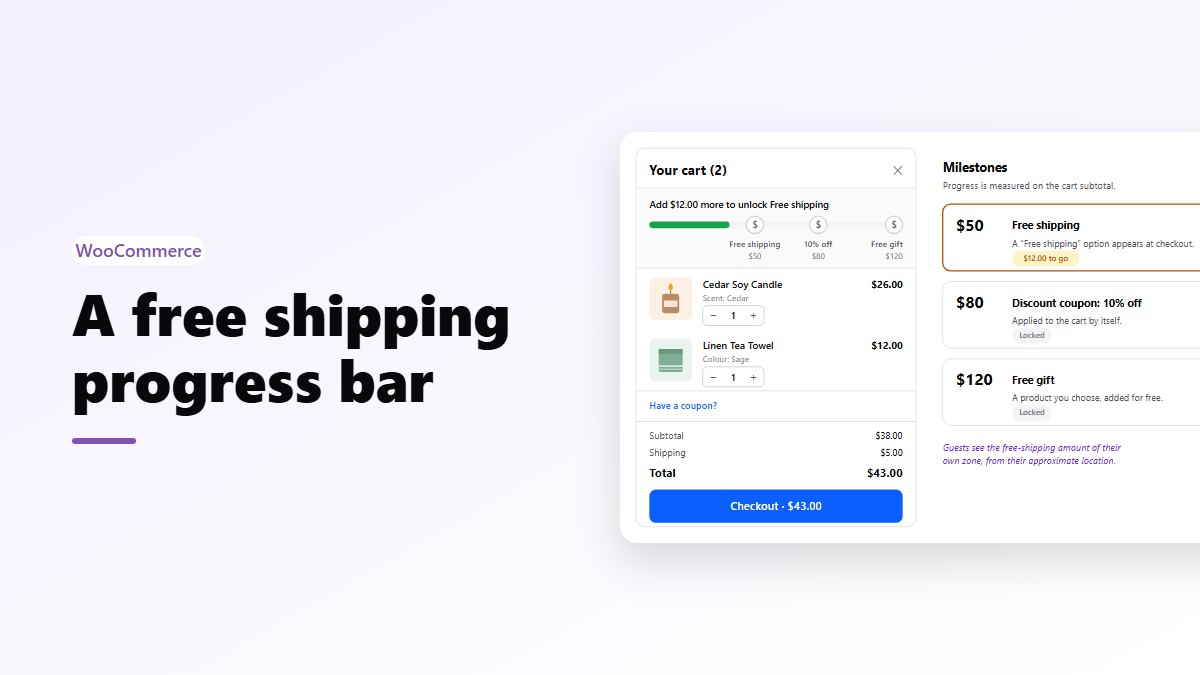
- Pro: upsells, a free shipping bar and cart analytics on the Nanflows Sliding Cart page, $29 a year for one site.
- Related: AJAX add to cart on product pages and how to reduce cart abandonment.
FAQ
Why is WooCommerce add to cart so slow?
Because it can’t be cached. Each add runs WordPress, WooCommerce and every plugin, saves the cart and recalculates totals. Slow hosting, a plugin that does work on every cart change, live shipping rates and a missing object cache are the usual causes.
How long should add to cart take?
The server part should take well under a second. Measure it in your browser’s Network tab: the “Waiting for server response” time of the add to cart request. Over two seconds is worth fixing.
Does caching make add to cart faster?
A page cache doesn’t, because add to cart has to skip it. A persistent object cache such as Redis does help, since it speeds up the database work behind every cart change.
Can a plugin slow down add to cart?
Yes. Plugins that change prices, fetch live shipping rates or send tracking events on every cart change are common causes. Switch them off one at a time on a staging copy, or use Query Monitor to see which one is slow.
What is wc-ajax=get_refreshed_fragments?
It is the request WooCommerce uses to update the cart pieces on a page, such as the header cart count, after the cart changes. Since WooCommerce 7.8 it is only loaded where a mini cart needs it.