In short: a WooCommerce mini cart is the small cart in your header: an icon with a count, a dropdown, or a drawer that slides in. It stays up to date through “cart fragments”, small pieces of HTML WooCommerce sends back after each add to cart. When the count is wrong, a page cache serving an old copy of the page is the usual cause. If you want quantities, a coupon field and checkout in it, replace it with a side cart such as the free Nanflows Sliding Cart.
What “mini cart” means in WooCommerce
Ask three store owners what a mini cart is and you will get three answers. All of them are right, because WooCommerce and themes use the name for different things.
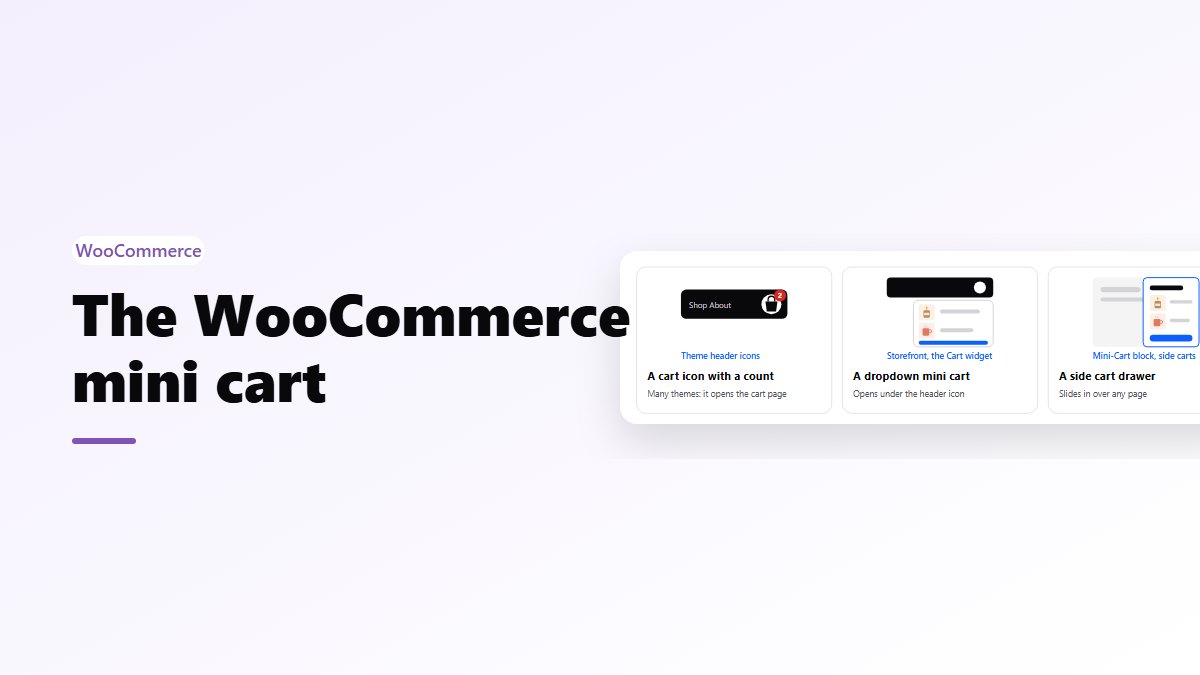
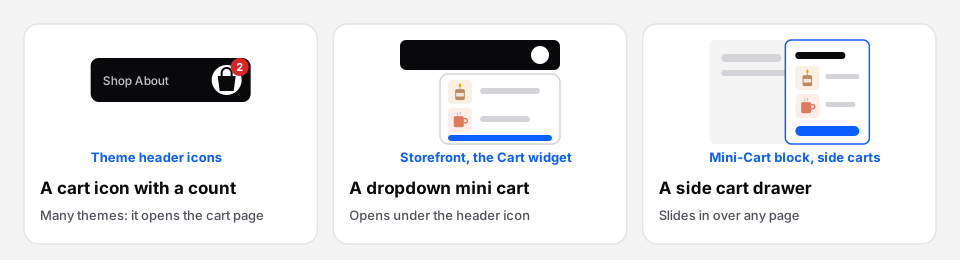 The three things people call a mini cart.
- A cart icon with a count. Many themes put one in the header. Clicking it opens the cart page.
- A dropdown mini cart. Classic themes such as Storefront show the cart contents under the header icon when you hover over it. Under the hood this is WooCommerce’s Cart widget.
- A cart drawer. In block themes, WooCommerce’s Mini-Cart block puts a cart icon in the header, and clicking it opens a small drawer with the items and a checkout button. Side cart plugins do the same, with more inside.
Which one you have depends on your theme. Open your store in a private window, add a product, and click the cart icon. What happens next tells you which kind it is.
How the mini cart stays up to date
The header cart is part of every page, so it has to change without a reload. WooCommerce does this with cart fragments.
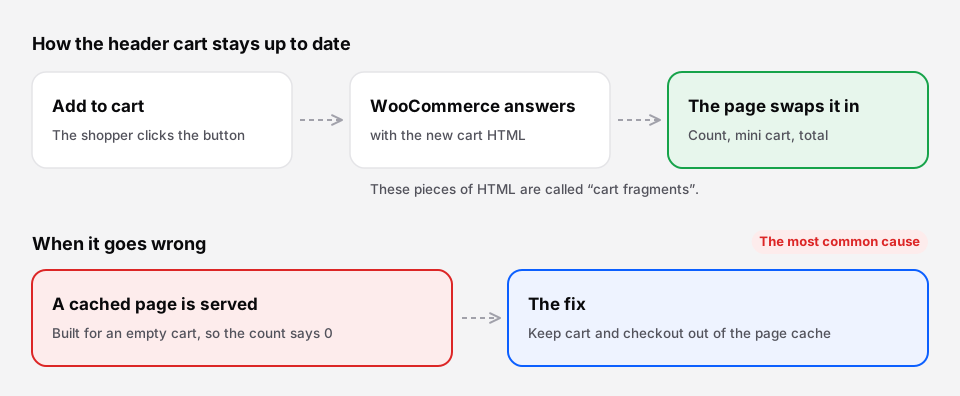 After each change to the cart, WooCommerce sends back fresh HTML for the parts of the page that show it.
- The shopper clicks Add to cart.
- WooCommerce adds the product and answers with new HTML for the cart pieces on the page: the count, the mini cart, the total.
- The page swaps the old pieces for the new ones.
One change worth knowing: since WooCommerce 7.8 (2023), the cart fragments script is no longer loaded on every page by default. It loads where WooCommerce knows a mini cart needs it. That made stores faster, but an older theme with its own header cart can stop updating if the theme never asks for the script.
Why the cart count is wrong, and how to fix it
| What you see | The usual cause | What to do |
|---|---|---|
| The count says 0 after adding a product | A cached page, built for an empty cart | Keep cart, checkout and My account out of the page cache, and skip the cache for shoppers with items in the cart |
| The count only updates after a reload | The theme’s header cart doesn’t get cart fragments | Update the theme, or replace the header cart with one that updates itself |
| The count is right, the dropdown is empty | A JavaScript error stops the update | Open the browser console on a product page and look for red errors, often from another plugin |
| Back button shows the old count | The browser restored the page from its own cache | Normal; it corrects itself on the next cart change |
| Wrong currency in the mini cart | A currency switcher that isn’t refreshing fragments | Check the switcher’s settings for cart or AJAX support |
Caching is behind most of these. WooCommerce sets cookies such as woocommerce_items_in_cart once a shopper has something in the cart. Good caching setups use them to stop serving cached pages to that shopper. Most managed WordPress hosts and caching plugins have a WooCommerce option for this; check that it is on before you look anywhere else.
How to customize the mini cart
Block themes. Open Appearance → Editor, edit your header template, and select the Mini-Cart block. Its settings control things like the icon, its color and whether the total price shows next to it.
Classic themes. The dropdown comes from WooCommerce’s template cart/mini-cart.php. To change its HTML, copy it to your-theme/woocommerce/cart/mini-cart.php and edit the copy. Use a child theme, or a theme update will wipe your changes. Templates you copy also need checking after big WooCommerce updates, since WooCommerce will flag outdated copies under WooCommerce → Status.
Any theme. Small visual changes (colors, spacing, hiding the subtotal) are usually a few lines of CSS in Appearance → Customize → Additional CSS, or in the Site Editor’s styles.
When to replace the mini cart with a side cart
A mini cart is fine if it only needs to confirm “2 items”. Replace it when shoppers need to do something in it:
- Change a quantity or remove an item without going to the cart page.
- Apply a coupon before checkout, so the total they see is the total they pay.
- See shipping and tax, so checkout holds no surprises.
- Check out from any page, especially on a phone, where every page load costs you.
The free Nanflows Sliding Cart plugin does this. Once it is active:
- The WooCommerce Mini-Cart block, and the header cart icons of Storefront, Astra, Kadence, OceanWP, Divi, Flatsome, Woodmart, Porto and Savoy, open the side cart instead of the cart page.
- Any link to the cart page opens it too, so the cart link already in your menu works without changes.
- For any other theme, add the header cart’s CSS selector under NanCart → Settings → Cart icon & menu → Extra CSS selectors that open the cart.
- It updates with WooCommerce’s own cart fragments, and its script and stylesheet load only where the cart is shown.
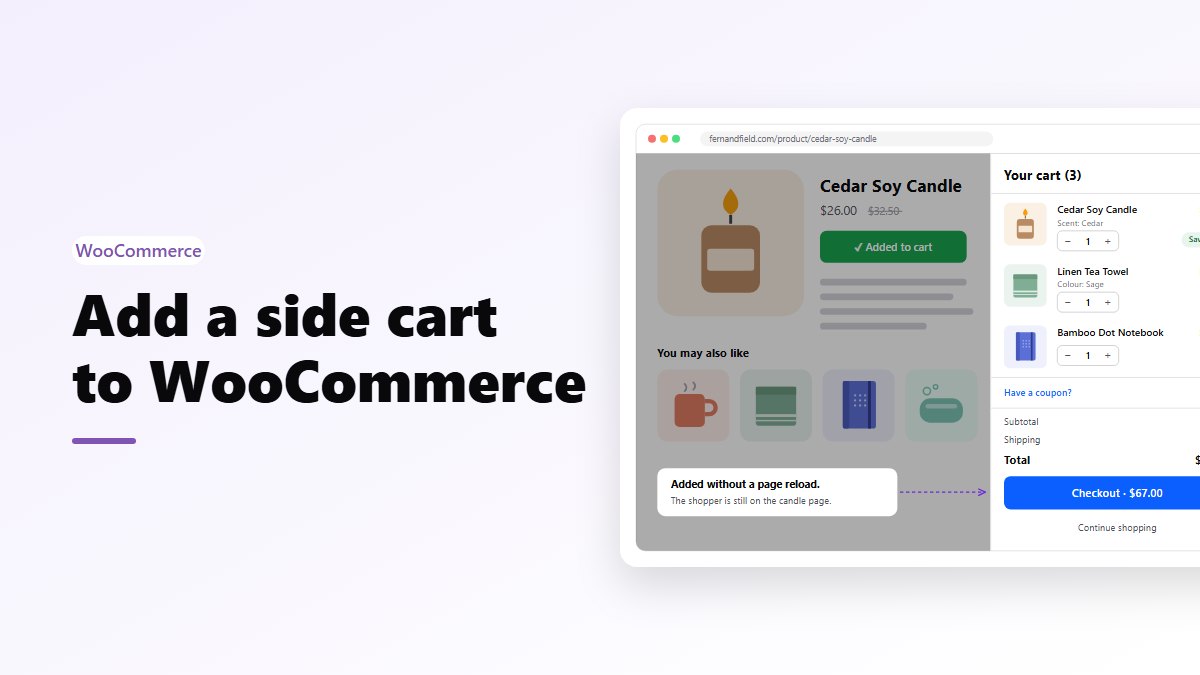
If you want a step-by-step setup, see how to add a side cart to WooCommerce.
Get it
- Free side cart: Nanflows Sliding Cart on WordPress.org, with AJAX add to cart, a floating cart icon, a menu cart and a block.
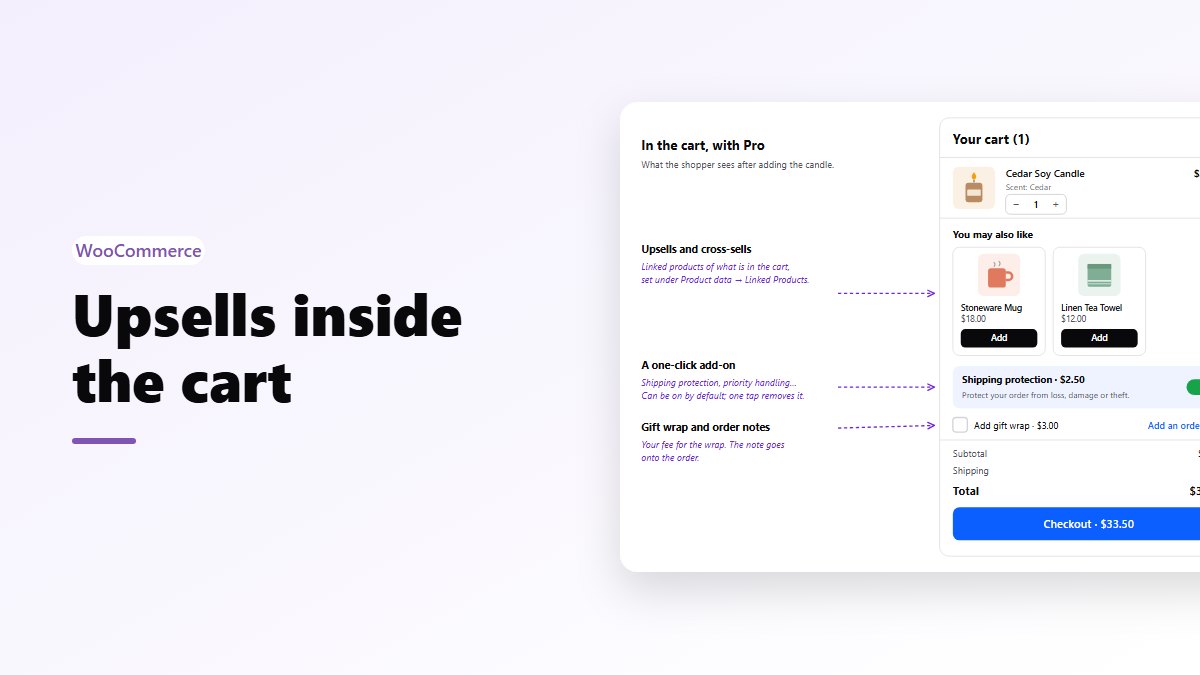
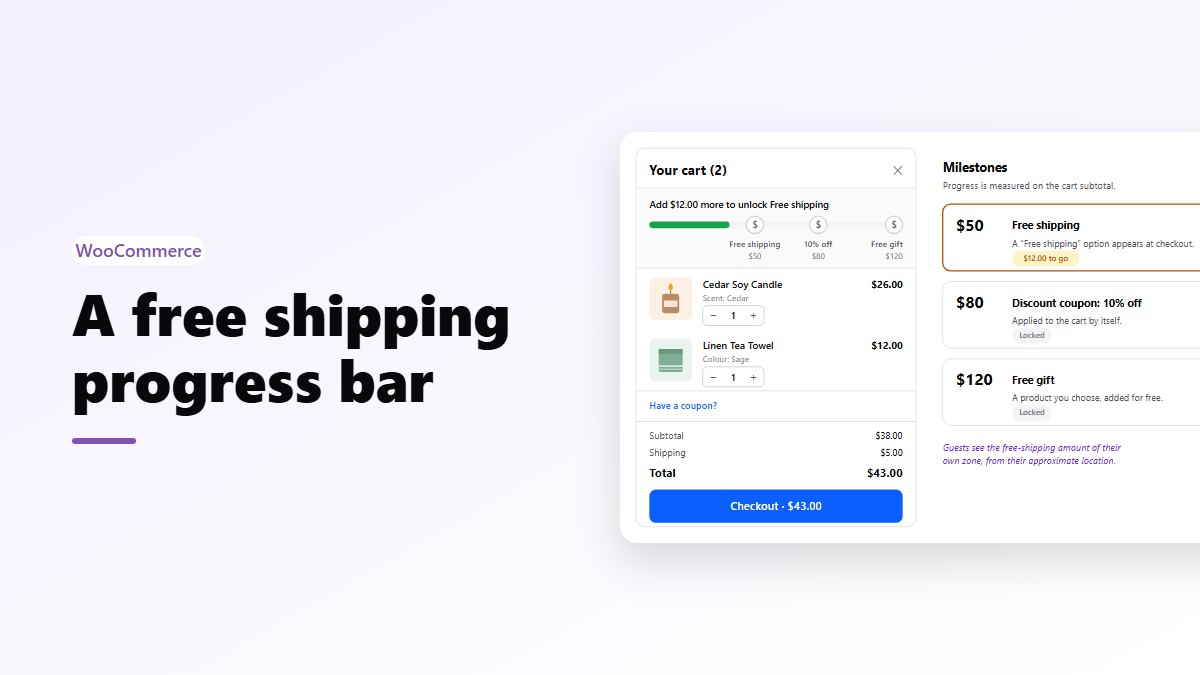
- Pro: upsells, a free shipping bar, rewards and analytics in the cart, on the Nanflows Sliding Cart page. $29 a year for one site, or $99 for five.
- Compare: the best WooCommerce sliding cart plugins, side by side.
FAQ
What is the mini cart in WooCommerce?
It is the small cart in your store’s header. Depending on the theme it is an icon with an item count, a dropdown listing the items, or a drawer that slides in. In block themes it is WooCommerce’s Mini-Cart block.
Why does my WooCommerce mini cart show 0 items?
Usually because a page cache served a copy of the page made for an empty cart. Keep the cart, checkout and My account pages out of the cache, and make sure the cache is skipped for shoppers who have items in their cart. If caching is fine, look for JavaScript errors in the browser console.
How do I add a mini cart to my WooCommerce header?
In a block theme, add the Mini-Cart block to your header in Appearance → Editor. In a classic theme, most themes have a header cart option in the Customizer. A side cart plugin such as Nanflows Sliding Cart can also add a floating cart icon, a menu cart item or a cart button block.
Can I edit the WooCommerce mini cart template?
Yes. Copy cart/mini-cart.php from the WooCommerce plugin to your-theme/woocommerce/cart/mini-cart.php and edit the copy, ideally in a child theme. The Mini-Cart block in block themes is changed in the Site Editor instead.
Is a side cart the same as a mini cart?
A side cart is a bigger mini cart. Both show the cart without leaving the page, but a side cart also lets shoppers change quantities, remove items, add a coupon and go to checkout from it.