In short: a free shipping progress bar tells shoppers how much more they need to spend to get free shipping, like “Add $12.00 more to unlock Free shipping”. Set the amount a little above your average order, so many orders are close to it. In WooCommerce, Nanflows Sliding Cart Pro shows the bar in the side cart, using your Free shipping method or its own amount, and can add discount and free gift milestones above it.
Why a free shipping bar works
Shipping costs are the most common reason shoppers abandon a cart. A free shipping offer turns that cost into a goal. Shoppers who are close will often add one more item instead of paying for delivery.
But the offer alone isn’t enough. If shoppers don’t know how close they are, they don’t act on it. The bar does the sum for them, right where they look: in the cart.
Step 1: Pick the amount from your own orders
Too low, and you pay for shipping on orders that would have happened anyway. Too high, and nobody bothers. Start from your average order value: in WooCommerce, it’s in Analytics → Orders.
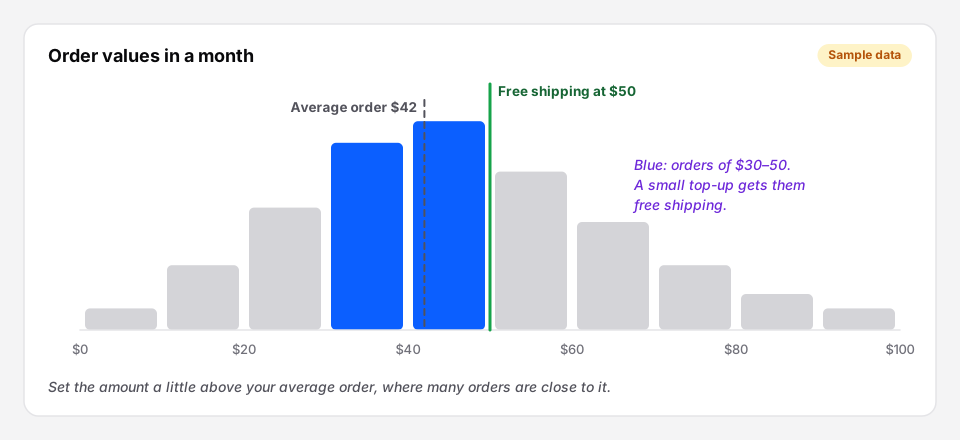 Many orders fall just below $50. For them, free shipping is one small item away.
A common starting point is 15–30% above your average order. Then check two things:
- Do you have something to add at that gap? If the gap is $8, you need products around $8 to $15. Socks, refills, a candle, a card.
- Does the extra margin cover the shipping? If you make 40% on the extra $10, that’s $4 towards shipping you now pay.
Try it for a month and look at the average order and the order count together. If the average rose and orders held, keep it.
Step 2: Set up free shipping in WooCommerce
If you don’t have it yet: WooCommerce → Settings → Shipping, open a zone, add the Free shipping method, and set “Free shipping requires” to A minimum order amount. Enter your amount. Do this per zone if each country has a different one.
Step 3: Show the bar in the cart
With Nanflows Sliding Cart Pro, open NanCart → Settings → Rewards, enable rewards and add a Free shipping milestone.
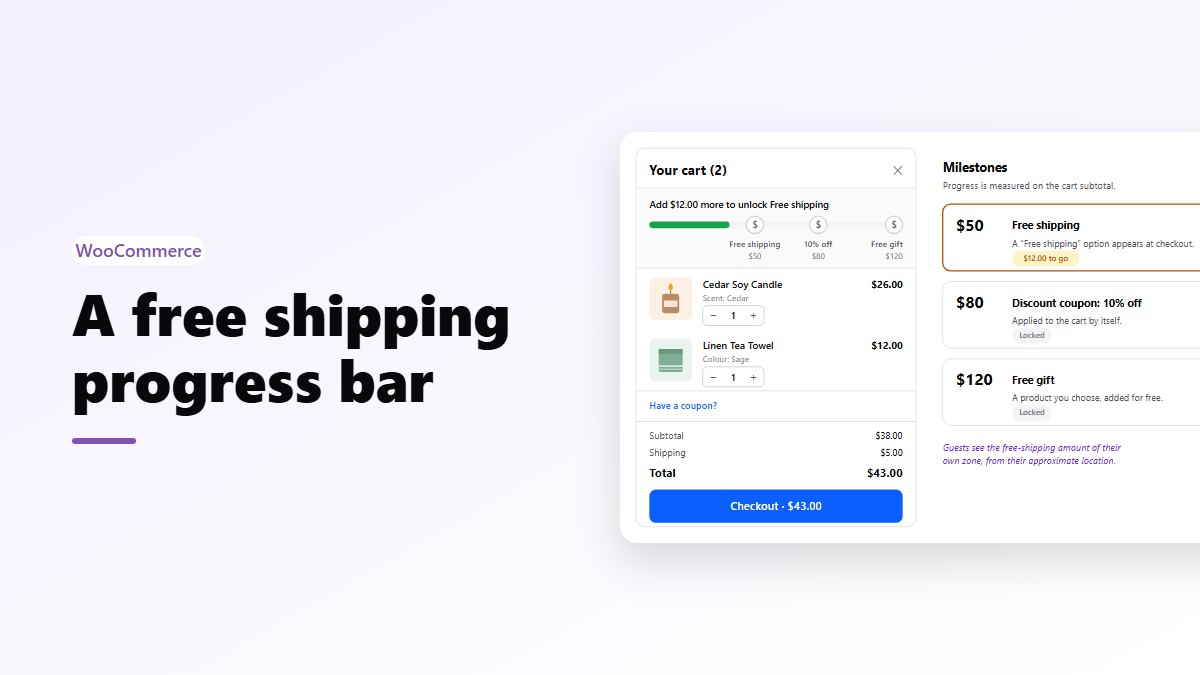
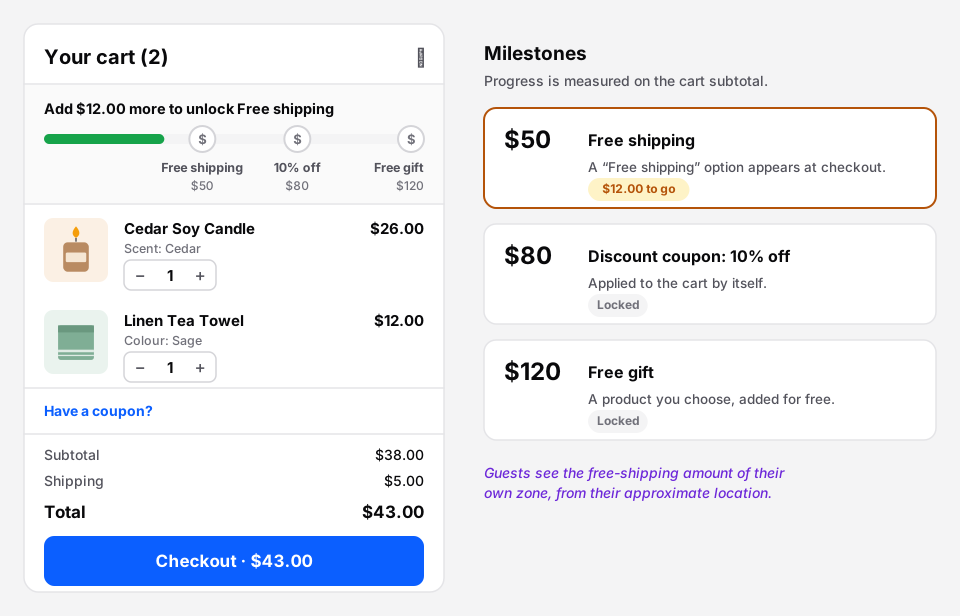 The bar at the top of the side cart, and the milestones behind it.
The settings that matter:
- Where the amount comes from. Leave it empty to use the Free shipping method of the shopper’s zone. Or enter an amount, and NanCart adds a “Free shipping” option at checkout once the cart reaches it.
- Guests’ location. Until a shopper enters an address, the bar can use the zone of their approximate location, from WooCommerce geolocation, instead of the store default. A shopper in Canada sees the Canadian amount.
- What counts. Progress can be measured on the cart subtotal, or the subtotal after coupons.
- The message. The default is “Add {{remaining}} more to unlock {{label}}”, and there’s a separate message for when everything is unlocked.
- The look. Classic (one bar with milestone icons at their amounts) or Steps (evenly spaced milestones with labels), with your colours and an optional animation.
Step 4: Add rewards above free shipping (optional)
Free shipping doesn’t have to be the last goal. You can add milestones above it:
- A discount coupon, for example 10% off at $80, applied to the cart by itself.
- A free gift, a product you choose, added to the cart for free at $120. You decide whether shoppers can remove it.
Keep it to two or three milestones. More than that and the bar becomes a puzzle.
Mistakes to avoid
- A goal above most baskets. If your average order is $40, free shipping at $100 is a promise few shoppers will chase.
- Hiding the cost of shipping. The bar works because shoppers see what they save. Show the normal shipping cost too.
- Forgetting other countries. One amount in dollars may not suit every zone. Use the zone’s own Free shipping method.
Get it
- Free side cart: Nanflows Sliding Cart on WordPress.org. The free shipping bar is in Pro.
- Pro: the bar, rewards, upsells and analytics on the Nanflows Sliding Cart page, $29 a year for one site or $99 for five.
- What it covers: the WooCommerce sliding cart, free and Pro, on one page.
- Related: how to increase average order value and how to reduce cart abandonment.
FAQ
How do I add a free shipping bar in WooCommerce?
Set up a Free shipping method with a minimum order amount in WooCommerce → Settings → Shipping. Then use a plugin that shows progress in the cart, such as Nanflows Sliding Cart Pro, which reads that amount and shows “Add $X more to unlock Free shipping” in the side cart.
What should my free shipping threshold be?
A little above your average order value, often 15–30% above it, where many orders are just under the line. Check that you have products priced to fill the gap, and that the extra margin covers shipping.
Does the free shipping bar work for guests in other countries?
With Nanflows Sliding Cart Pro, yes. Until a guest enters an address, the bar uses the free shipping amount of their approximate location’s zone, from WooCommerce geolocation.
Can the progress bar include discounts and free gifts?
Yes. Besides free shipping, milestones can be a discount coupon or a free gift, each unlocked at the amount you set and applied by themselves.