In short: a cart upsell suggests one more product while the shopper looks at their cart, with an Add button that doesn’t leave the page. In WooCommerce, set each product’s upsells and cross-sells under Linked Products, then show them in the side cart with Nanflows Sliding Cart Pro. Add a one-click add-on such as shipping protection, and the cart analytics show the conversion and revenue each brings.
Upsell or cross-sell?
WooCommerce has both, and they mean different things:
- Upsells are products you’d rather sell instead: the bigger size, the better model. WooCommerce shows them on the product page.
- Cross-sells are products that go with it: the case with the phone, the refill with the candle. WooCommerce shows them on the cart page.
In a side cart, there’s no cart page, so the suggestions have to move into the cart itself. That’s also where they work best: the shopper has already decided to buy, and a small extra is an easy yes.
What to suggest
Good cart suggestions are cheap compared with the cart, and obviously useful with it:
- Accessories: a case, a strap, batteries, a cleaning kit.
- Refills and consumables: wicks, filters, pods, ink.
- Small add-ons under the free shipping gap: if the shopper is $8 from free shipping, an $8–$15 product.
- The thing people forget: socks with shoes, a card with a gift.
Avoid suggesting something more expensive than what’s in the cart. That’s a product page job.
Step 1: Link your products
Set suggestions under Product data → Linked Products on each product. With many products, NanCart Pro lets you edit every product’s upsells and cross-sells from one list, so you’re not opening each product in turn.
Then set default products for carts whose products have no links of their own, so the cart is never empty of ideas.
Step 2: Show them in the side cart
In NanCart → Settings → Upsells, turn on “Show product recommendations in the cart” and choose:
- What to recommend: upsells, cross-sells, or both, of the products in the cart.
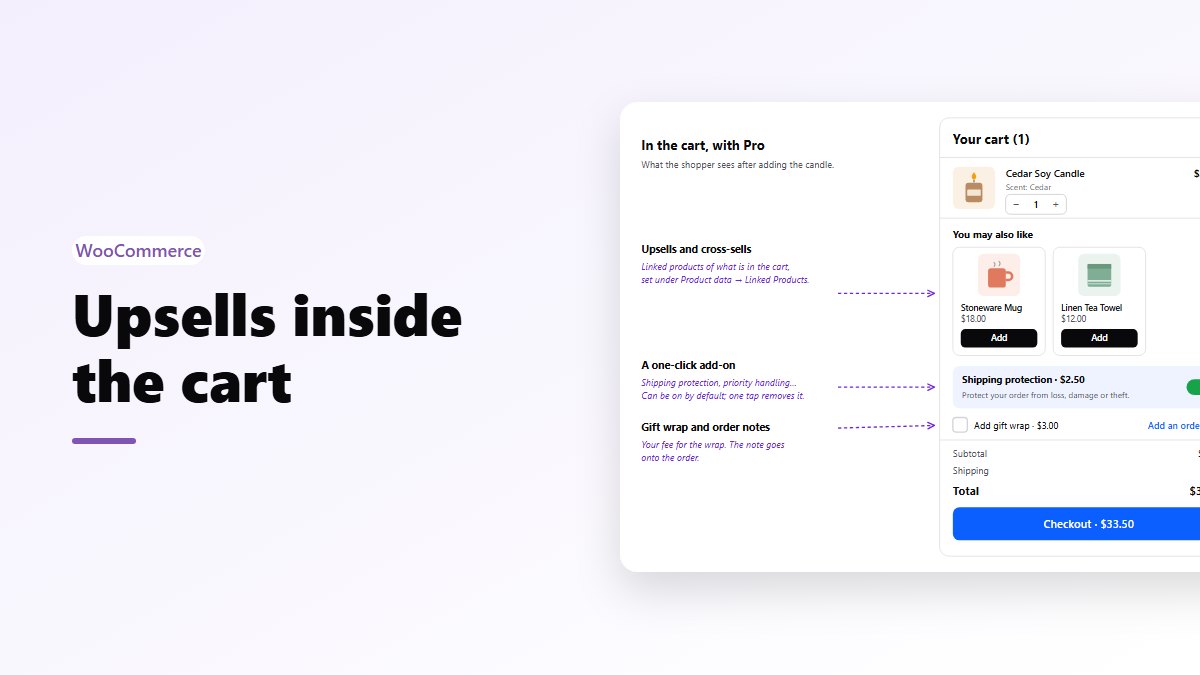
- The layout: a carousel (a scrolling row of small cards), a slider (one product at a time), cards (two at a time, price on the button), a compact list, or a side panel beside the cart on wide screens.
- The heading and the number of products. “You may also like” is the default.
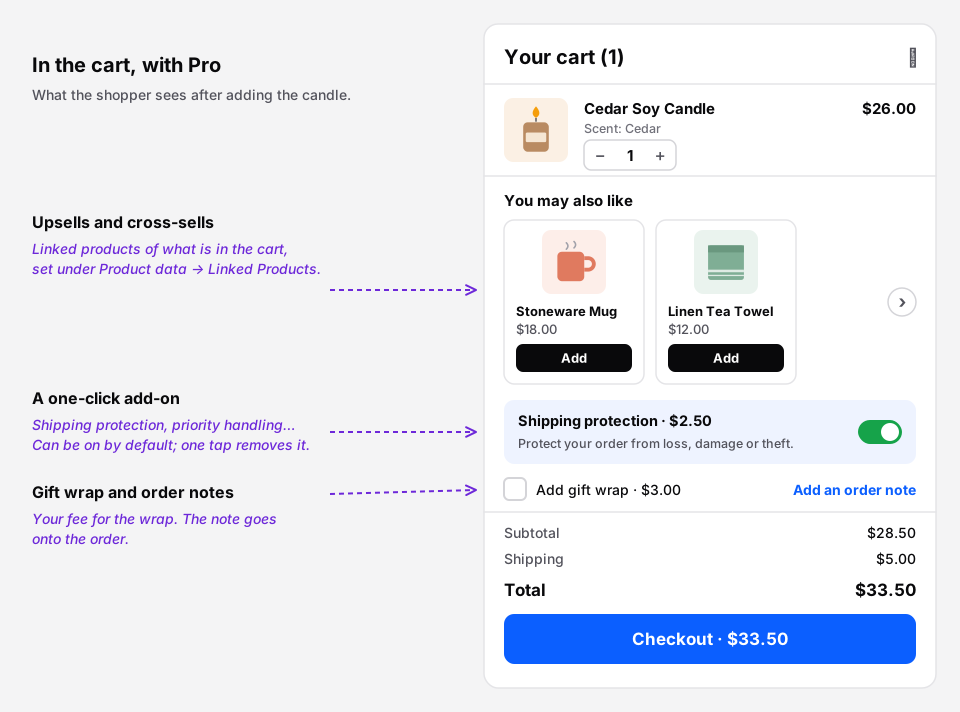 Suggestions, a one-click add-on and gift wrap, all inside the side cart.
Step 3: Add a one-click add-on
Some extras nobody would search for, but many will tick: shipping protection, priority handling, an extended warranty. Under NanCart → Settings → Special add-on, pick one product (a simple product or a single variation), and it shows as a switch in the cart.
You can have it added automatically with the first product. Be fair about it: the shopper sees it, with its price, and one tap removes it. Once they remove it, it isn’t added again during their visit.
Step 4: Gift wrap and order notes
For gift-heavy stores, NanCart Pro adds an Add gift wrap option with your fee (taxable or not), and an order note field that fills in the checkout’s “Order notes” and is saved on the order.
Step 5: Measure what they earn
Suggestions that don’t sell are just clutter. NanCart’s analytics show, for the period you pick:
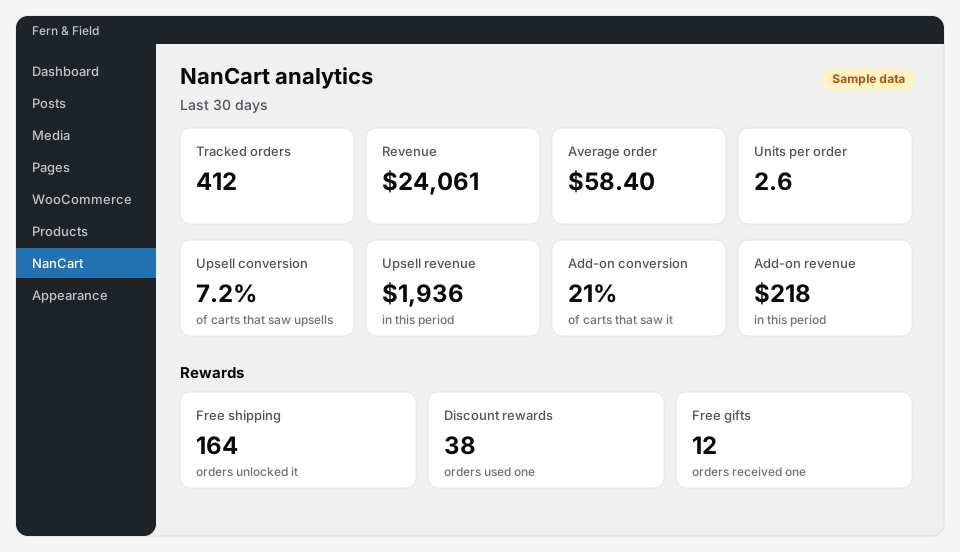 Upsell conversion is the share of carts that saw suggestions and added one.
- Upsell conversion and revenue: how many carts that saw suggestions added one, and what they brought.
- Add-on conversion and revenue: the same for the one-click add-on.
- Average order and units per order, so you can compare months.
If a suggestion has run for a few weeks and barely converts, change it. Often the fix is a cheaper or more obviously related product.
Upsells vs bundles
Upsells add one more item after the fact. Bundles sell the set from the start, at one price, on the product page. Many stores use both: a bundle on the product page, a small add-on in the cart. Nanflows Bundles does the bundle side, free for fixed bundles and frequently bought together. See WooCommerce product bundles.
Get it
- Free side cart: Nanflows Sliding Cart on WordPress.org. Cart upsells are in Pro.
- Pro: upsells, the one-click add-on, gift wrap, rewards and analytics on the Nanflows Sliding Cart page, $29 a year for one site.
- More: what the cart upsell features cover, and the best WooCommerce sliding cart plugins.
FAQ
How do I show upsells in the WooCommerce cart?
Set upsells and cross-sells for each product under Product data → Linked Products. Then use a side cart plugin that shows them in the cart, such as Nanflows Sliding Cart Pro, and choose the layout and how many to show.
What is the difference between upsells and cross-sells in WooCommerce?
Upsells are better or bigger versions of a product, shown on its product page. Cross-sells are products that go with it, shown on the cart page. A side cart can show either, or both.
Are cart upsells free in Nanflows Sliding Cart?
No. The side cart is free. Cart upsells, the one-click add-on, gift wrap, rewards and analytics are in Pro, from $29 a year.
Is adding shipping protection automatically allowed?
You can add it with the first product, but show it clearly with its price and let shoppers remove it in one tap. NanCart Pro doesn’t add it again once a shopper removes it. Check your local consumer rules: some places require optional extras to be opt-in.