In short: Shopify’s own Bundles app handles fixed sets and multipacks. For mix & match, quantity breaks, BOGO, gift boxes or build-your-own boxes you need a bundle app such as Nanflows Bundles for Shopify. Pick the type from your goal (a bigger order, moving slow stock, or letting shoppers choose), price it so the saving is easy to see, and show it on the product page.
A bundle sells two or more products together, usually for less than buying them one by one. A good bundle makes the choice easier for the shopper and makes each order bigger for you.
Shopify’s own Bundles app covers fixed sets and multipacks. For anything more (mix & match, quantity breaks, BOGO, gift boxes, build-your-own boxes), stores use a bundle app. This guide explains the 10 bundle types, when each one fits, and how to set one up with Nanflows Bundles for Shopify.
Start with the goal, not the bundle type
Pick the bundle type from what you want to happen:
- Bigger orders: frequently bought together, fixed + add-ons, volume discounts.
- More units of one product: quantity breaks and variety packs.
- Let shoppers choose: mix & match, build your own, gift boxes.
- A promotion people understand at a glance: Buy X Get Y and BOGO.
- A ready-made set to advertise: a fixed bundle with a page of its own.
The 10 bundle types
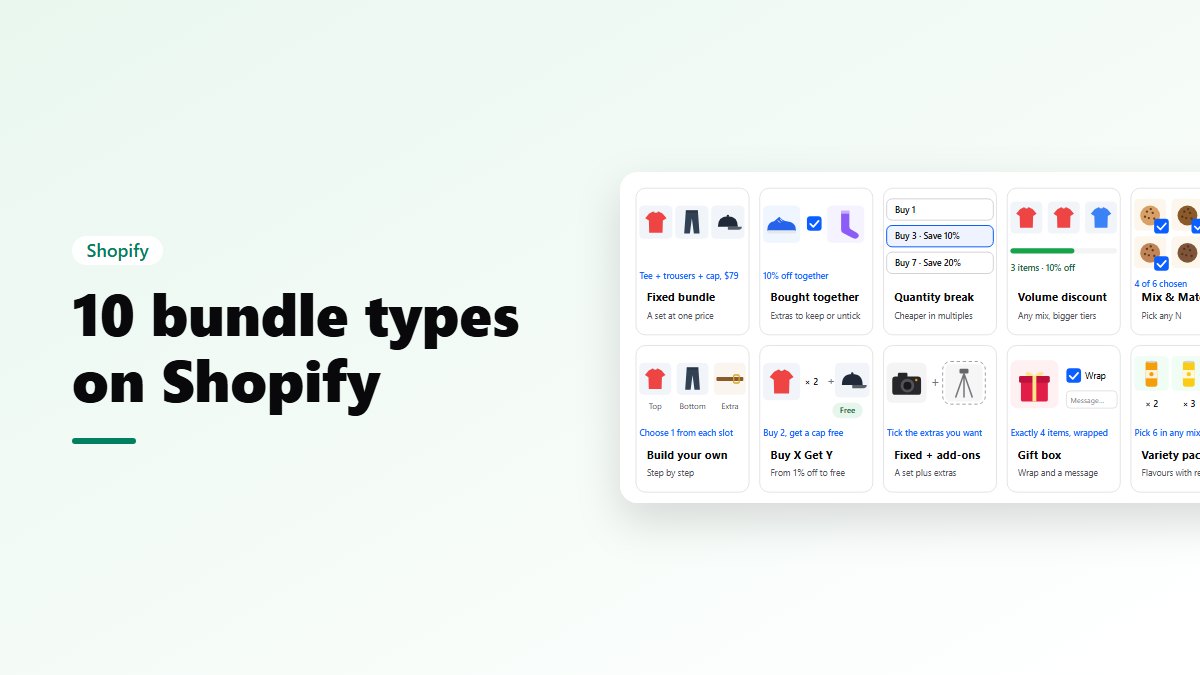
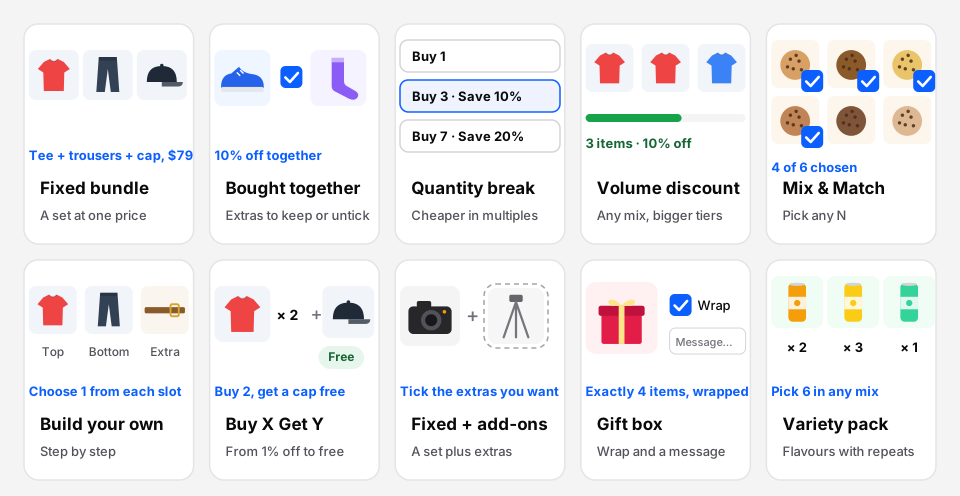 All 10 types, at a glance.
1. Fixed bundle
A ready-made set sold at one price, such as an outfit, a starter kit or 3 of the same T-shirt. You choose the products, how many of each, and which sizes or colours shoppers may pick. It can be sold as its own product in your store, with its own page and one line in the cart, or as a discount on the items.
Example: Summer Outfit: Tee + Shorts + Cap for $79 (save $21).
2. Frequently bought together
The product the shopper is viewing, plus suggestions they can keep or untick. The total and the saving update as they tick. It works best for accessories: a camera with a memory card and a case, or shoes with socks and a cleaner.
Example: Sneakers + Socks + Cap, 10% off when bought together.
3. Quantity break
One product that gets cheaper the more you buy, shown as tappable boxes such as “Buy 1”, “Buy 2: 10% off”, “Buy 3: 15% off”. One setup can serve many products, so it’s the quickest win for coffee, supplements, socks, candles and cosmetics.
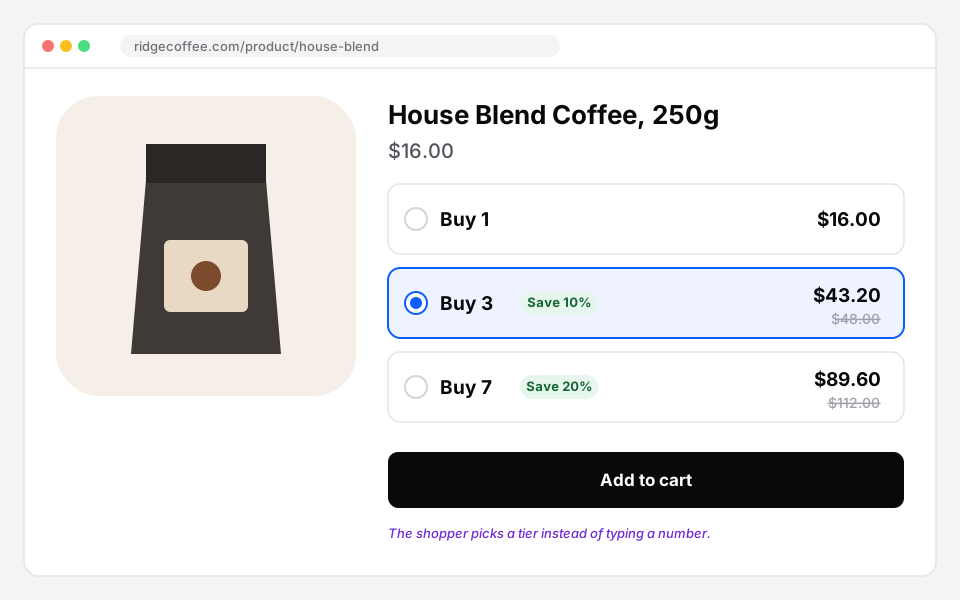 A quantity break on a product page. Sample store.
4. Volume discount
A list of products the shopper mixes freely, with a bigger discount as the total grows: any 3 for 10% off, any 5 for 20% off. The shopper sees which tier they’ve reached and how many more items unlock the next one.
5. Mix & Match
The shopper picks a set number of products from a selection you choose: pick any 3 accessories for $49. They see how many they’ve picked and how many are left, and can open any product in a quick view without leaving the page. Read more in our mix and match guide.
6. Build your own
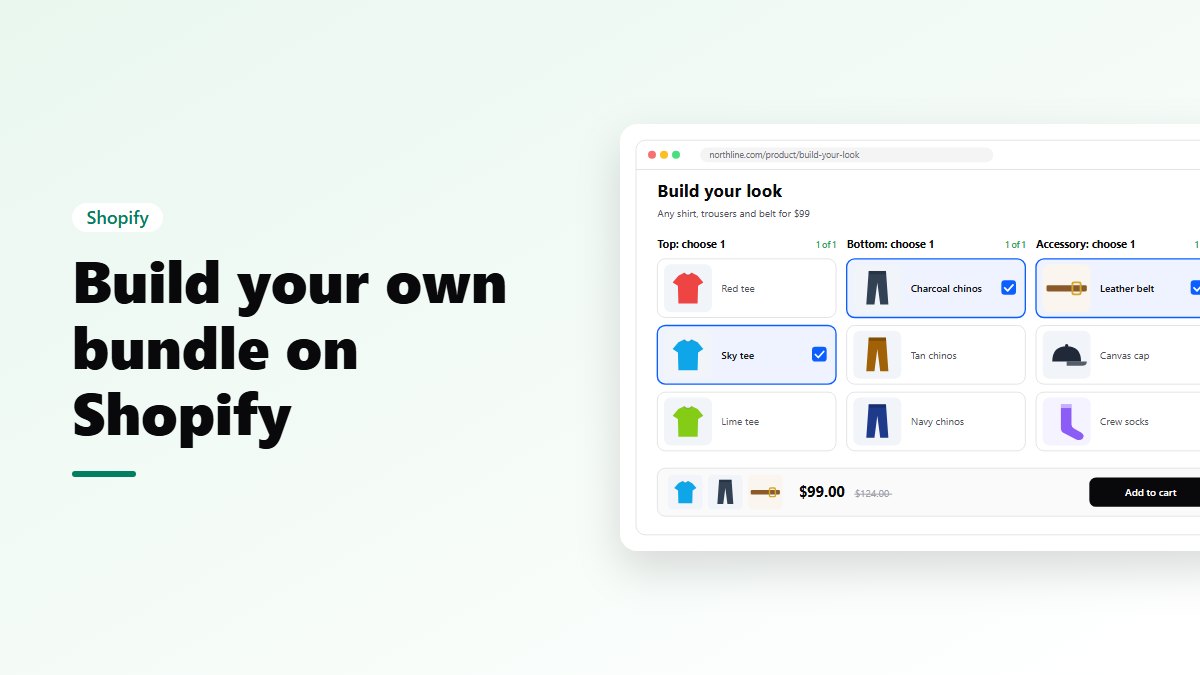
A bundle built in steps: Step 1, choose a shirt; Step 2, choose trousers; Step 3, choose a belt. Up to 10 steps, each with its own products and its own minimum and maximum. It suits outfits, meal kits, PC builds and skincare routines. See how to build a step-by-step bundle.
7. Buy X Get Y and BOGO
Buy a number of products and get others free or at a discount, from 1% off to free. The “get” products can be the same as the “buy” products (classic BOGO) or different ones (a free gift). The cheapest “get” items are the ones discounted, so the offer is always fair.
8. Fixed + add-ons
A set main bundle plus optional extras the shopper ticks: a watch with a strap and a case, or a machine with capsules.
9. Gift box
The shopper fills a box, adds gift wrapping if you offer it, and writes a gift message that shows on the order. It’s made for Diwali, Christmas, Valentine’s Day, Mother’s Day and corporate gifting.
10. Variety pack
Several flavours, sizes or colours of one product, with repeats allowed: 2 × Vanilla, 3 × Mocha and 1 × Caramel. It’s ideal for coffee, tea, snacks, protein and sauces.
Example: Coffee Variety Pack: any 6 for $45.
How to price a bundle
Nanflows Bundles offers six kinds of bundle price:
- Percentage off, such as 15% off the set.
- Amount off, such as $10 off.
- A fixed bundle price, such as all three for $79.
- Tiers by item count, such as 2 items 5% off, 3 items 10% off.
- Buy X Get Y, from 1% off to free.
- No discount, for a ready-made kit sold for convenience.
A few rules of thumb:
- Show the saving. The regular price crossed out, the bundle price, and “You save $21” do more than the discount alone.
- Start smaller than you think. A bigger discount can win more orders and still earn you less. Test it (see A/B testing bundle offers).
- Round numbers read well. “All three for $79” is easier to take in than “17% off”.
The bundle price is checked by Shopify itself at checkout, so a shopper can’t change it from their browser. It works alongside your other discounts.
Where to show a bundle
On product pages you have five choices: the pages of the products in the bundle (usually the right one), only products you pick, every product in chosen collections, every product page except some, or every product page.
You can also:
- give a bundle a page of its own to share in ads, emails, Instagram or WhatsApp;
- schedule it with a start and an end date, for launches and seasonal offers;
- set its priority when several bundles match one page, and how many a page shows at most;
- choose to hide it or show it as sold out when an item runs out.
Setting up your first bundle
- Install Nanflows Bundles for Shopify. It opens inside your Shopify admin; there is no separate account.
- Name and type: give the bundle a name and pick one of the 10 types. Each card explains the type with an example in your store’s currency.
- Where to show: pick the placement.
- Products: choose them with Shopify’s own product picker, and the sizes and colours you allow.
- Price and discount: pick the discount. The live preview shows the saving.
- Design: choose a list, row or grid layout, your brand colour, the button text and a small label such as “Best seller”.
- Review and publish. Then add the bundle block in your theme editor. It works with Online Store 2.0 themes, including Dawn, with no code.
You can save a draft at any step and publish when you’re ready.
What happens after the click
- Each item’s own stock is used, so a bundle never sells something you don’t have.
- Orders keep each item on its own line, linked to its bundle, so your team picks, packs, ships and refunds item by item.
- A “Your bundles” block on the thank-you page tells the shopper how much they saved.
Common mistakes
- Too many bundles on one page. One or two offers beat five. Use priority and the per-page limit.
- Bundles that don’t belong together. A bundle should answer “what else will I need?”
- Hiding the saving. If shoppers can’t see what they save, the bundle is just a bigger price.
- Forgetting about stock. Decide whether a bundle hides or shows as sold out when an item runs out.
Try it on your store
- Nanflows Bundles for Shopify has all 10 bundle types, A/B tests, subscriptions and bundle pages. Every feature is on the Free plan up to $500 of bundle sales a month; paid plans are $19, $39 and $79 a month, with a 15-day trial.
- More on Shopify product bundles, the Shopify bundle app, and the best Shopify bundle apps compared.
FAQ
Do bundles need their own stock?
No. Selling a bundle takes stock off the items inside it.
Can shoppers choose sizes and colours?
Yes, for each item, as boxes or a dropdown, from the variants you allow.
What does it cost?
Every feature is on every plan. The Free plan covers up to $500 in bundle sales a month, Essential is $19 up to $2,500, Growth $39 up to $10,000, and Scale $79 with no limit. Paid plans have a 15-day trial with no sales limit. See Nanflows Bundles for Shopify or how it compares.