In short: after add to cart, WooCommerce either reloads the product page with a notice or shows a small “View cart” link. To show something better, you can open a side cart with the free Nanflows Sliding Cart, show a popup with products that go with the one just added using Nanflows Popup Pro, or open your own popup from WooCommerce’s added_to_cart event with a few lines of code.
What WooCommerce does after add to cart
It depends on where the shopper clicks, and on two boxes under WooCommerce → Settings → Products → General:
- On a product page, the page reloads and shows a notice: the product “has been added to your cart”, with a View cart button.
- On shop and category pages, with Enable AJAX add to cart buttons on archives ticked, the product is added in the background and a small View cart link appears under the button.
- With Redirect to the cart page after successful addition ticked, every add sends the shopper to the cart page.
None of these tells the shopper much, and none suggests anything to add next.
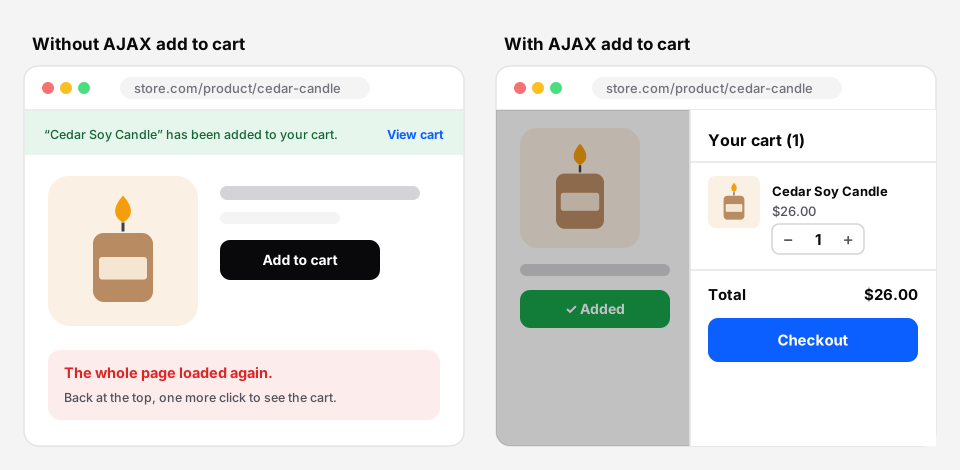 A reload with a notice, or the cart opening on the same page.
Why show something after add to cart
The moment after add to cart is when a shopper is most open to a second item. They have decided to buy, and the product is fresh in their mind. A popup or a side cart can:
- Confirm the item was added, with its picture and price, so nobody adds it twice.
- Suggest what goes with it: socks with shoes, a case with a phone.
- Offer the next step: view the cart, check out, or keep shopping.
Option 1: open a side cart (free)
The simplest answer for most stores is a cart that slides in from the side when a product is added. The shopper sees the item, the quantities and the total, and can check out or close it and keep browsing.
The free Nanflows Sliding Cart does this out of the box. Under its settings, Open the cart after a product is added and Keep shoppers on the page after adding to cart control it, and Add to cart without reloading on product pages stops the product page reload.
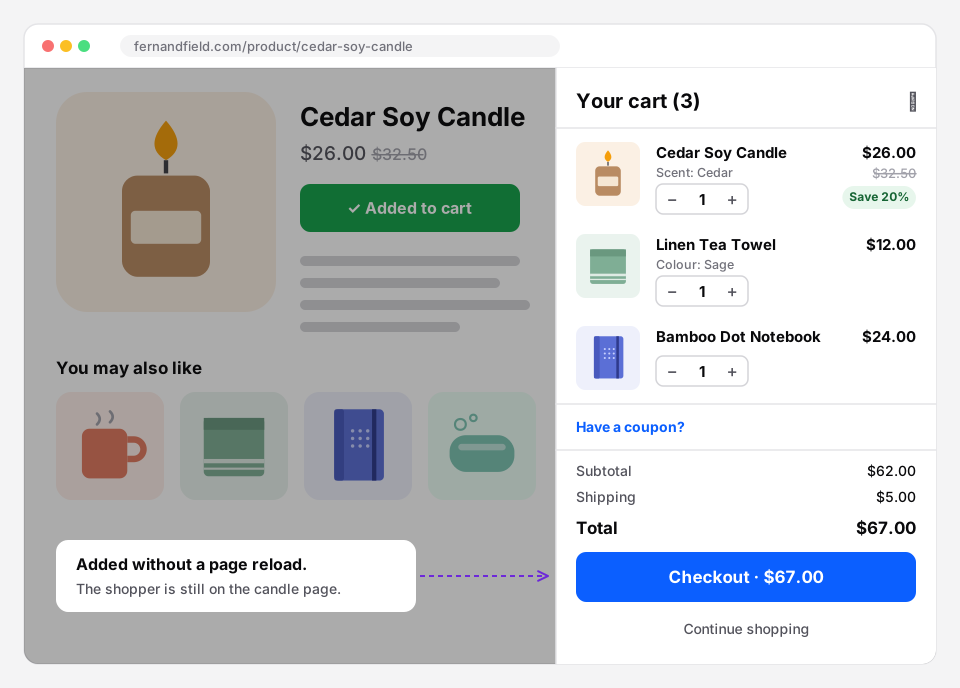 The side cart confirms the add and shows the whole cart.
With Sliding Cart Pro, the side cart also shows upsells and cross-sells of what is in it.
Option 2: a popup with what goes with it
If you want a focused message instead of the whole cart, use a popup that opens on add to cart. Nanflows Popup Pro has an Add to cart trigger for this. It opens:
- after a product is added on shop and product pages without a reload,
- after an add from WooCommerce’s block-based buttons, and
- after a normal add to cart that reloads the page.
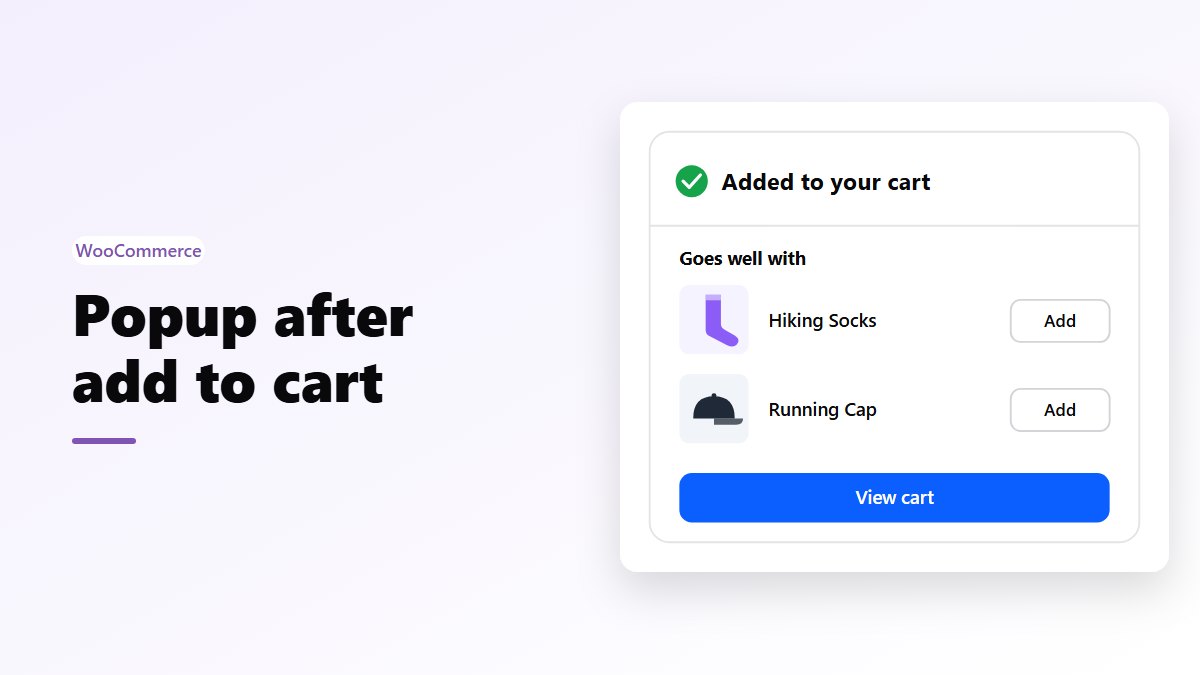
The popup can list products that go with the one just added: its upsells and cross-sells, and related products after them if you choose. If there is nothing to suggest, it can stay closed. Products added from the popup don’t open it again.
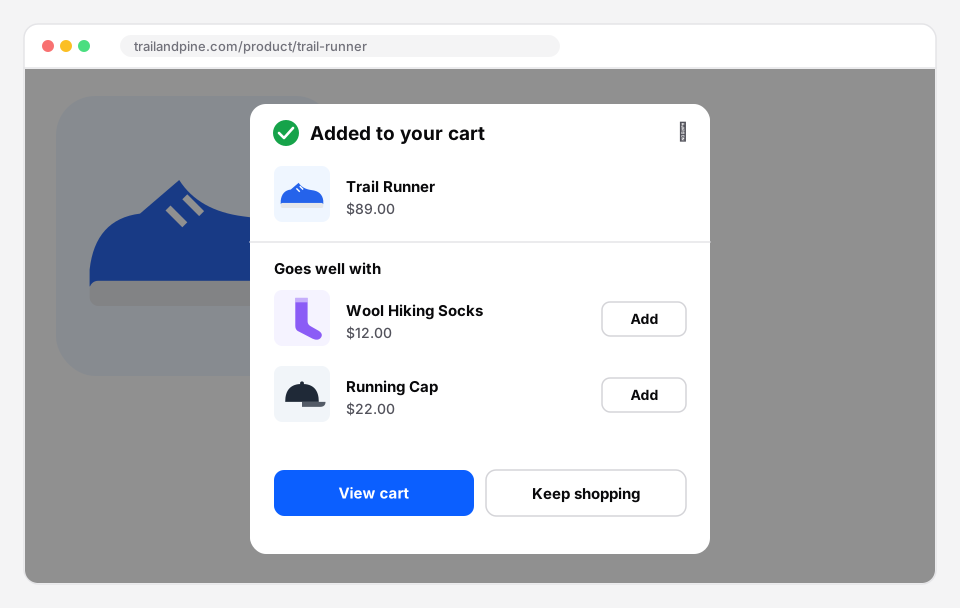 Sample store. Confirm the add, suggest two things, and offer the next step.
Pro also tracks the revenue each popup brings in, so you can see whether the suggestions sell.
Option 3: your own popup with code
WooCommerce fires a jQuery event on the page body after every add that doesn’t reload the page. You can open your own modal from it:
jQuery( document.body ).on( 'added_to_cart', function ( event, fragments, cartHash, $button ) {
	// $button is the button that was clicked; open your modal here.
	document.querySelector( '#my-added-popup' ).hidden = false;
} );
The catch: it only fires for adds without a reload. Product pages reload by default, so you also need AJAX add to cart on product pages, and the modal, its styles, mobile layout and what it suggests are all yours to build and keep working.
Rules for a popup that helps
- Make it easy to close: a clear ✕, a “Keep shopping” button, and a click outside.
- Don’t interrupt every add. A shopper adding five items doesn’t need five popups. Show it once per visit, or only on the first add.
- Suggest two or three items, not ten. And never something already in the cart.
- Pick one: a side cart or a popup. Both at once is one thing too many.
- Check it on a phone. The buttons must fit without scrolling.
Which one should you use?
| You want | Use |
|---|---|
| To confirm the add and show the cart | A side cart (free) |
| To suggest specific products after an add | An add-to-cart popup (Pro) |
| Full control and you have a developer | The added_to_cart event |
Get it
- Free: Nanflows Popup on WordPress.org, and Nanflows Sliding Cart for the side cart.
- Pro: Nanflows Popup Pro, $39 a year for one site or $149 for five, with the Add to cart trigger, WooCommerce product lists, A/B tests and revenue per popup, and a 14-day refund.
- More: the WordPress popup plugin, the WooCommerce sliding cart and cart upsells.
FAQ
How do I show a popup after add to cart in WooCommerce?
Use a popup plugin with an add-to-cart trigger, such as Nanflows Popup Pro, or open your own modal from WooCommerce’s added_to_cart JavaScript event. A side cart plugin that opens on add to cart is the simplest alternative.
Why doesn’t my add-to-cart popup open on the product page?
Product pages reload after add to cart by default, and the added_to_cart event only fires for adds without a reload. Turn on AJAX add to cart for product pages, or use a popup that also checks for a normal add after the reload.
Can the popup show related products?
Yes. Nanflows Popup Pro can list the upsells and cross-sells of the product just added, followed by related products if you choose.
Will a popup after add to cart annoy shoppers?
Not if it is easy to close, appears once per visit and suggests only a few useful items. A popup on every single add is what annoys people.
Is a side cart better than a popup?
For most stores, yes: it confirms the add and shows the whole cart in one place. A popup is better when you want to focus on one or two suggestions.