In short: WooCommerce has one AJAX setting, Enable AJAX add to cart buttons on archives, under WooCommerce → Settings → Products. It only covers shop and category pages. On a single product page, Add to cart still reloads the page. To add without a reload there too, for simple and variable products, use a plugin such as the free Nanflows Sliding Cart, which also opens the cart once the product is in.
What “AJAX add to cart” means
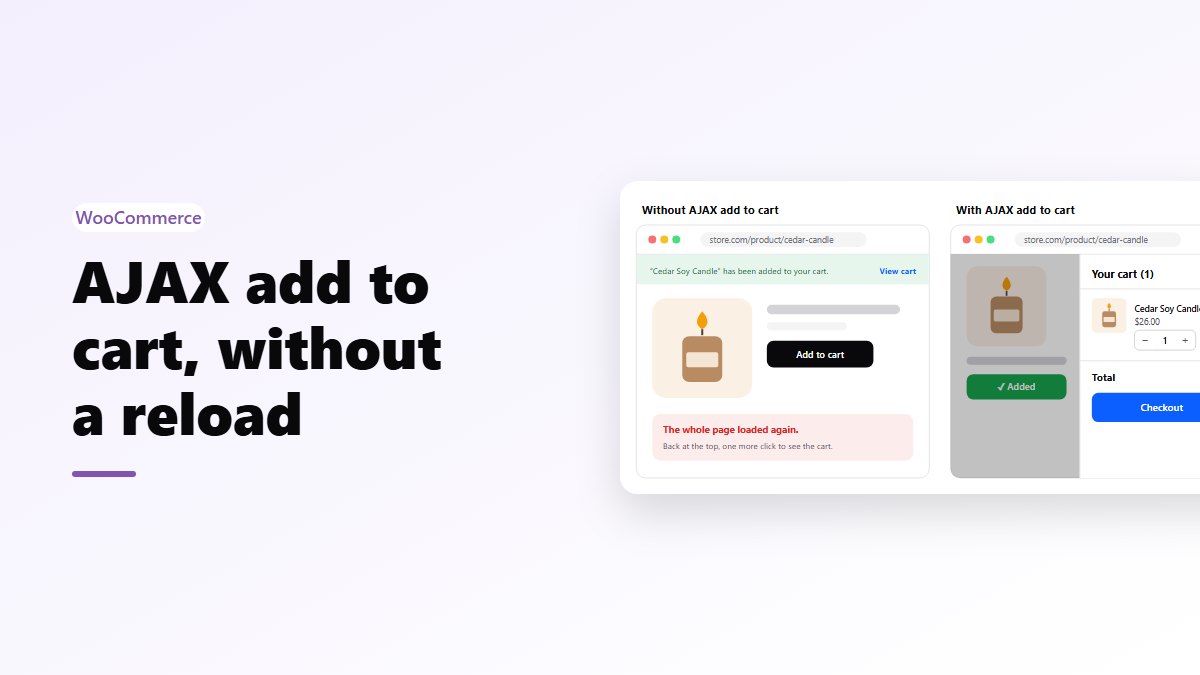
AJAX is a way for a page to talk to the server in the background. With AJAX add to cart, clicking the button sends the product to the cart without loading the page again. The button changes to “Added”, the cart count in the header goes up, and the shopper stays where they were.
Without it, the browser sends a form and loads the whole page again. The shopper lands back at the top with a green “has been added to your cart” notice and a “View cart” link.
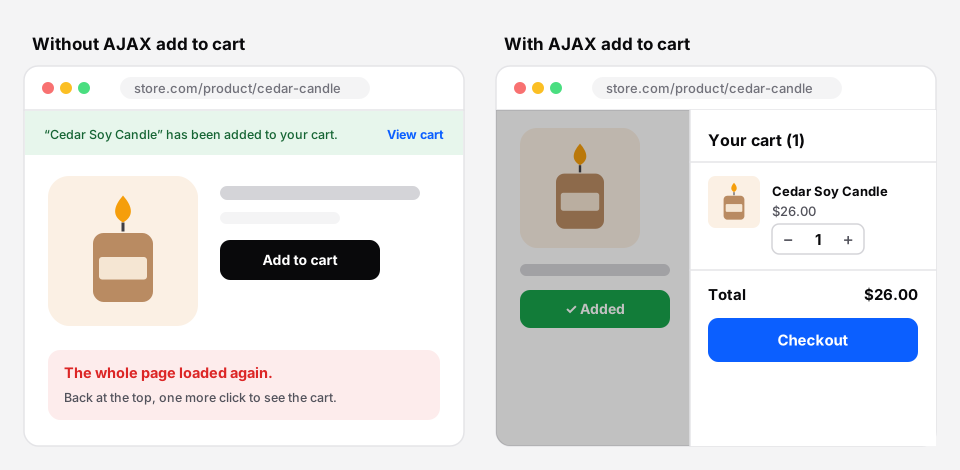 Same click, two experiences.
What WooCommerce does by default
Under WooCommerce → Settings → Products → General, the “Add to cart behaviour” section has two boxes:
- Redirect to the cart page after successful addition. Sends shoppers to the cart page after every add. Useful for stores where people buy one thing; tiring for everyone else.
- Enable AJAX add to cart buttons on archives. Archives are your shop page, category pages and tag pages. With it on, simple products are added from those pages without a reload.
Two gaps remain:
- Single product pages always reload. This is where most adds happen, because it is where the shopper chose a size or read the details.
- Variable products on archive pages show “Select options”, which takes the shopper to the product page. That is expected: they have to pick a size or color first.
How to add to cart without reloading on product pages
Option 1: a plugin (no code)
The free Nanflows Sliding Cart plugin adds to cart without a reload on shop, category and product pages, for simple and variable products, and opens a side cart with the product in it. Its settings are under NanCart → Settings → General → Behavior:
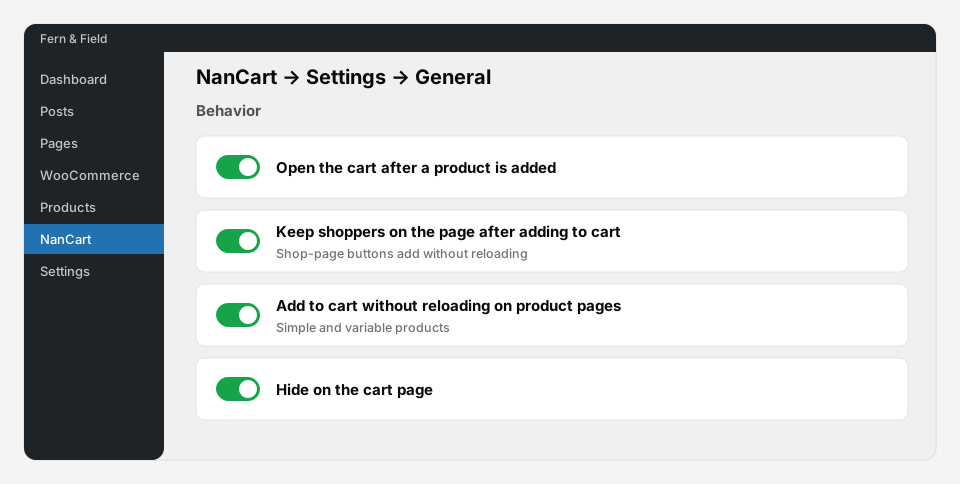 All four are on by default.
- Open the cart after a product is added. Turn it off if you only want the count to update.
- Keep shoppers on the page after adding to cart. While the sliding cart is on, WooCommerce’s “Redirect to the cart page” setting is ignored and shop-page buttons add without reloading.
- Add to cart without reloading on product pages. For simple and variable products. Other product types, such as grouped or external products, submit the normal way.
- Hide on the cart page. The side cart stays out of the way where the full cart is already on screen.
Option 2: custom code
A developer can catch the product form’s submit event, send it to WooCommerce’s add to cart endpoint, and refresh the cart fragments. It is a small job for a simple product and a bigger one once you handle variations, validation messages, out-of-stock errors, sold-individually products and other plugins that add fields to the form. If you go this way, test each of those.
What to check after you turn it on
- Variable products. Pick a size, add to cart, then try adding without picking one. The shopper should get WooCommerce’s message asking for a choice, not a silent failure.
- Stock limits. Add more than you have in stock. The error should show without a reload.
- Your analytics. Make sure add to cart events still reach Google Analytics or whatever you use. Some tracking setups only listen for the page reload.
- Product add-on plugins. Engraving fields, gift messages and other extra fields must still reach the cart. Add one and check the cart line.
- Caching. The header count must update after an add. If it doesn’t, see why the WooCommerce mini cart shows 0.
- Phones. Try it on a real phone, on mobile data, not just on desktop.
AJAX add to cart not working? What to check
If the button still reloads the page, or nothing happens when it’s clicked, go through these in order:
- You’re testing a product page. WooCommerce’s AJAX setting covers only shop, category and tag pages. Product pages reload unless a plugin or custom code changes that.
- The setting is off. Check Enable AJAX add to cart buttons on archives under WooCommerce → Settings → Products → General.
- Redirect to the cart is on. With Redirect to the cart page after successful addition ticked, the product is added and the shopper is sent to the cart anyway.
- It isn’t a simple product. Only simple products add from shop pages. Variable, grouped and external products link to their product page.
- A JavaScript error stops it. Open the browser console, click the button and look for red errors. Optimization plugins that delay, defer or combine scripts are a common cause; exclude WooCommerce’s add-to-cart script from them.
- The theme’s button lost WooCommerce’s classes. Shop buttons need the
add_to_cart_buttonandajax_add_to_cartclasses. A theme or page builder that rebuilds the button without them falls back to a normal link. - The item was added, but the count didn’t change. That’s caching or cart fragments, not AJAX. See why the WooCommerce mini cart is not updating.
Is it worth it?
For most stores, yes. A page reload takes the shopper away from what they were looking at, and on a phone it takes long enough to lose some of them. Every store with more than a few products benefits from people adding a second item easily.
The exception is a store that sells one product and wants everyone at checkout as fast as possible. There, a redirect to checkout can be the better flow.
Get it
- Free: Nanflows Sliding Cart on WordPress.org: AJAX add to cart on every page, a side cart, a floating cart icon and a menu cart.
- Pro: a sticky add-to-cart bar, upsells and a free shipping bar on the Nanflows Sliding Cart page, $39 a year for one site.
- Related: how to add a side cart to WooCommerce and the WooCommerce sliding cart.
FAQ
How do I enable AJAX add to cart in WooCommerce?
Go to WooCommerce → Settings → Products → General and tick “Enable AJAX add to cart buttons on archives”. That covers shop and category pages. For single product pages you need a plugin such as Nanflows Sliding Cart, or custom code.
Why does my WooCommerce product page reload when I click Add to cart?
Because WooCommerce’s product page form is a normal form, and WooCommerce’s AJAX setting only applies to shop and category pages. A plugin or custom code is needed to add without a reload on product pages.
Does AJAX add to cart work with variable products?
On shop pages, variable products show “Select options” and link to the product page, because a size or color has to be chosen first. On the product page, a plugin like Nanflows Sliding Cart adds the chosen variation without a reload.
Is AJAX add to cart bad for SEO?
No. It only changes what happens after a click. Your product pages, their content and their links stay the same for search engines.
Why is AJAX add to cart not working in WooCommerce?
Most often because you are on a product page (WooCommerce only adds without a reload on shop and category pages), the archive setting is off, the cart redirect is on, or a JavaScript error or optimization plugin is stopping WooCommerce’s add-to-cart script.
Why doesn’t the cart count update after AJAX add to cart?
Usually a page cache, or a theme header cart that doesn’t receive WooCommerce’s cart fragments. Exclude cart and checkout from the cache, and check the browser console for JavaScript errors.