In short: a quantity discount makes one product cheaper the more the shopper buys (“buy 3, save 10%”). In WooCommerce, Nanflows Bundles Pro does it two ways: Quantity Break for one product with a few clear tiers, and Volume for several products where any mix counts towards the tier. Use two or three tiers, with the middle one as the obvious pick.
If you sell something people use up (coffee, protein, candles, socks, filters), a quantity discount is probably the single easiest way to raise your order value. The shopper was going to buy again anyway. You’re just giving them a reason to do it today.
There are two ways to run it in WooCommerce with Nanflows Bundles Pro, and they suit different products.
Quantity Break: one product, a few clear choices
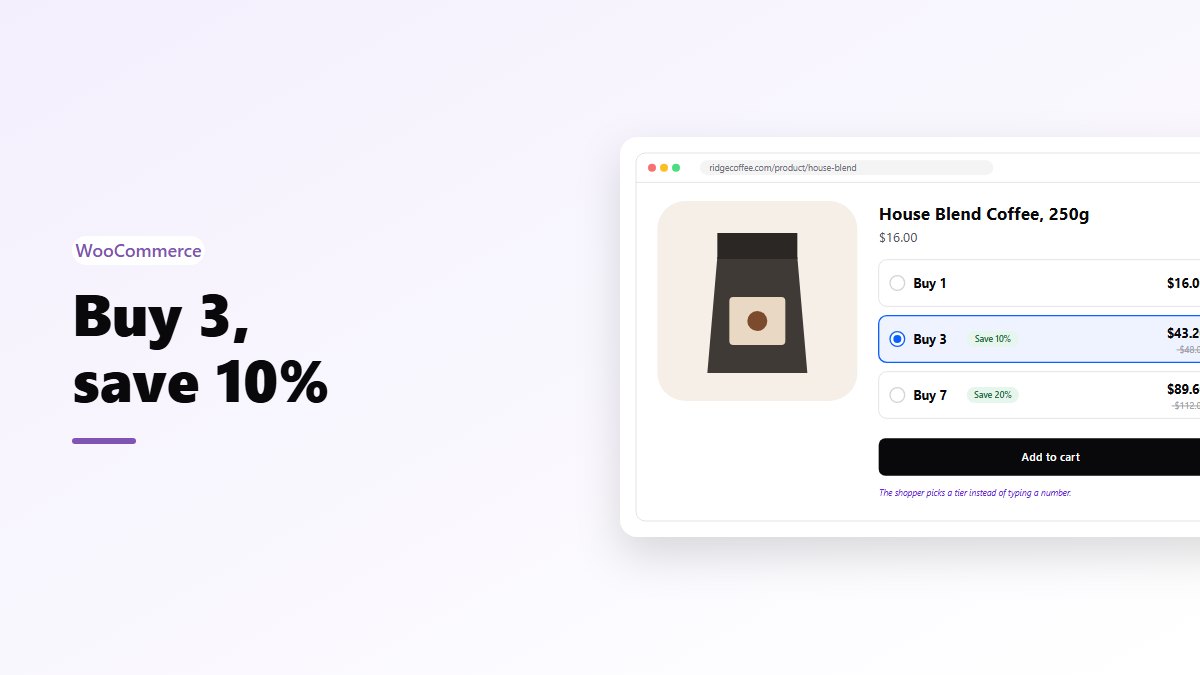
A quantity break is about one product. The shopper sees a few options and picks one:
- Buy 1
- Buy 3, save 10%
- Buy 7, save 20%
They choose a tier rather than typing a quantity. That’s the strength of it: three clear choices are easier than a number box and a pricing table.
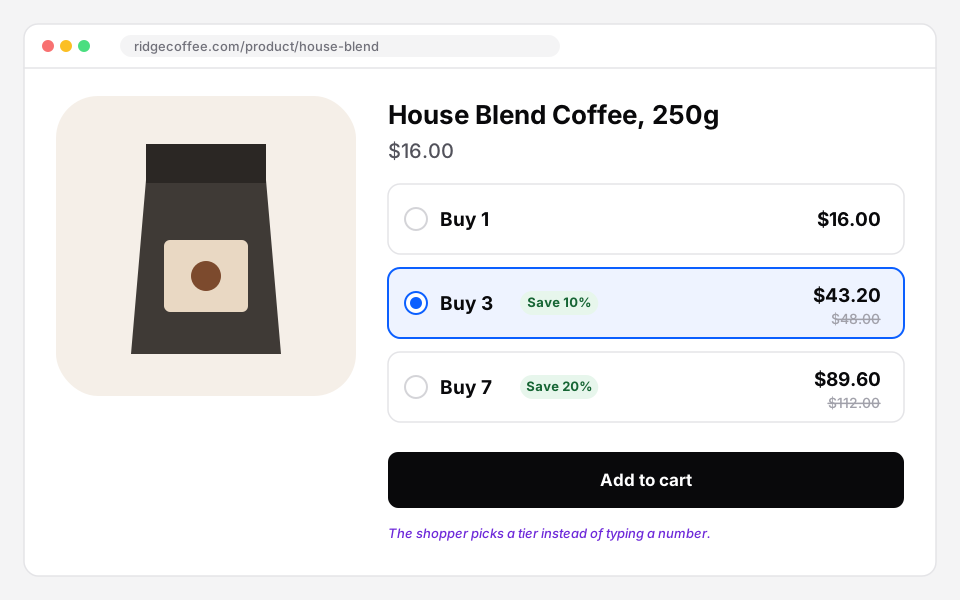 A quantity break: three clear choices instead of a quantity box. Sample store.
It shows on that product’s own page automatically. You don’t need to pick pages.
Setting it up
- Bundles → Create Bundle → Quantity Break.
- Add the one product. Add a second and the editor tells you: “A quantity break is for one product. Remove the others, or use a Volume bundle.”
- Add the Discount tiers: for each, a quantity (2 or more) and a percentage off (1% to 99%).
- Publish.
Volume: any mix counts
A volume bundle can hold one product or several, and every unit counts towards the tiers, whatever the mix:
- Buy 2: 5% off
- Buy 3: 10% off
- Buy 5: 20% off
Two red T-shirts and one blue one is 3 items, so 10% off. The highest tier reached applies.
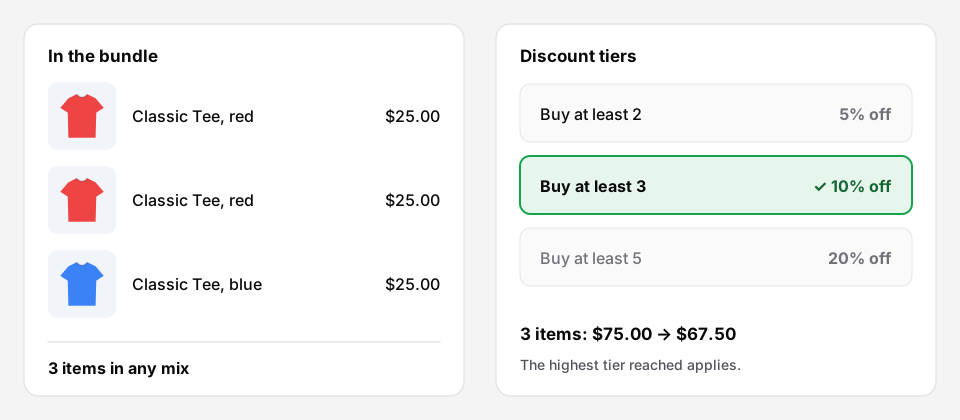 Volume: any mix counts. Two red tees and a blue one reach the 3-item tier.
You can also set the fewest and the most items a shopper can take in one go.
Setting it up
- Bundles → Create Bundle → Volume.
- Add the product, or the products that count together.
- Add the tiers: Buy at least and Discount (%).
- Pick the product pages, and publish.
Which one?
- People buy more of the same thing: Quantity Break.
- People buy several things from a range, in their own mix: Volume.
- People want to pick an exact set, like a box of 6: that’s mix & match or a variety pack.
How to set the tiers
This is where these offers usually go wrong.
Make the first step worth it. If going from 1 to 2 saves 2%, nobody moves. 5–10% on the first tier gets attention.
Base the top tier on real orders. If most of your orders have 1 or 2 of the product, a tier at 3 is a nudge. A tier at 12 is decoration.
Three tiers, at most four. Every extra option is something to read.
Know your margin at every tier. 20% off at 7 units is fine if your margin is 60%. It isn’t if it’s 25%.
Round, readable numbers. “Buy 3, save 10%” beats “Buy 4, save 12.5%”.
What about a discount across the whole cart?
Both bundle types work on the product page, where the shopper chooses the quantity. If you want the discount to grow with the whole cart instead, whatever is in it, that’s a cart-level bulk discount. Nanflows Sliding Cart Pro does that, with the tiers shown in the cart drawer. Some stores use both.
Set up your tiers
- Nanflows Bundles Pro has both Quantity Break and Volume bundles. $39 a year for one site, or $149 for up to five, and a first purchase can be refunded within 14 days.
- It builds on the free Nanflows Bundles plugin from WordPress.org.
- More on WooCommerce volume discounts, and the difference between volume discounts and quantity breaks.
FAQ
Does stock still work?
Yes. Each unit comes off the product’s own stock. A tier that needs more than you have can’t be bought.
Do shoppers need a coupon?
No. The tier discount is part of the bundle’s price.
Can I offer this on many products at once?
A quantity break is set up per product, so each product gets tiers that suit its price and margin. A volume bundle can hold several products that share the same tiers.