Nanflows
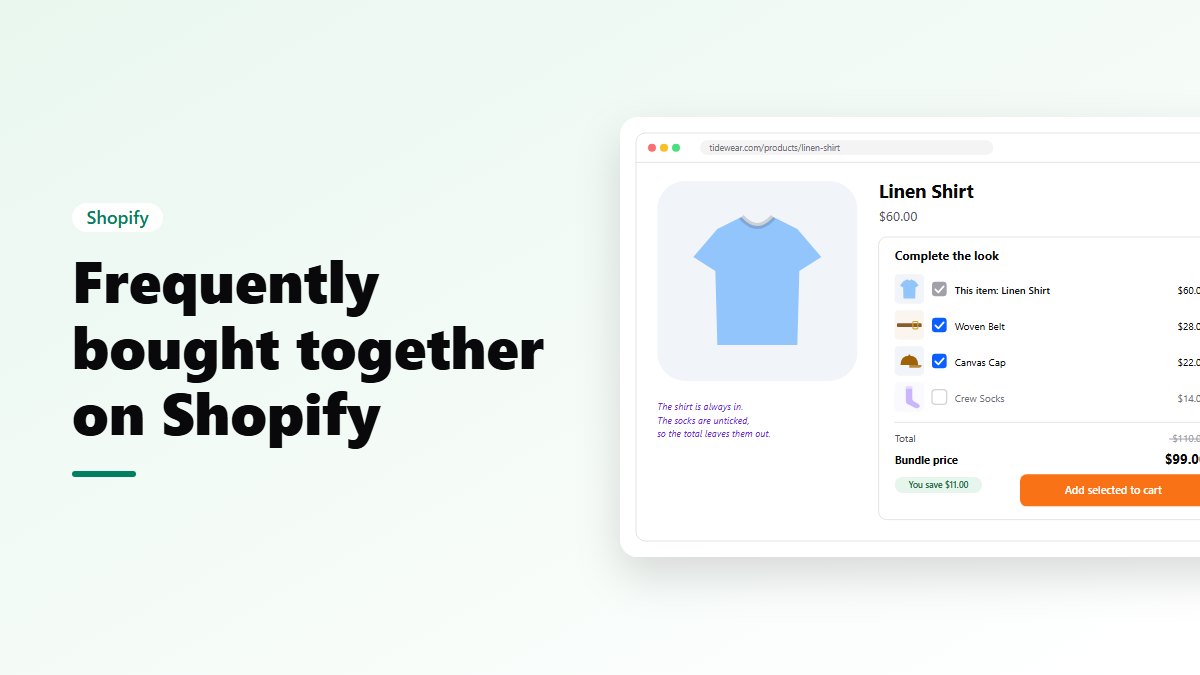
In short: Shopify has no frequently bought together box built in. Its free Search & Discovery app lets you choose complementary products for each product, and the free themes can show them on the product page, but as separate cards with no combined price, no single button and no discount. For a real frequently bought together box, with the extras already ticked, one total and a saving for buying them together, use a bundle app such as Nanflows Bundles for Shopify, which includes it on the Free plan. Suggest two or three items that finish the main product, and keep the discount small.
Frequently bought together is the box on a product page that shows the product next to two or three things people usually buy with it, already ticked, with one price for all of them. On Shopify it is one of the easiest ways to increase average order value, because it asks for nothing new: the shopper has already chosen the main product.
This guide covers both ways to set up frequently bought together on Shopify, what to suggest (the part most stores get wrong), how much discount to give, and how to tell whether it is working.
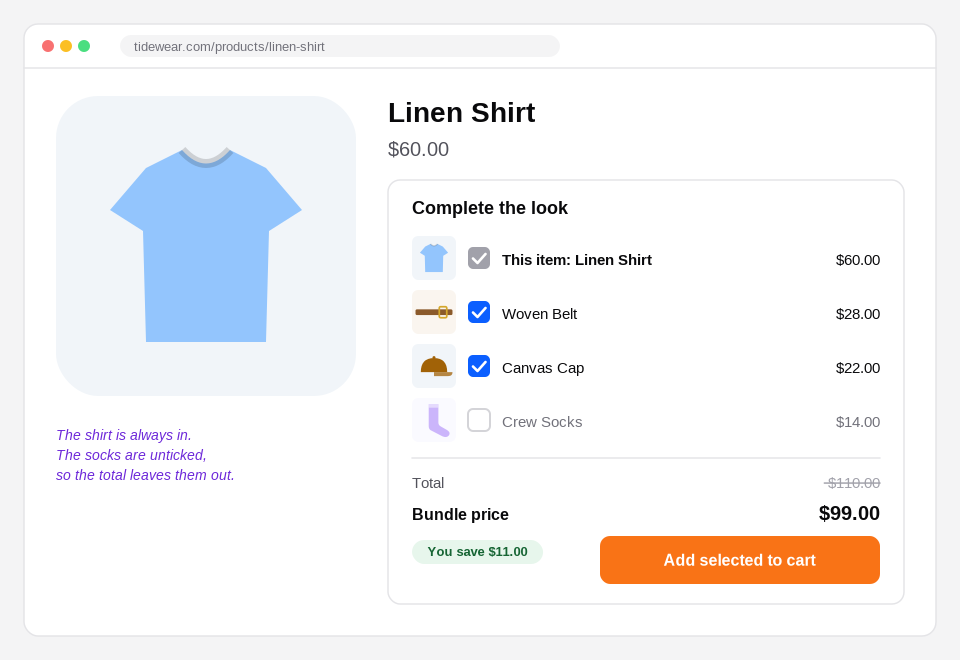 A frequently bought together box made with Nanflows Bundles. Sample store.
What frequently bought together means on Shopify
The shopper sees the product they are looking at, plus a few suggestions. Each suggestion has a checkbox, and they all start ticked. Unticking one takes it out of the total, and one button adds everything still ticked to the cart.
It is easy to confuse with three other things a product page can show:
| On the page | What it shows | On a linen shirt page |
|---|---|---|
| Related products | Alternatives to this product | Two other shirts |
| Complementary products | Things that go with it, as separate cards | A belt and a cap, each with its own button |
| Frequently bought together | The product plus extras, ticked, with one total and one button | Shirt, belt and cap, $11 off together |
| Fixed bundle | A set sold only as a set | The Summer Outfit, $79 |
Related products help shoppers who haven’t decided yet. Frequently bought together is for shoppers who have, and it works because it saves them a second search.
Option 1: the free way, with Shopify’s own tools
Shopify gives you the pieces for free. You set them up in three places.
- Choose the complementary products. Install Shopify’s free Search & Discovery app, open Product recommendations, pick a product and add its complementary products. Repeat for every product that should show suggestions.
- Show them on the product page. In Online Store > Themes > Customize, open the product template and add the Complementary products block to the product information section. Dawn and the other free Online Store 2.0 themes have it.
- Add a discount, if you want one. Under Discounts, create an automatic Buy X get Y discount: the customer buys the main product and gets the extras at, say, 10% off.
For a small catalog that is a fair start. The limits show up quickly, though:
- The suggestions are separate cards. There is no total for the set and no single button that adds them all.
- Shoppers don’t see the discount on the product page, so it can’t persuade them there. They find it in the cart, if the discount fits what they added.
- Each pairing needs its own discount, and a Shopify store can have at most 25 active automatic discounts at once.
- Choosing a size or color means opening each product.
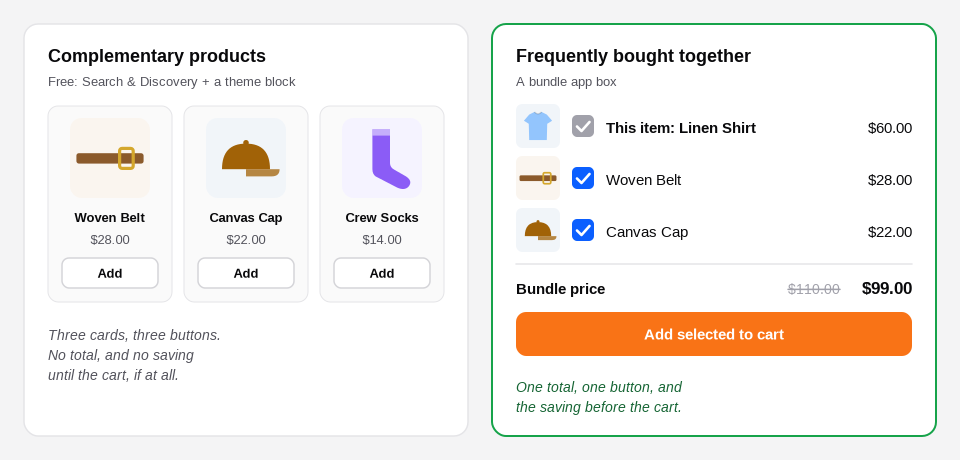 Left: complementary product cards. Right: a frequently bought together box. Sample store.
Option 2: a frequently bought together box with Nanflows Bundles
Nanflows Bundles has frequently bought together as one of its 11 bundle types, on every plan including Free. The bundle editor has six steps: Name & type, Where to show, Products, Price & discount, Design and Review & publish.
- Name & type. Give the bundle a name and choose Frequently bought together. The name is the heading shoppers see, unless you write another heading or hide it.
- Where to show. Choose the product pages: Products I choose, Products in collections I choose, All products, except some or All products. The product whose page it shows on is always the main product.
- Products. Pick the suggested products, and for each one the sizes or colors shoppers may choose.
- Price & discount. Choose Percentage off, Money off, Bigger discount for more items (for example 5% off for 2 items and 10% for 3) or No discount. The discount starts once the main product and at least one suggestion are in.
- Design. A list, a row or a grid; your brand color; the button text, which starts as Add selected to cart; whether to show item prices and the saving; and size and color choices as boxes or a dropdown.
- Review & publish. Then add the app block once in the theme editor. It is a theme app block, so there is no theme code to edit.
On the product page, the shopper sees the main product and the suggestions, ticked, with the Total crossed out, the Bundle price under it and a You save line. Each item goes into the cart as its own line with the discount on it, so stock, shipping and refunds work item by item, the way they already do. A suggestion that is out of stock can’t be ticked, and if the main product sells out, the button changes to Sold out.
What to suggest
The box only works when the suggestions are things the shopper was going to need anyway. Three rules:
- Finish the job, don’t offer a choice. A shirt goes with a belt. A second shirt is an alternative, and alternatives make people stop and compare.
- Two or three suggestions. More than that turns a quick yes into a decision.
- Smaller than the main product. A $28 belt next to a $60 shirt feels like a small step; a $90 jacket doesn’t. That is a rule of thumb, so test it on your own store.
The best source is your own orders. In Orders, export the last 90 days as a CSV and count which products appear on the same orders as your best sellers. A pair that shows up again and again is your first box.
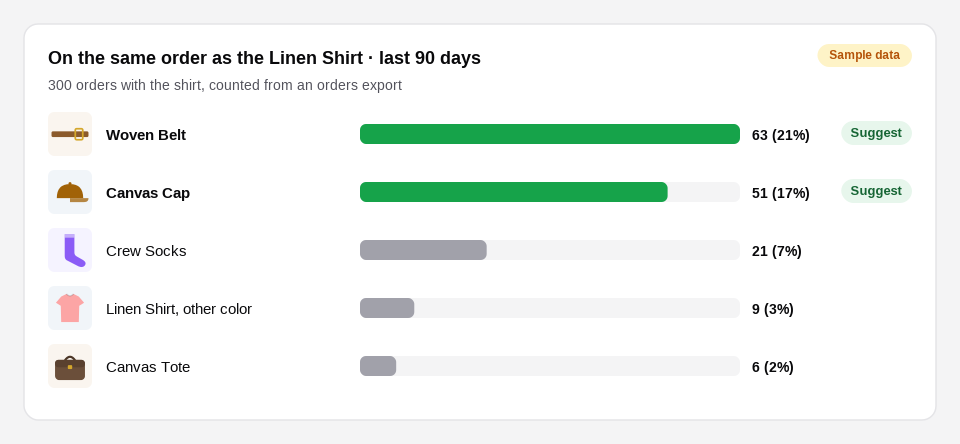 Count the pairs in your own orders. The top two become the suggestions. Sample data.
Ideas by store type:
| Store | Main product | Suggest |
|---|---|---|
| Apparel | Linen shirt | Woven belt, canvas cap |
| Beauty | Face cleanser | Moisturizer, SPF 30 |
| Coffee | 12 oz bag of beans | Paper filters, a mug |
| Pets | 24 lb bag of dog food | Training treats, poop bags |
| Electronics | Phone case | Screen protector, charging cable |
| Home | Soy candle | Wick trimmer, matches |
More pairings, and why they work, are in 12 cross-selling examples. The difference between adding items and trading up is in upsell vs cross-sell.
How much discount to give
Frequently bought together often sells with no discount at all, because it saves the shopper time. A small discount gives the box a reason to be noticed:
- 5% to 10% off the set, or a round amount such as $5 off.
- More off for more items: 5% for two items, 10% for all three. It rewards keeping every box ticked.
- Check the math against your margin. On a $60 shirt, a $28 belt and a $22 cap, 10% off the set is $11. That has to come out of the extras’ margin, or you are paying people for the shirt they had already chosen.
Not sure which works? Run both. Nanflows Bundles has A/B tests on every plan, and how to A/B test bundle offers on Shopify explains what to compare and for how long. For pricing the set itself, see the bundle pricing strategy guide.
One thing to know before a sale: the bundle discount combines with order discounts and free shipping discounts, but not with other product discounts. If a sitewide product discount is running on Black Friday, the shopper gets one of the two on those items, not both.
Where to put it on the page
- Near the add to cart button, so shoppers see it before they leave the product.
- One box per page. If more than one bundle can show on a product, Position on the page decides which comes first.
- The same extra on many products: use Products in collections I choose or All products, except some with something that goes with everything, such as gift wrap or a care kit.
How to tell if it is working
Compare three numbers for the products with the box, for two weeks before and two weeks after:
- Attach rate: orders with at least one suggestion, divided by orders of the main product.
- Average order value of those orders. The average order value calculator and how to calculate AOV help here.
- Conversion rate of the main product. If it drops, the box is getting in the way.
The Nanflows Bundles list shows each bundle’s orders and revenue, and the Analytics page goes further. Judge on normal weeks, not the week of a big sale.
Mistakes that make the box ignored
- Suggesting alternatives instead of things that go with the product.
- The same suggestions on every product, even where they don’t fit.
- Hiding the saving. If shoppers can’t see what they save, the box is just a bigger price.
- Too many boxes. One frequently bought together box and one other offer per page is plenty.
Set it up with Nanflows Bundles
- Nanflows Bundles for Shopify: frequently bought together and 10 other bundle types, with A/B tests and analytics on every plan. Free up to $500 in bundle sales a month; Essential is $19, Growth $39 and Scale $79 a month, with a 15-day trial. Install it from the Shopify App Store.
- Step by step: the Nanflows Bundles help center.
- Other offers on the same page: volume discounts and quantity breaks, BOGO and buy X get Y, mix and match, and every type in how to create product bundles on Shopify.
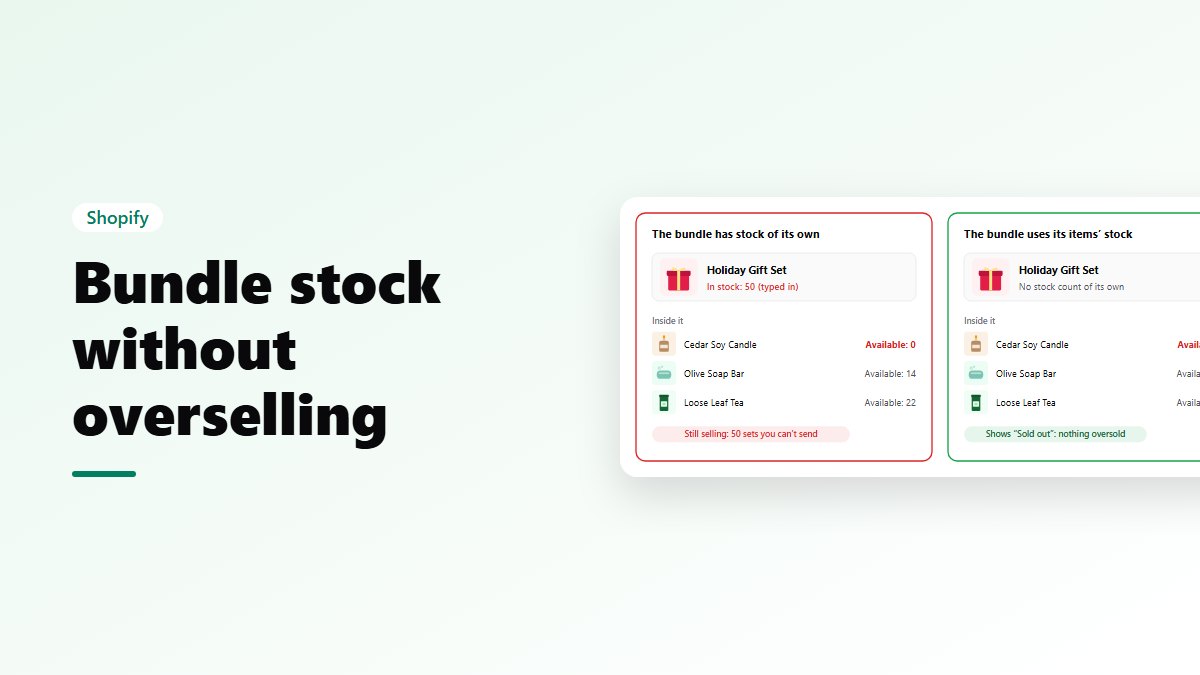
- Before a big sale: Shopify bundle inventory, so a bundle never sells stock you don’t have.
- Choosing an app: Shopify bundle apps compared.
FAQ
Does Shopify have frequently bought together built in?
Not as a box. Shopify’s free Search & Discovery app lets you set complementary products, and the free themes can show them as product cards. A frequently bought together box with checkboxes, one total and one button comes from an app.
How do I add frequently bought together to Shopify without an app?
Install Search & Discovery, which is Shopify’s own free app, set complementary products for each product, then add the Complementary products block to your product template in the theme editor. Add an automatic Buy X get Y discount if you want a saving.
Can I give a discount when products are bought together on Shopify?
Yes. With Shopify’s own discounts, create an automatic Buy X get Y discount for each pairing. With Nanflows Bundles, set a percentage, an amount or a bigger discount for more items, and shoppers see the saving on the product page before they add to cart.
How many products should frequently bought together show?
The main product plus two or three suggestions. More than that makes the shopper stop and choose, which is the opposite of what the box is for.
Does frequently bought together work with sizes and colors?
In Nanflows Bundles, yes. Shoppers pick the size or color of each suggestion inside the box, as boxes or a dropdown, from the variants you allow.
Is frequently bought together the same as a bundle?
It is a kind of bundle. A fixed bundle is sold only as a set. In frequently bought together the shopper keeps or removes each extra, and the main product can still be bought on its own.