Help center › Bundle settings
Design your bundle
Step 5 of the editor: the heading, a banner for the bundle's own page, colours, layout, texts, languages and custom CSS. The live preview shows every change.
-
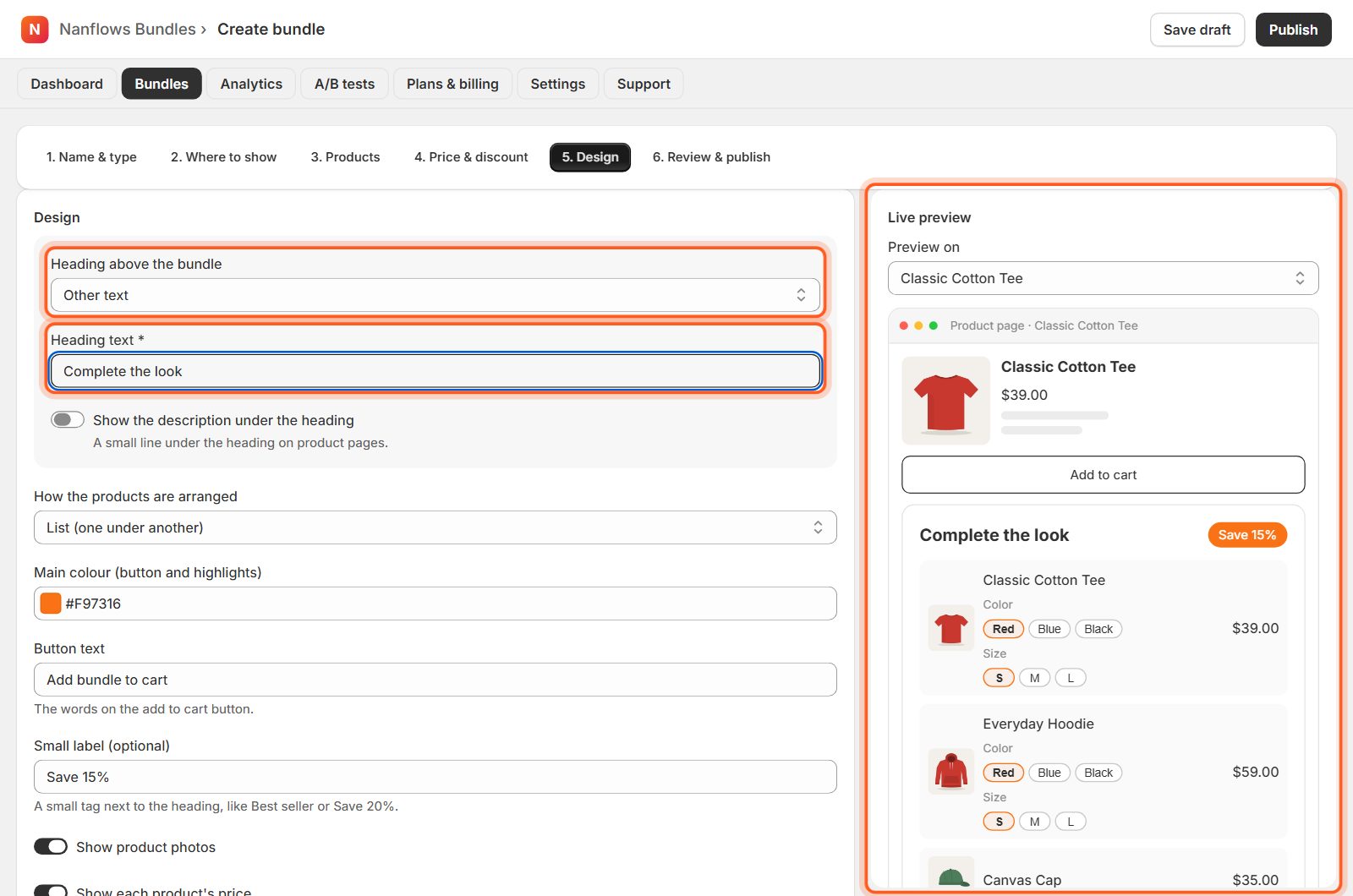
Heading above the bundle
Choose The bundle name, Other text (then type it in Heading text, for example Complete the look) or No heading. Shoppers still see the bundle's name in the cart.
-
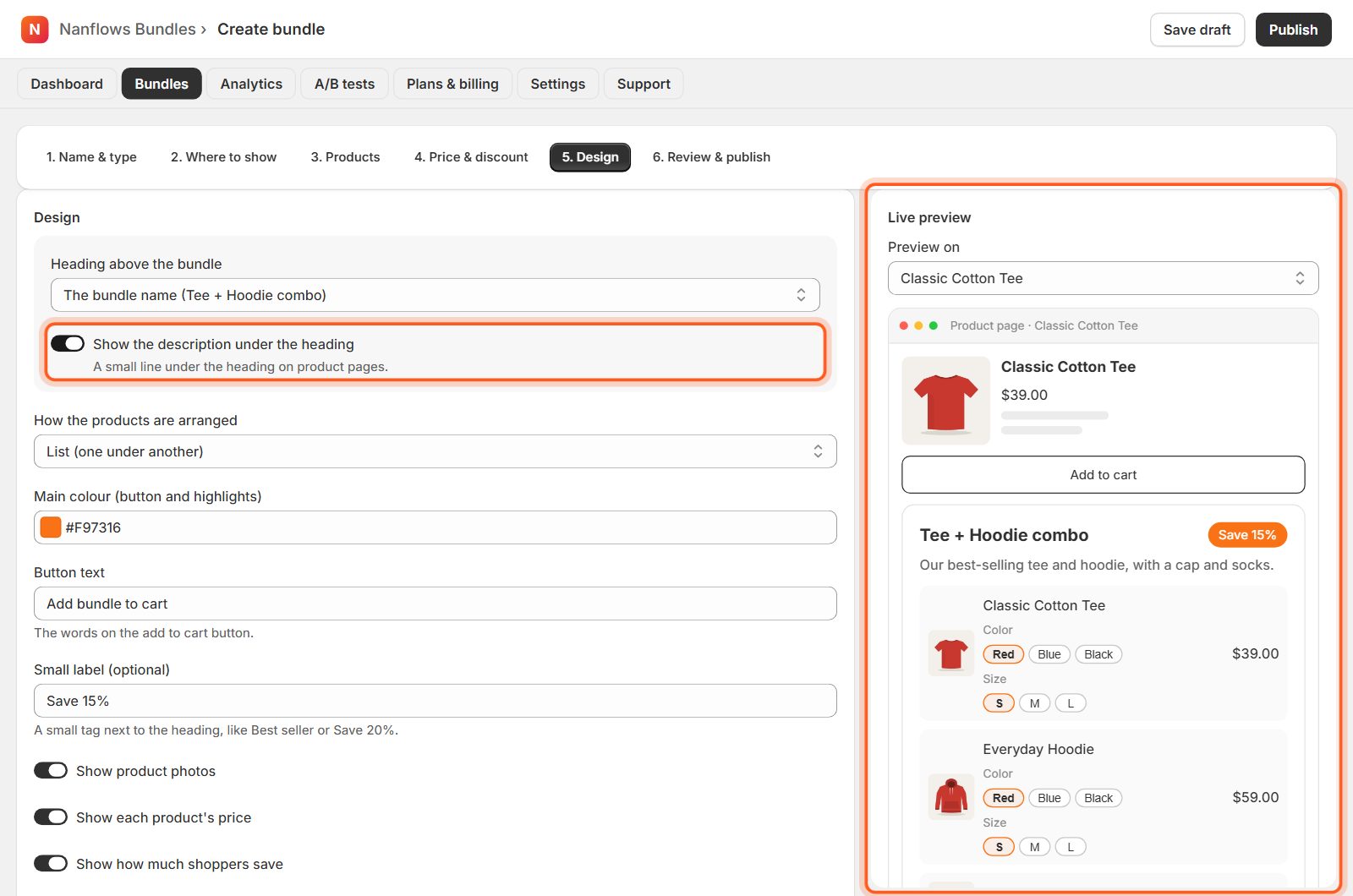
Show the description under the heading
Turn this on to show the description (from step 1) in small text under the heading on product pages.
-
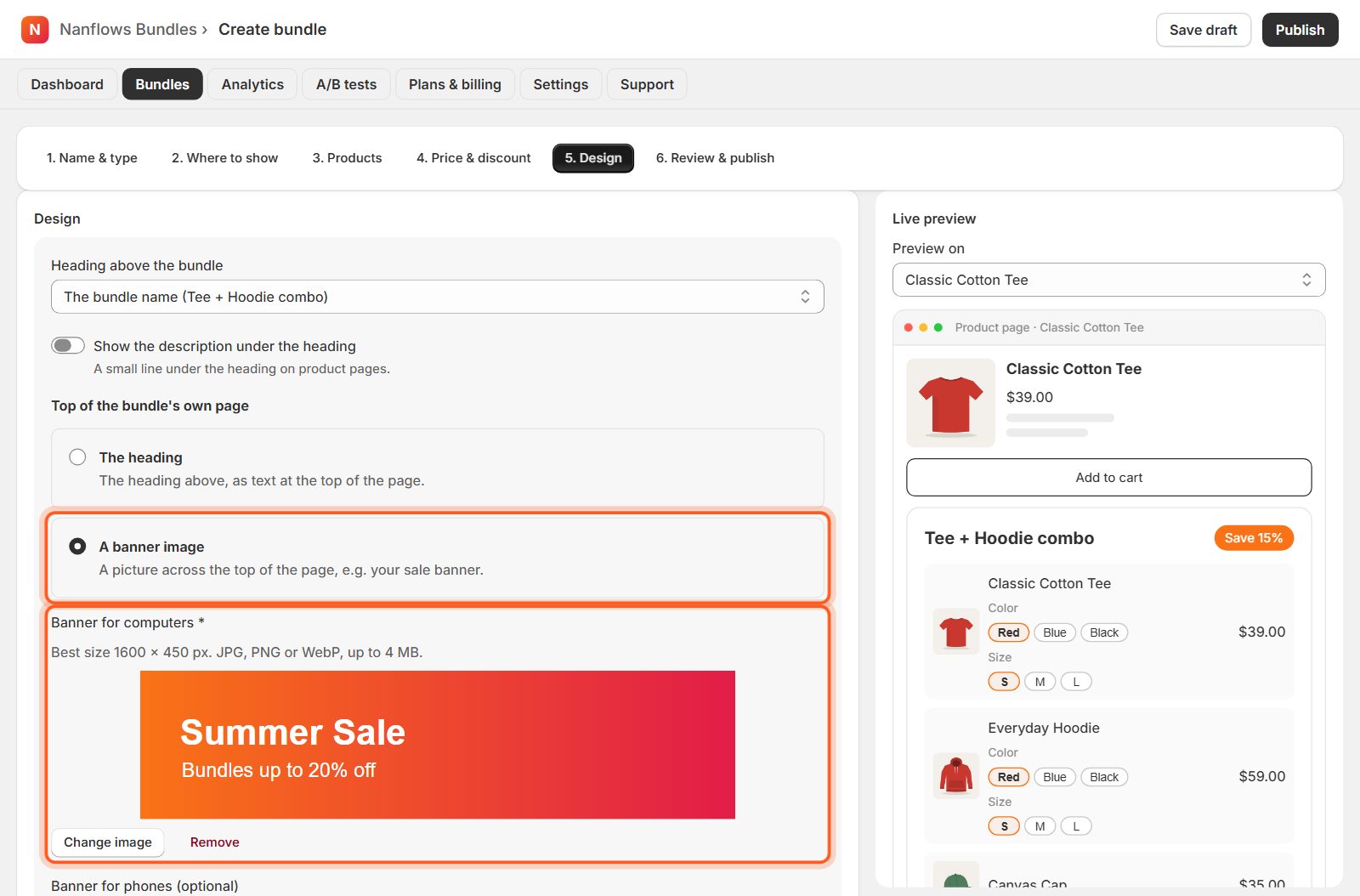
A banner for the bundle's own page
If the bundle has its own page (step 2), choose what goes at the top: The heading, or A banner image. For a banner, click Upload under Banner for computers; add a narrower Banner for phones if you like. JPG, PNG, WebP or GIF, up to 4 MB. Images are saved in your Shopify Files.
-
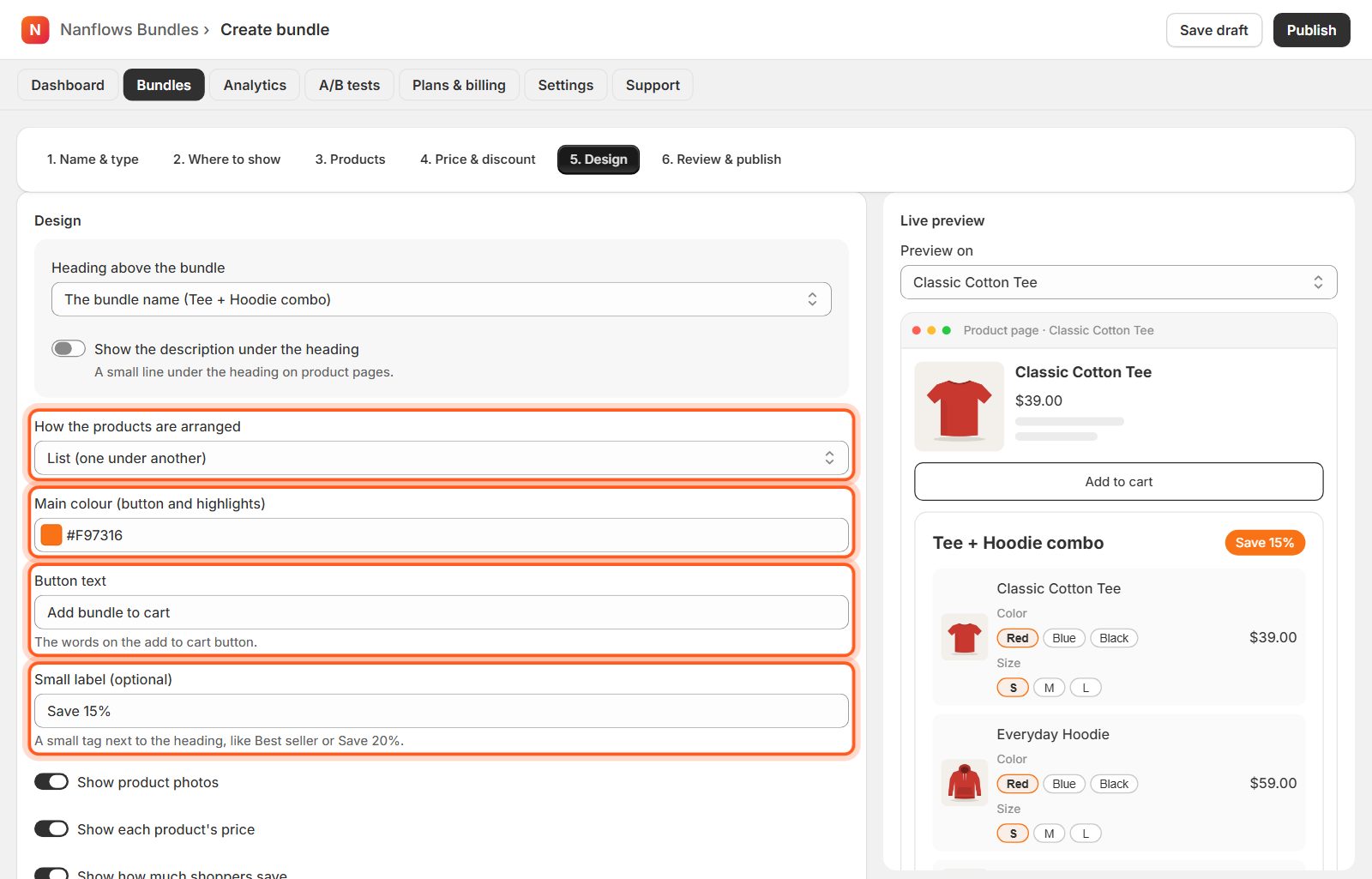
Layout, colour, button and label
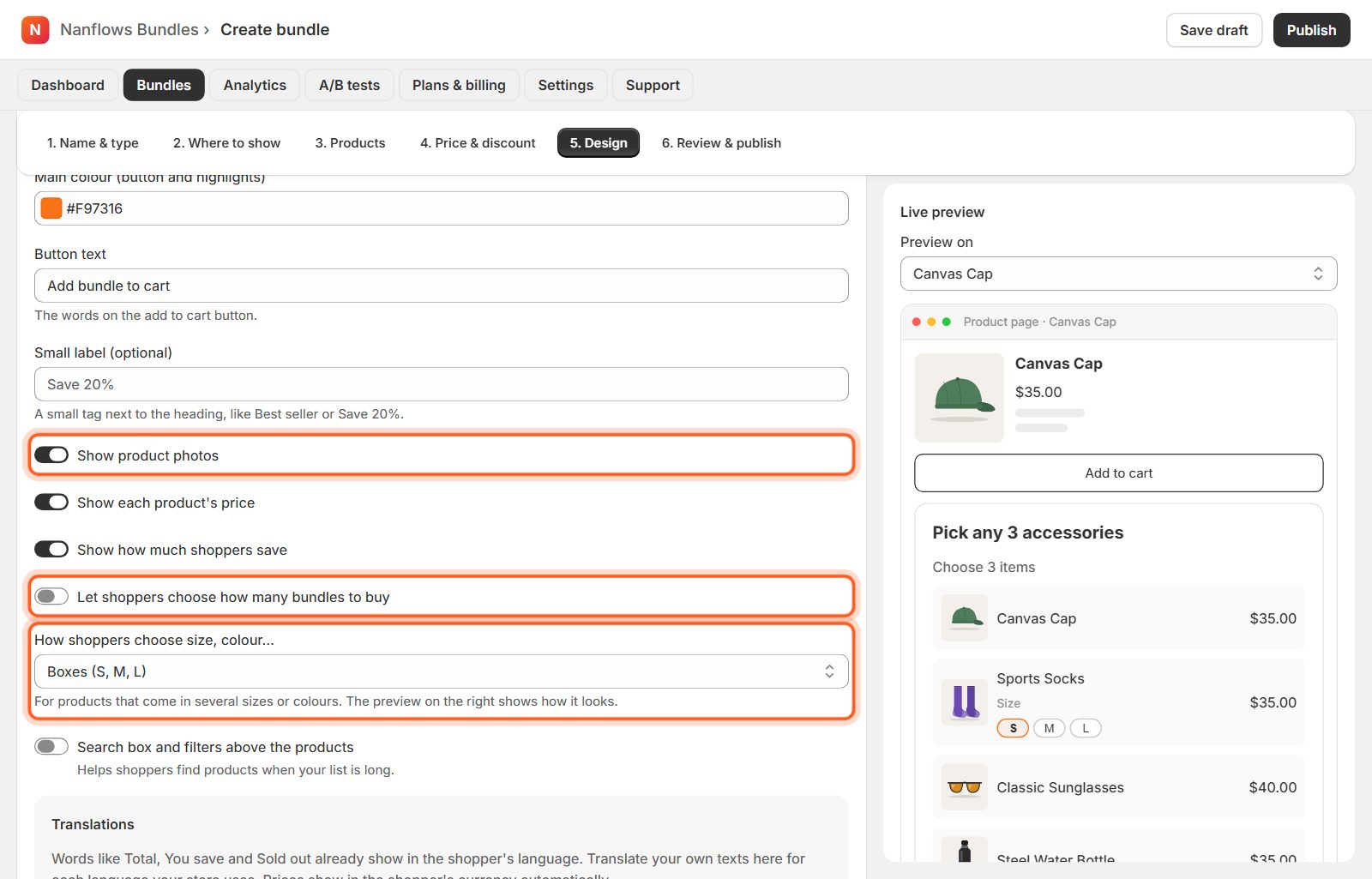
How the products are arranged: a list, a row side by side, or a grid of boxes. Main colour sets the button and highlights. Button text is the words on the add-to-cart button. Small label is a tag next to the heading, such as Best seller or Save 20%.
-
What shoppers see
Switches for product photos, each product's price, how much shoppers save, and choosing how many bundles to buy. How shoppers choose size, colour…: boxes (S, M, L) or a dropdown. Mix & match, build your own, gift box and volume bundles can also have a search box and filters for long lists.
-
Subscribe & save (optional)
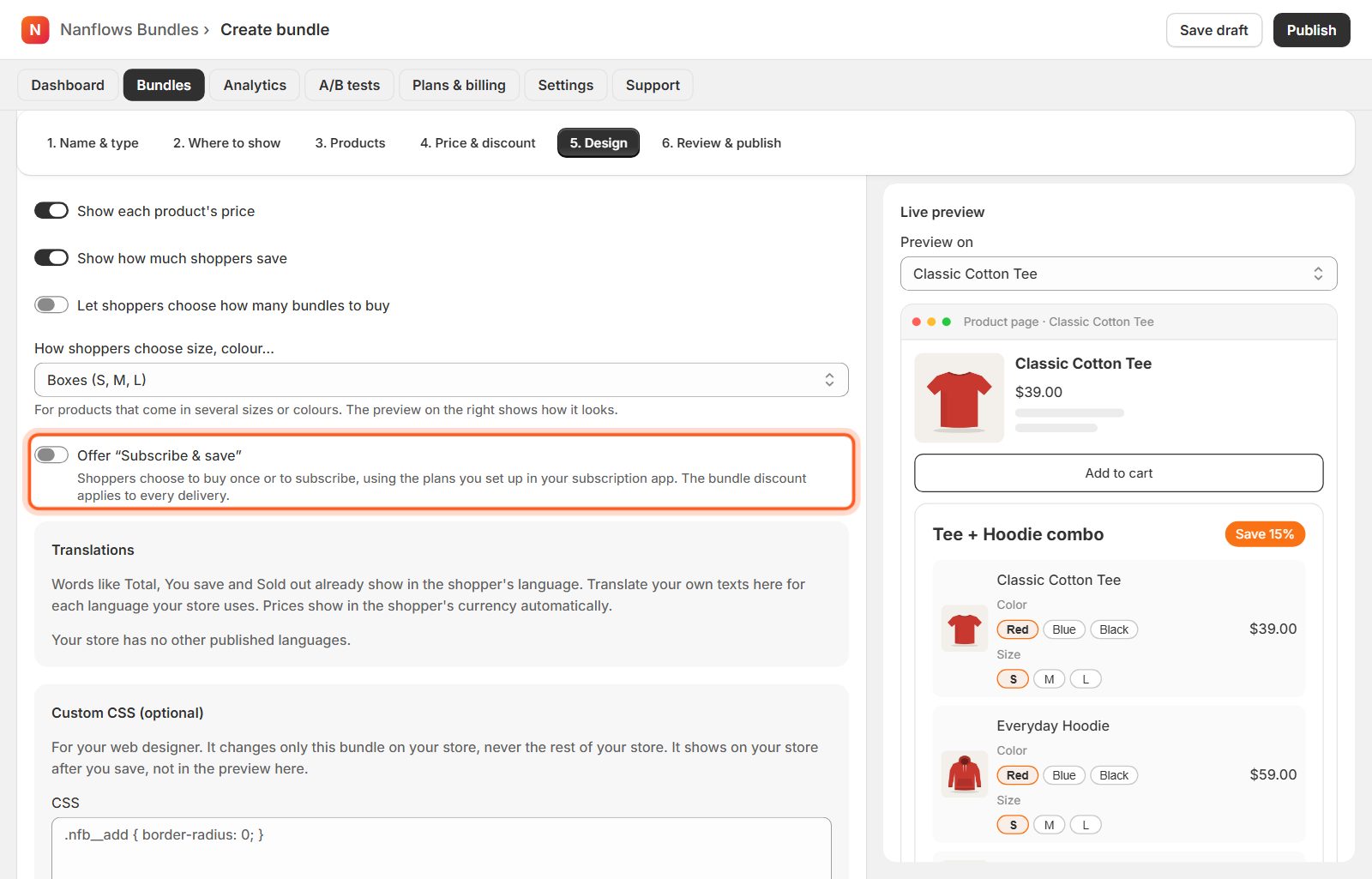
Shoppers choose to buy once or to subscribe, using the plans in your subscription app (for example Shopify Subscriptions); the bundle discount applies to every delivery. The switch shows when One item in the cart is off. The app checks your products and tells you which still need a subscription plan or a weight.
-
Translations
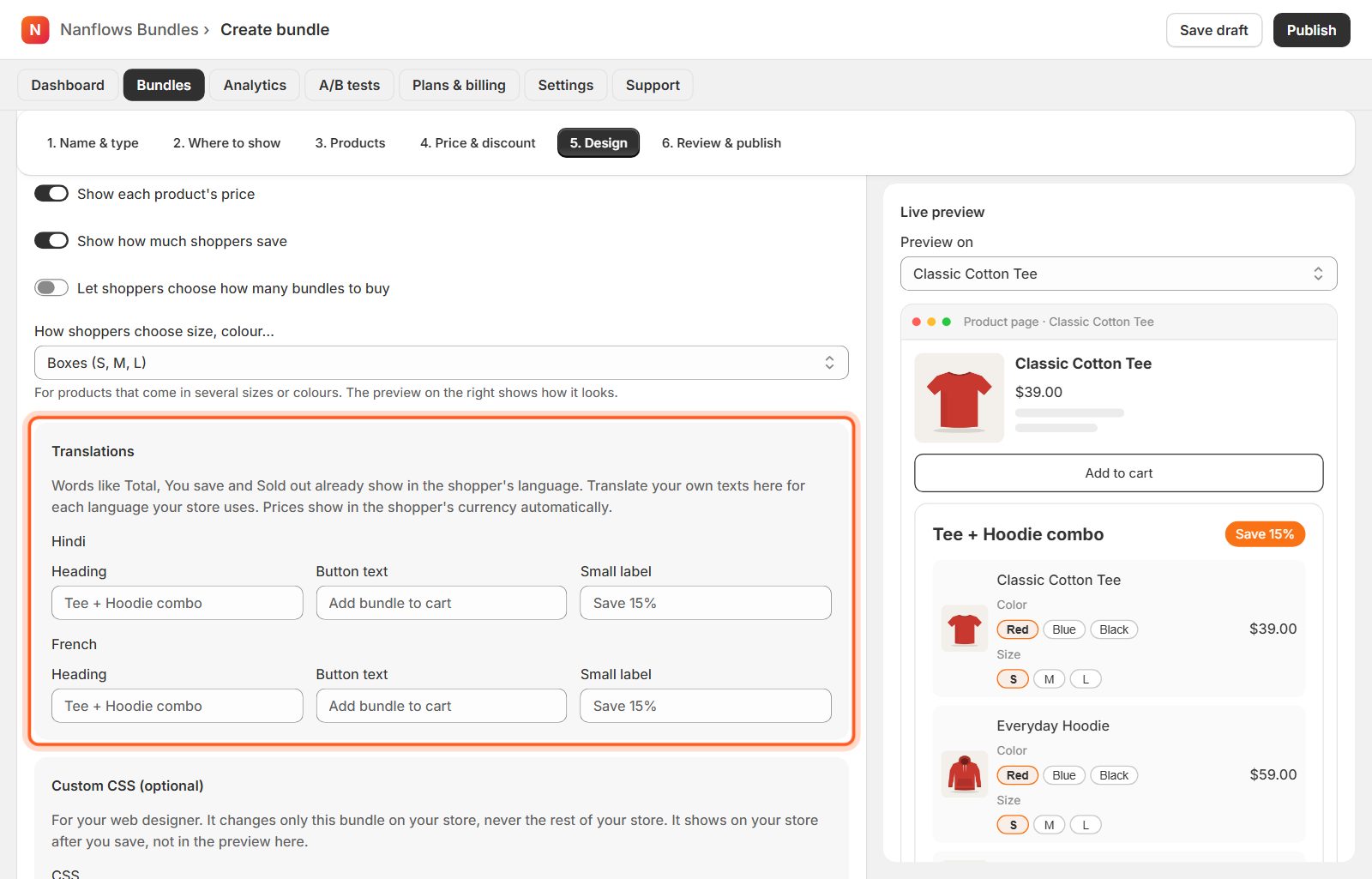
Words like Total, You save and Sold out already show in the shopper's language. Translate your own heading, button text and label for each language your store uses. Prices show in the shopper's currency automatically.
-
Custom CSS (for your web designer)
Paste CSS to style this bundle beyond the options above. It changes only this bundle, never the rest of your store, and shows on your store after you save (not in the preview). Useful names:
&the whole bundle box,.nfb__titlethe heading,.nfb__itemeach product,.nfb__addthe button,.nfb__totalsthe price. Unsafe or broken CSS is refused with a clear message when you save./* Paste into Design → Custom CSS, then Save */ & { border: 2px solid #111; border-radius: 16px; padding: 20px; } .nfb__title { font-size: 22px; letter-spacing: .5px; } .nfb__item { border-radius: 12px; } .nfb__add { background: #111; color: #fff; border-radius: 999px; } .nfb__totals { font-size: 18px; }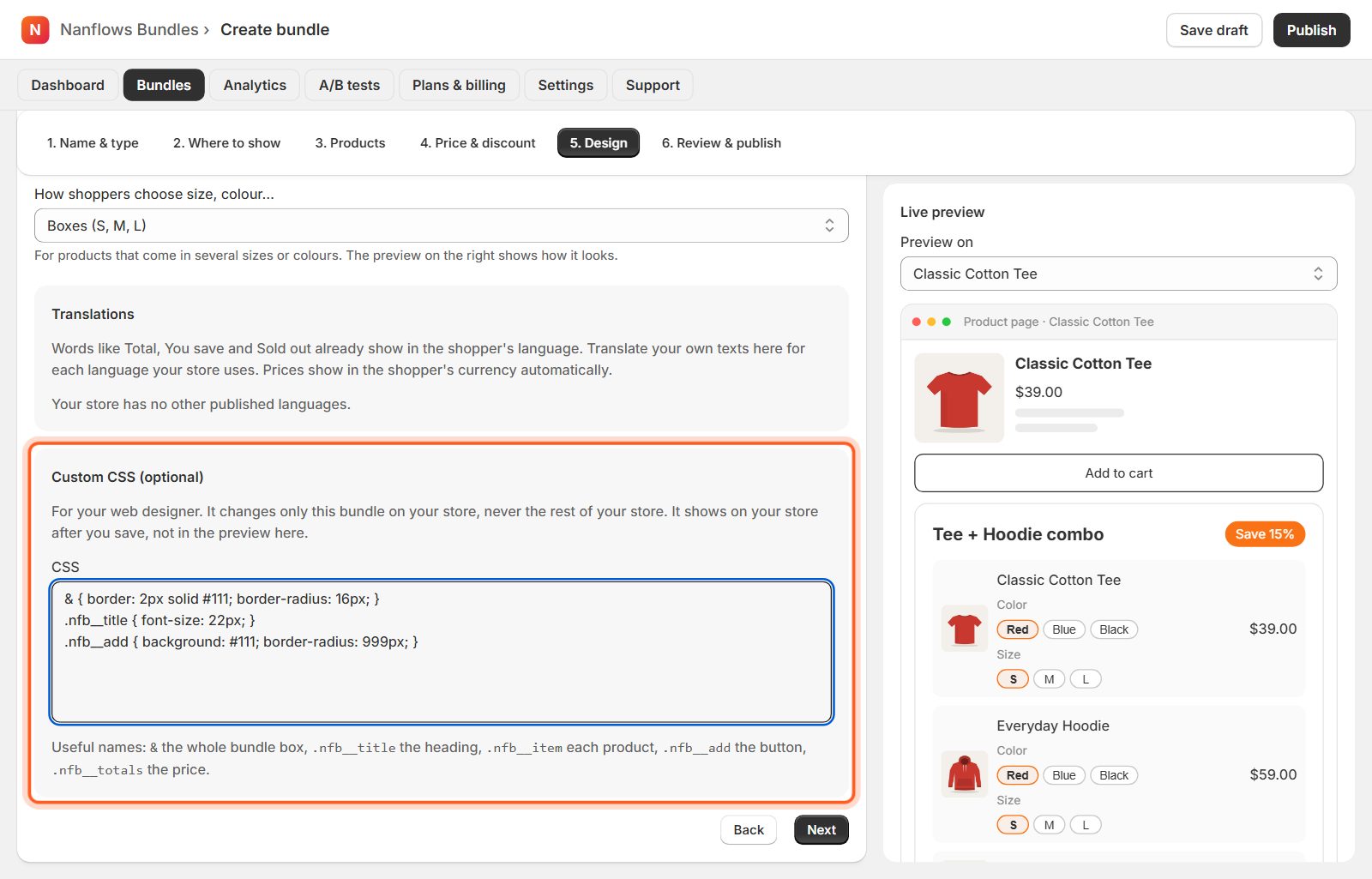
Nanflows Bundles for Shopify · Need help? support@nanflows.com