Help center › Get started
Get started with Nanflows Bundles
Set up the app in a few minutes: add the bundle block to your product page, create your first bundle, and show shoppers what they saved.
-
Open the app
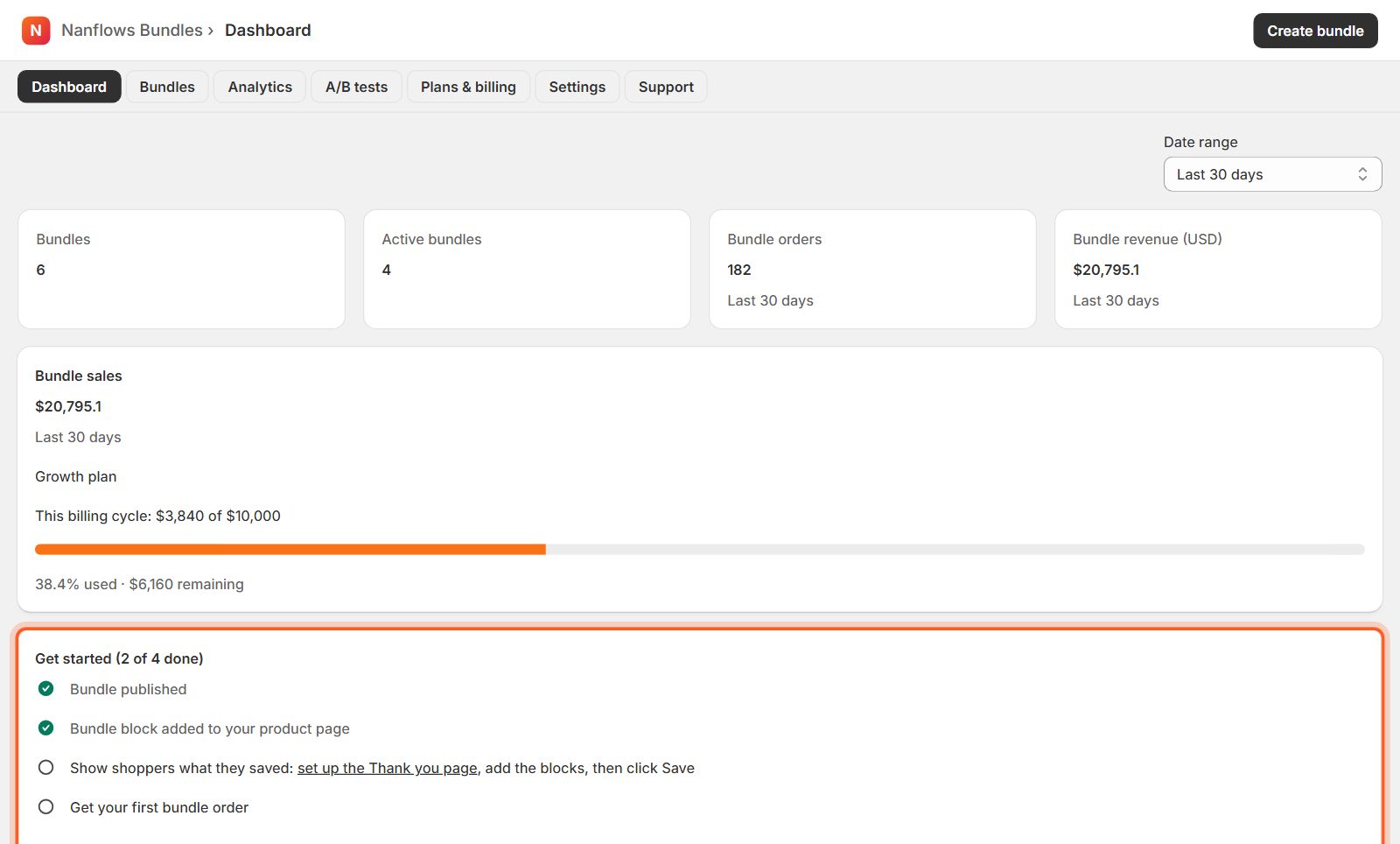
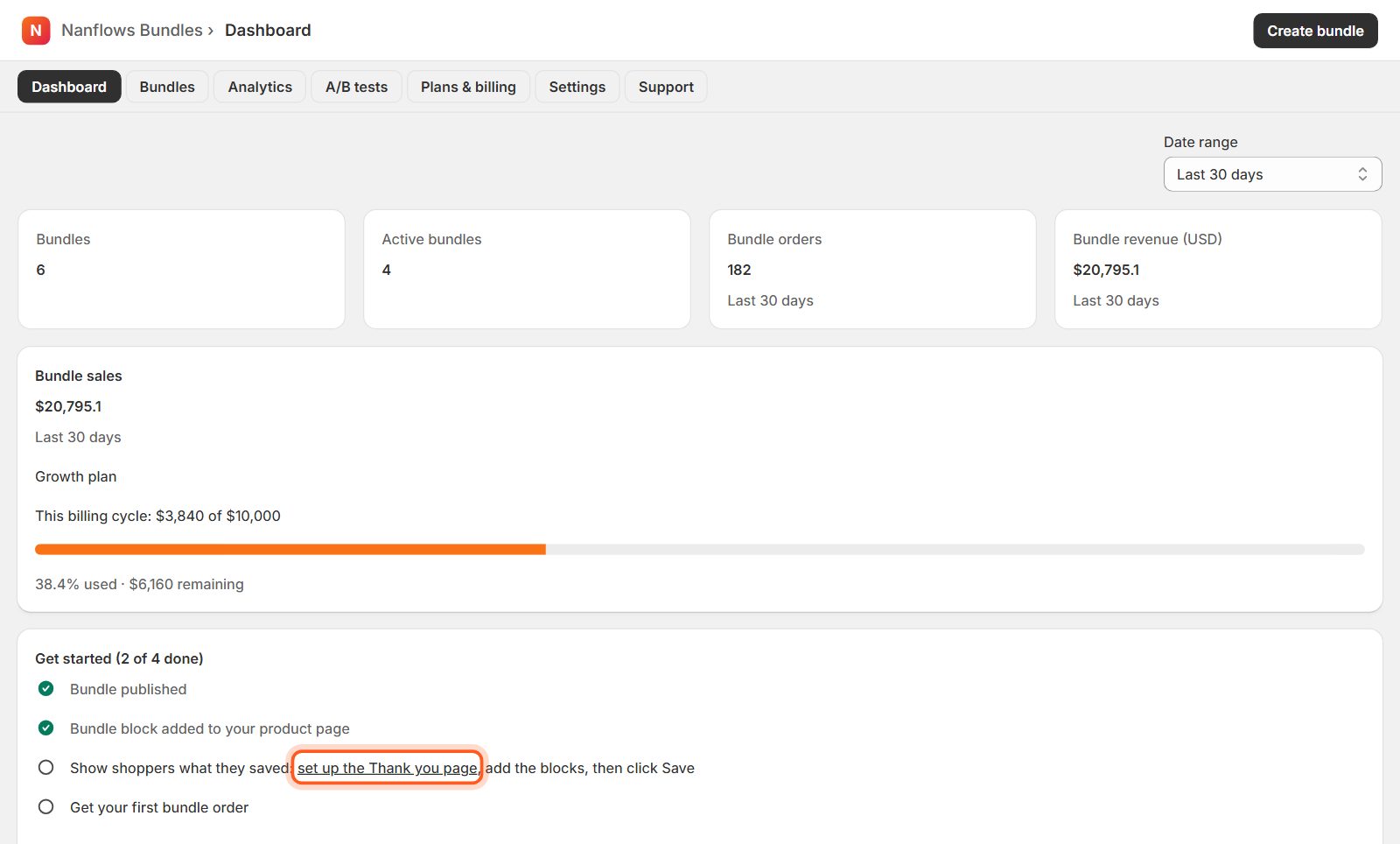
After installing, open Apps → Nanflows Bundles in your Shopify admin. The Dashboard shows your bundles, bundle orders and revenue, and a Get started list that ticks itself off as you go.
-
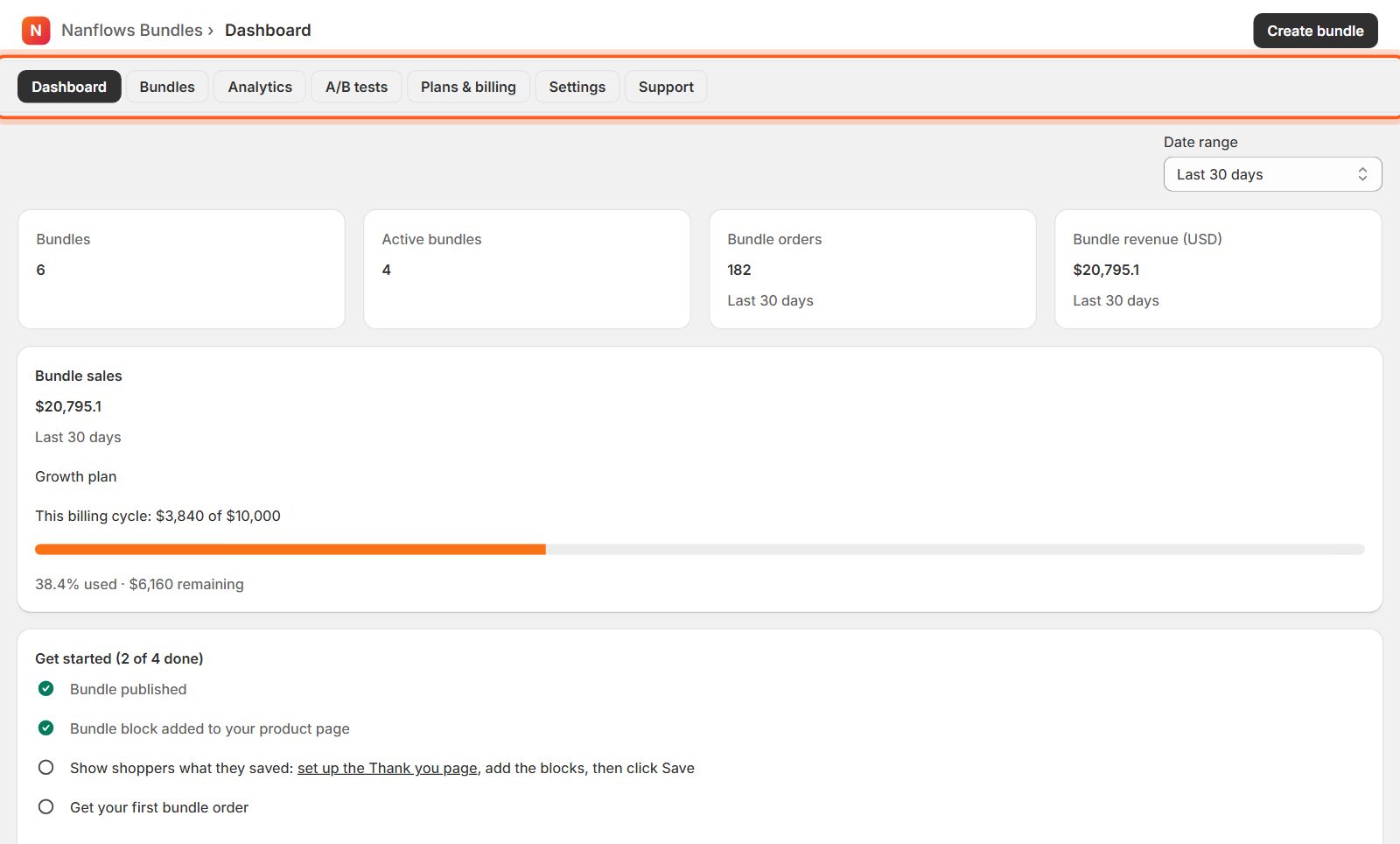
Use the menu at the top
Every page of the app is one click away: Dashboard, Bundles (create and edit), Analytics (sales and shopper funnel), A/B tests, Plans & billing, Settings and Support. The same links are in Shopify's left sidebar under the app's name.
-
Add the bundle block to your product page
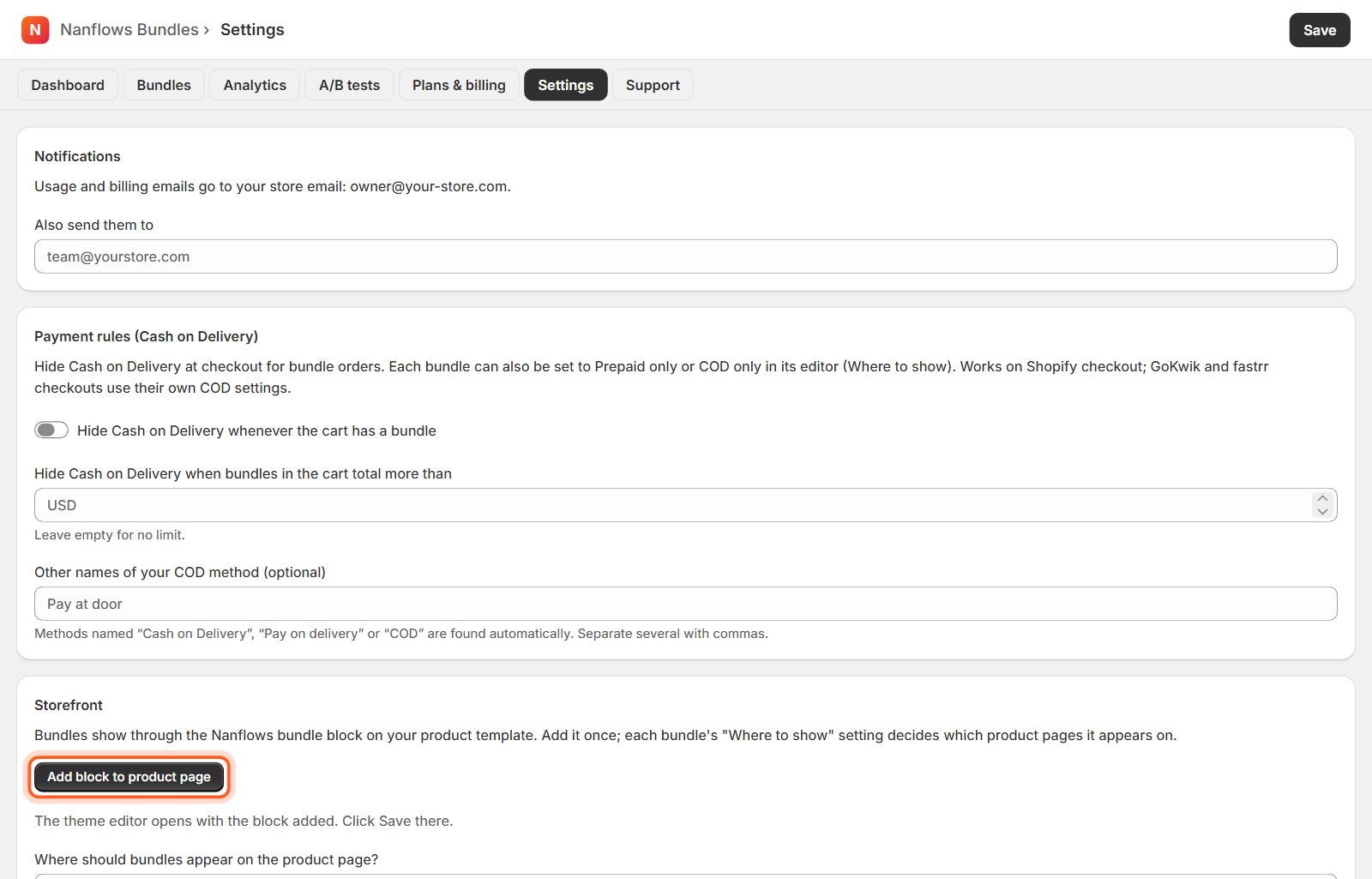
Bundles show on your store through the Nanflows bundle block. Click open the theme editor with the block added in the Get started list (or Settings → Add block to product page). Shopify's theme editor opens with the block already on your product page: just click Save there. You do this once; each bundle's Where to show setting then decides which product pages it appears on.
Tip Prefer a different spot? In the theme editor you can drag the block anywhere on the product page. In Settings, Where should bundles appear on the product page? moves it below the Add to cart button automatically.
-
Create your first bundle
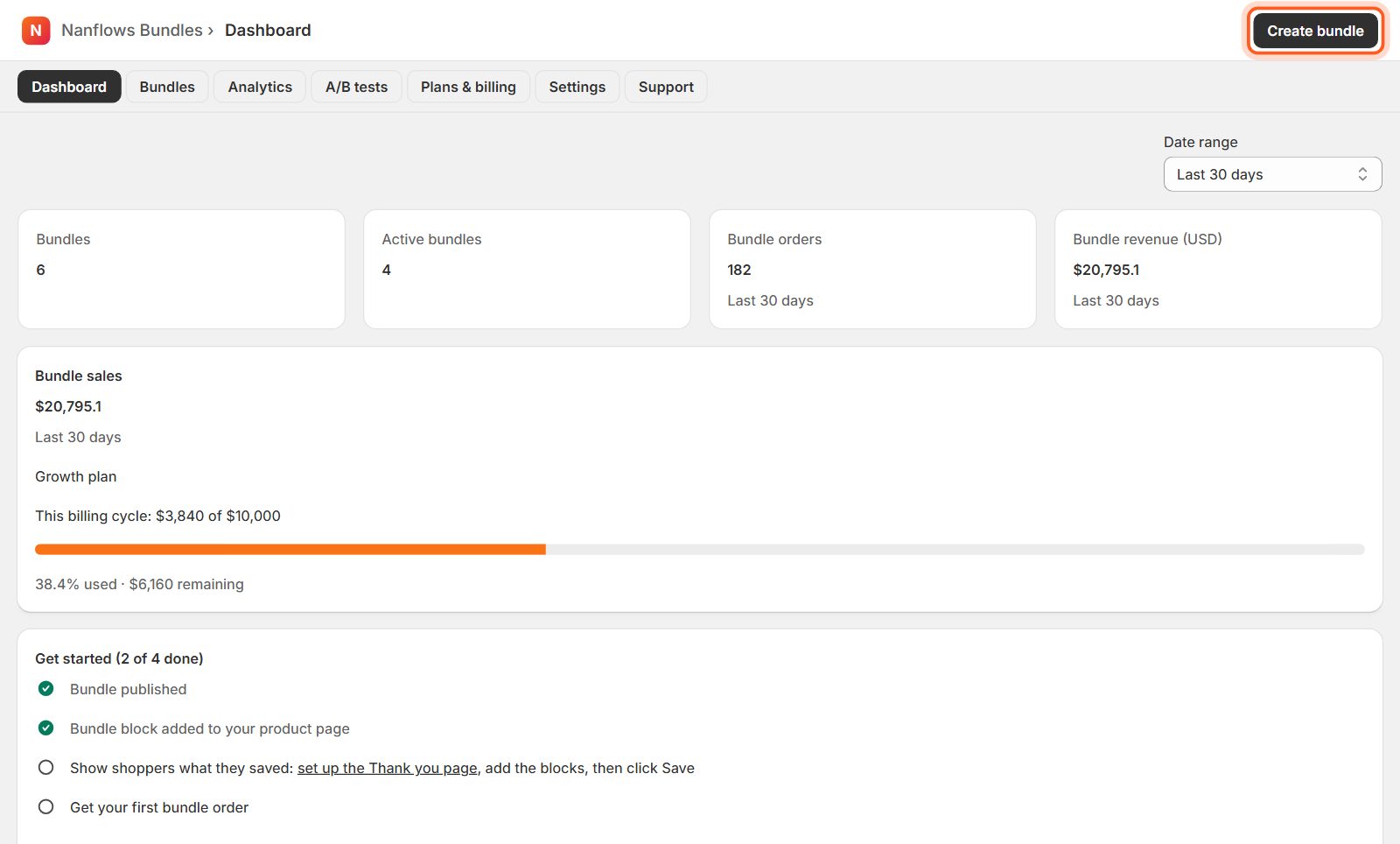
Click Create bundle at the top right of the Dashboard or the Bundles page. The editor walks you through six short steps. Follow Create your first bundle for every field explained.
-
Show shoppers what they saved (Thank you page)
In the Get started list, click set up the Thank you page. Shopify's checkout editor opens at our Bundle savings blocks: add them to the Thank you page and click Save. After buying a bundle, shoppers then see how much they saved.
-
Pick a plan when you are ready
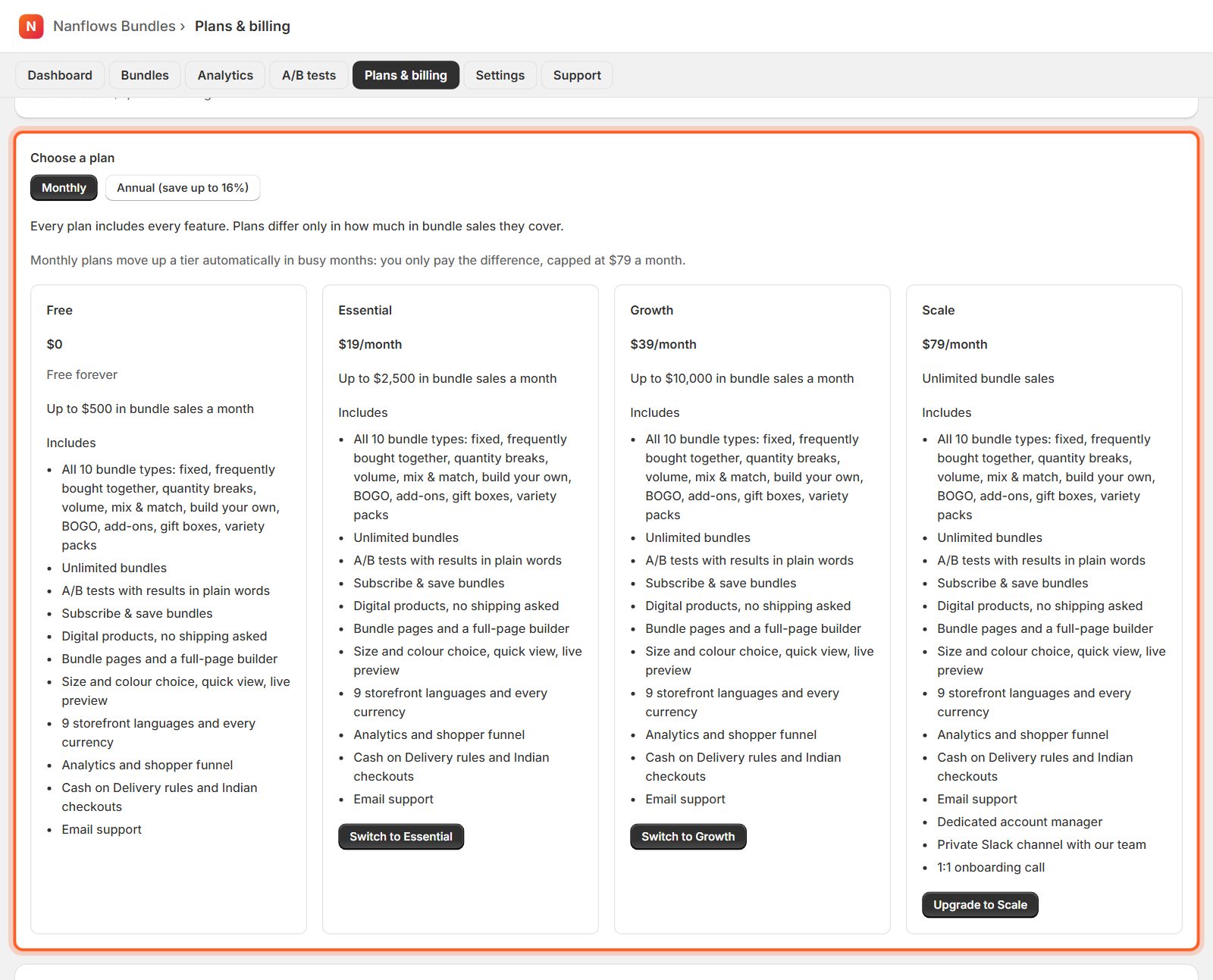
You start on the Free plan. Every plan has every feature; plans only differ in how much bundle sales they cover each month. See Plans & billing.
Nanflows Bundles for Shopify · Need help? support@nanflows.com