Help center › Create a bundle, kind by kind
Create a Gift box
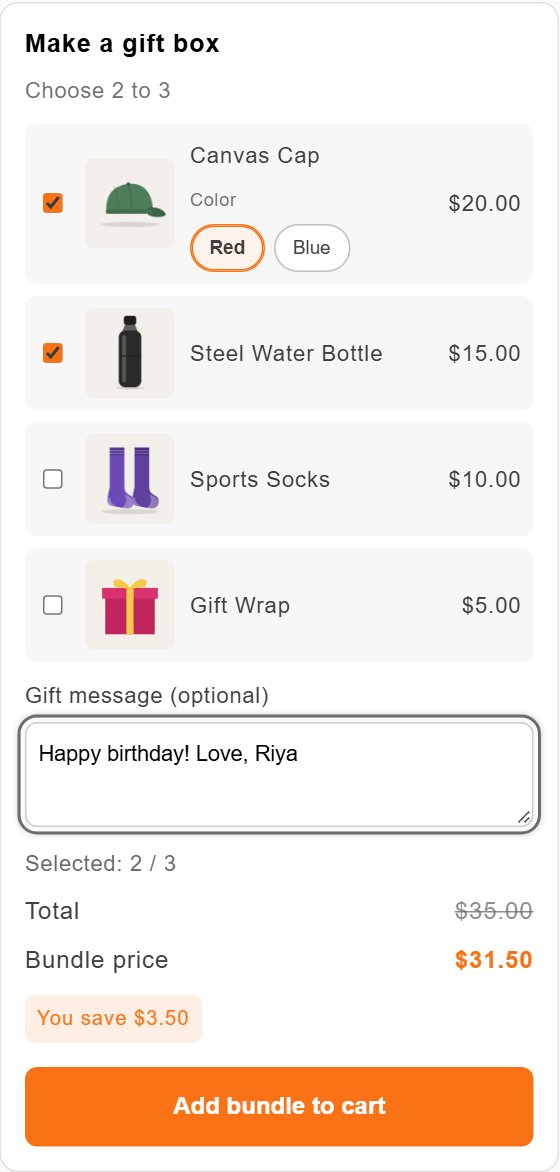
Shoppers fill a box from your list, and can add a gift message and wrapping. Example: any 3 items in a gift box, with a message.
-
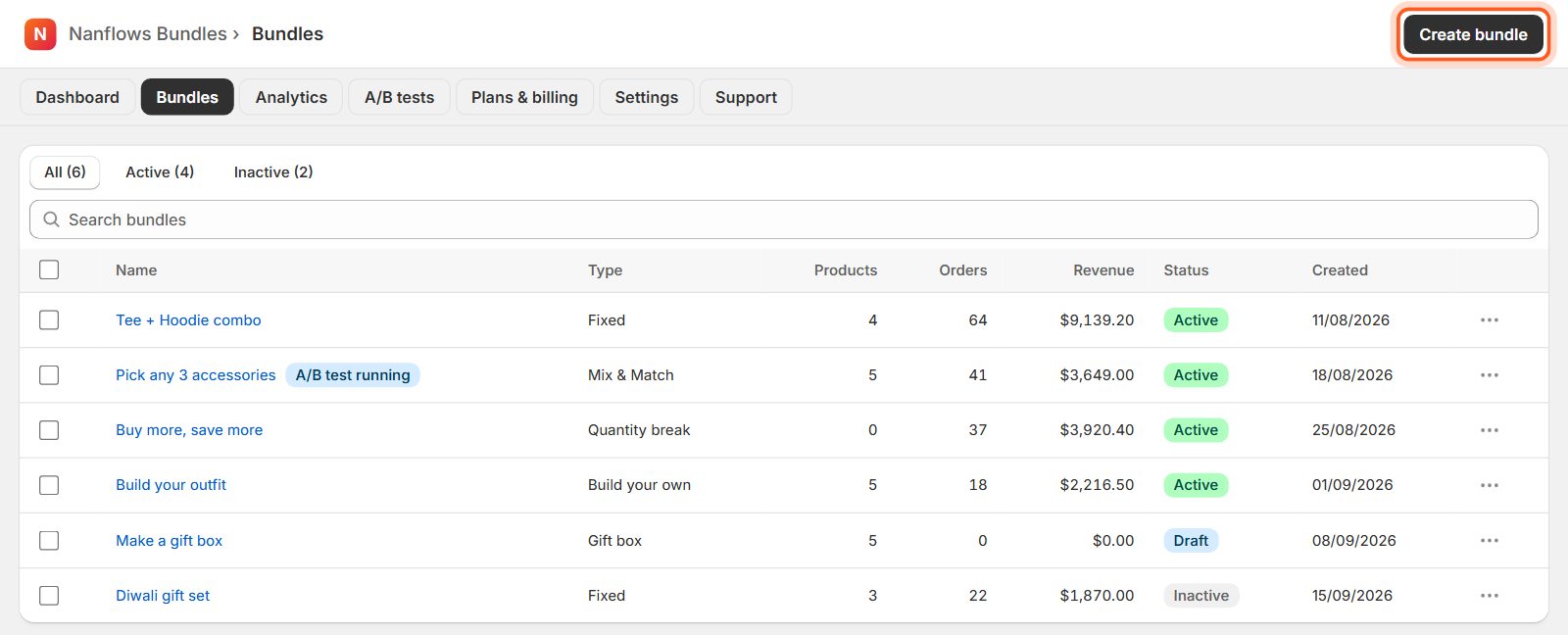
Open Bundles and click Create bundle
In your Shopify admin, open Apps → Nanflows Bundles. Click Bundles in the menu at the top, then Create bundle at the top right.
-
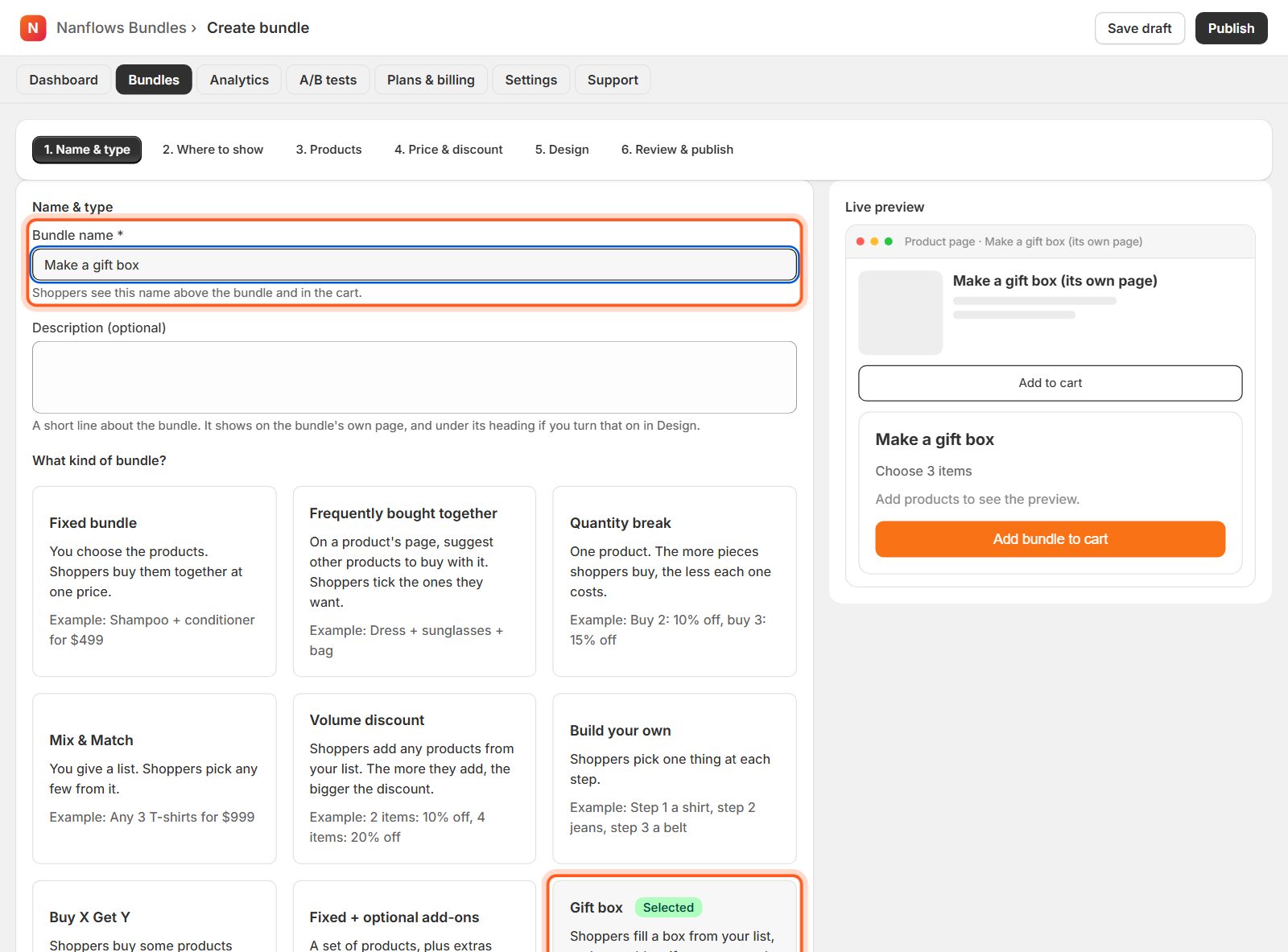
Type a name, then choose Gift box
Shoppers see the Bundle name above the bundle and in the cart, for example Make a gift box. The description is optional. Then click the Gift box card. Shoppers fill a box from your list.
-
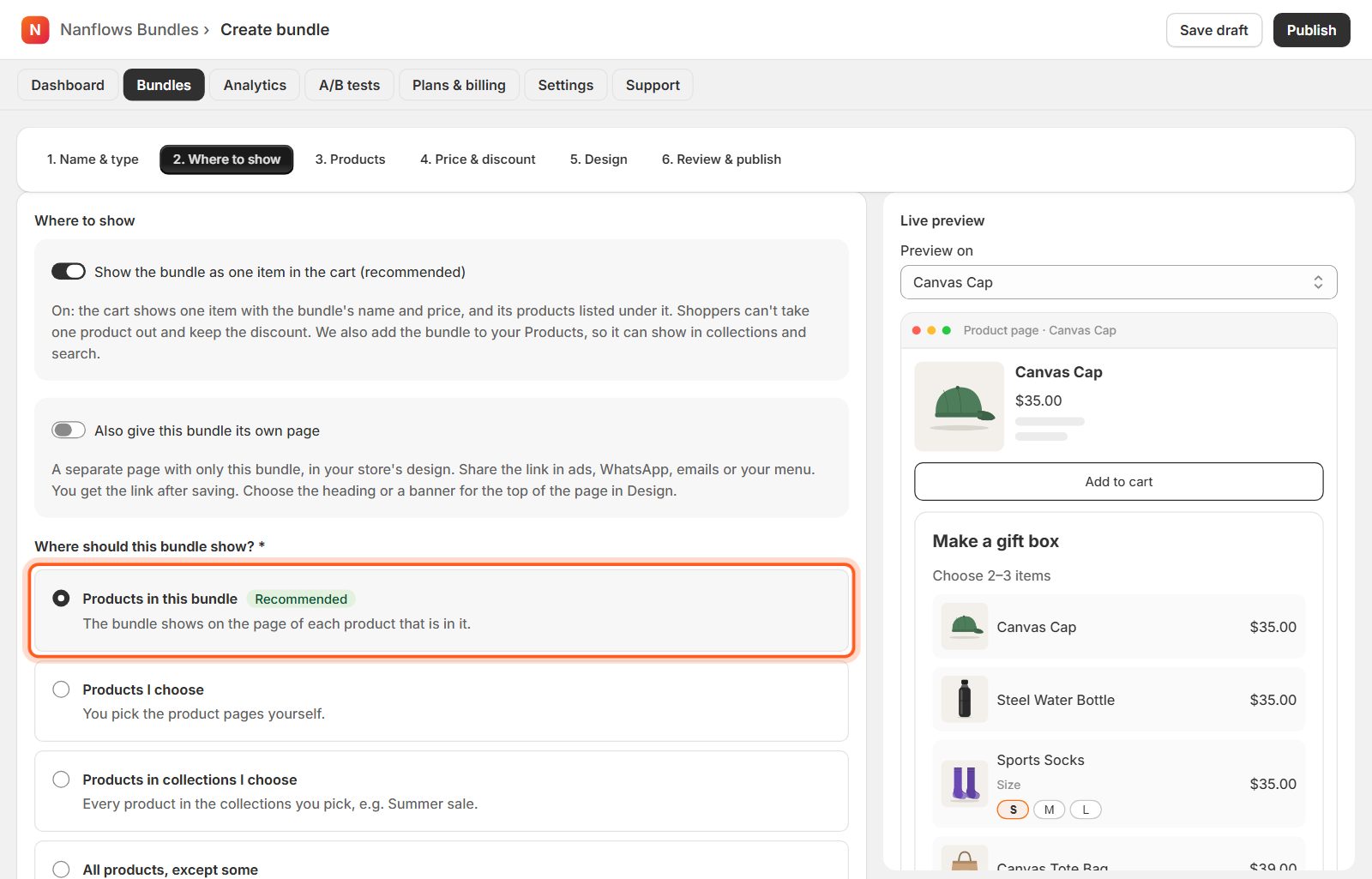
Where to show: keep Products in this bundle
Click 2. Where to show. Products in this bundle (recommended) shows the bundle on the page of every product in it. You can also pick products, collections or every product instead. See Where your bundle shows for all the choices.
-
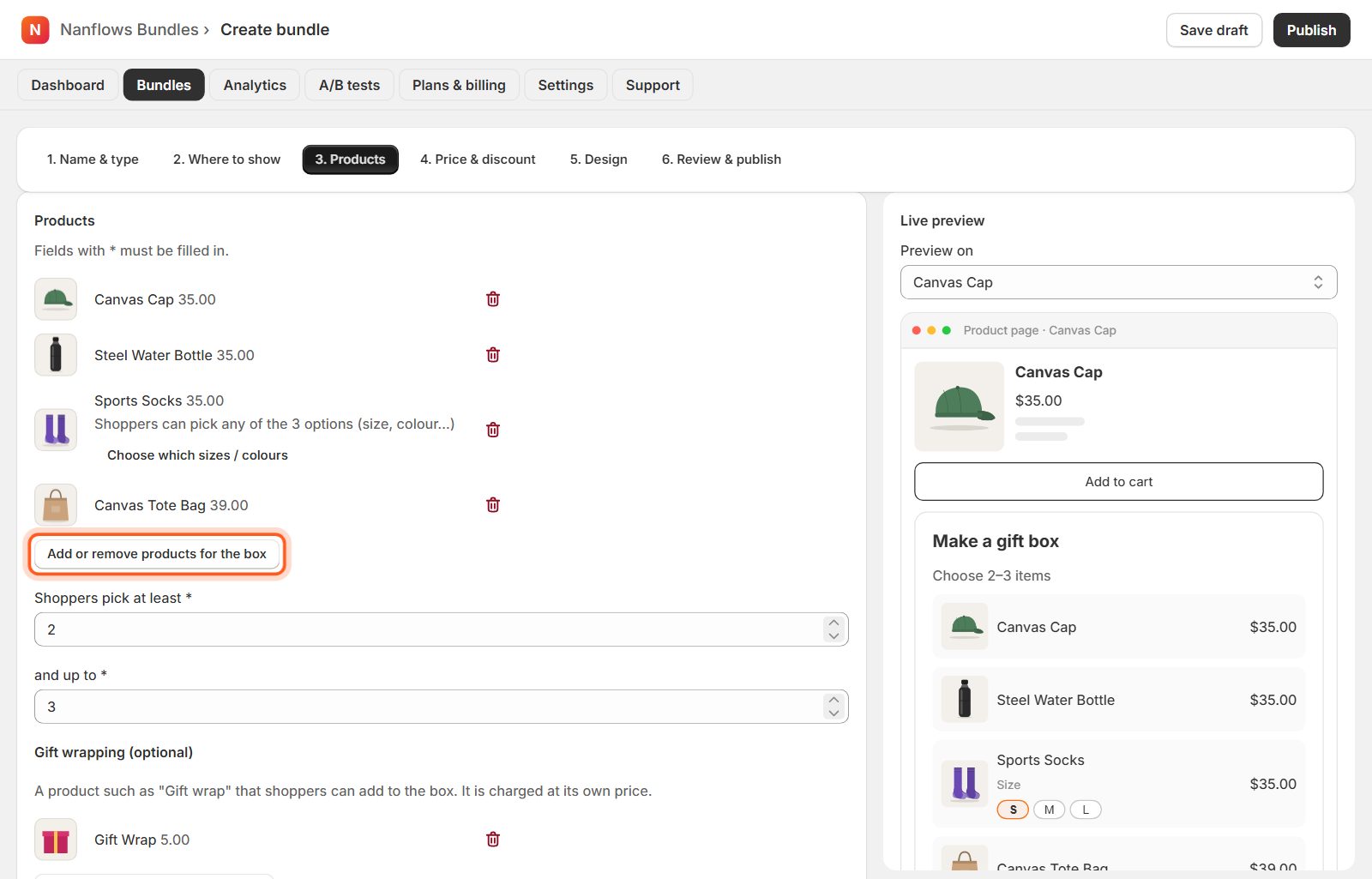
Products: what can go in the box
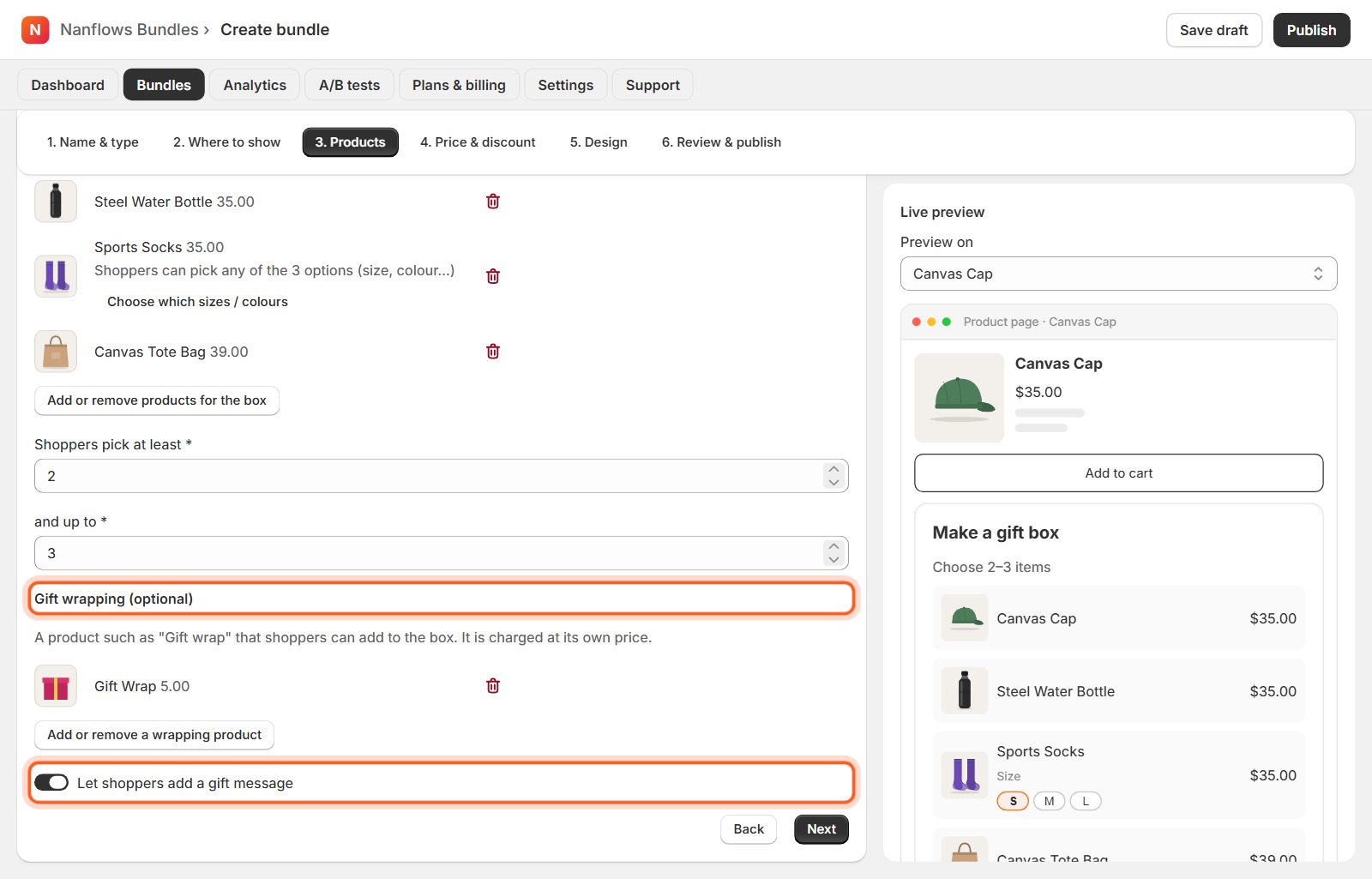
Click Select products for the box, then set Shoppers pick at least and and up to (here 2 to 3 items).
-
Gift wrapping and a gift message (optional)
Pick a product such as Gift wrap under Gift wrapping: shoppers can add it to the box at its own price. Turn on Let shoppers add a gift message for a message box; the message is saved with the order.
-
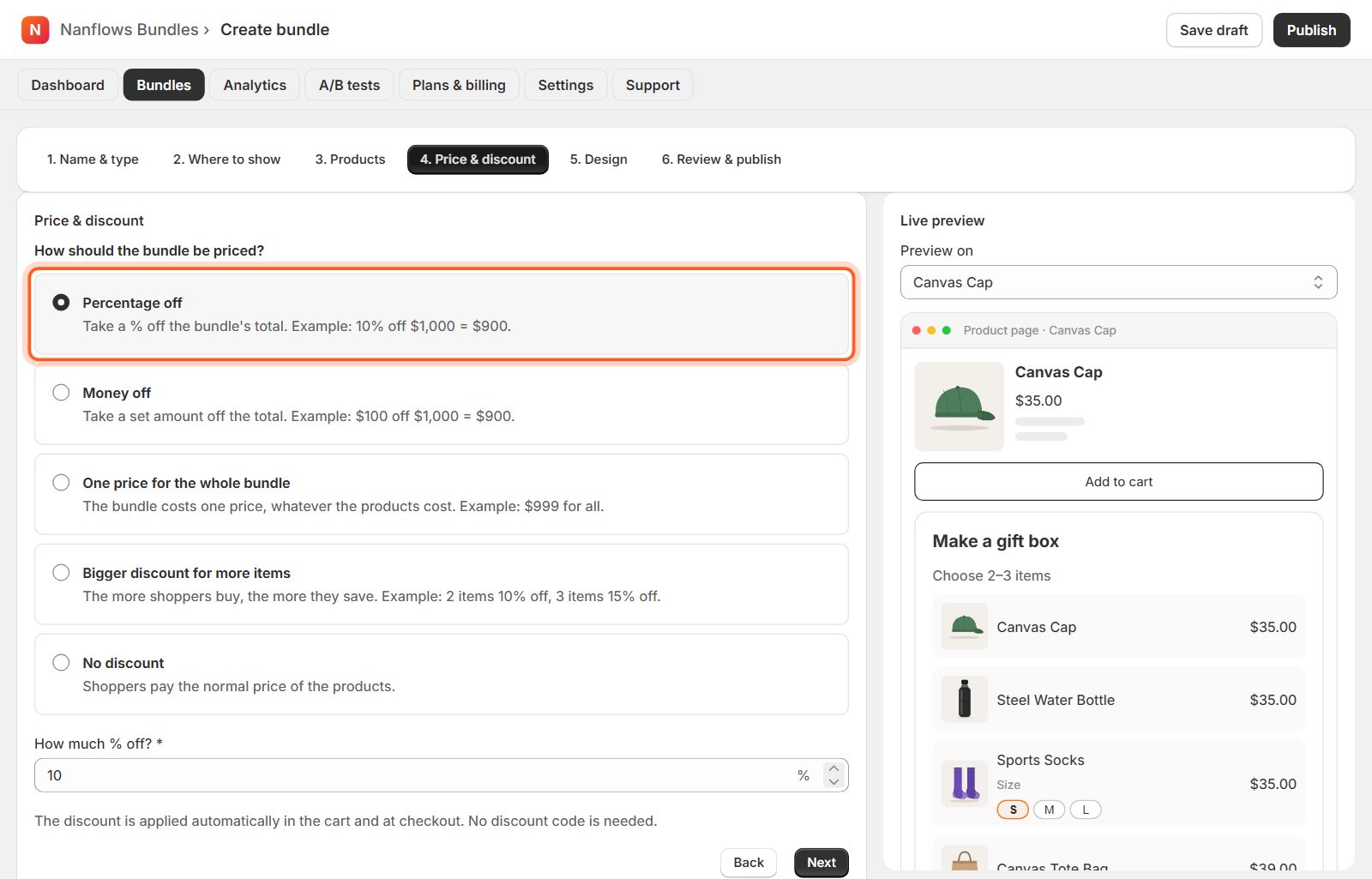
Price & discount
Here: 10% off the box. One price for the whole box works well too.
-
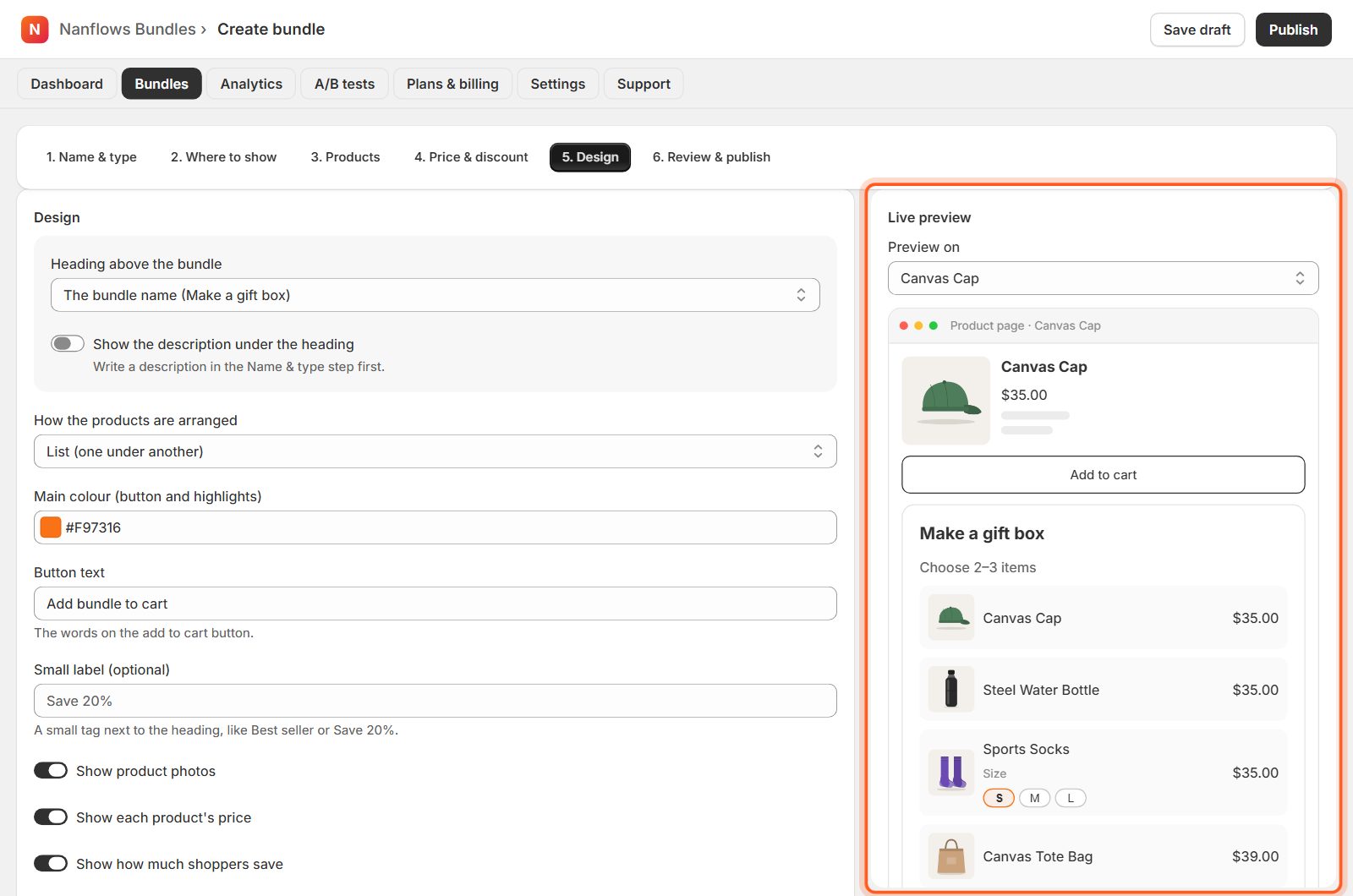
Design: change how it looks (optional)
In 5. Design choose the heading, how the products are arranged (list, row or grid), your colour, the button text and a small label such as Save 15%. The Live preview on the right changes as you click. Everything here is optional: the bundle already looks good. See Design your bundle for every option.
-
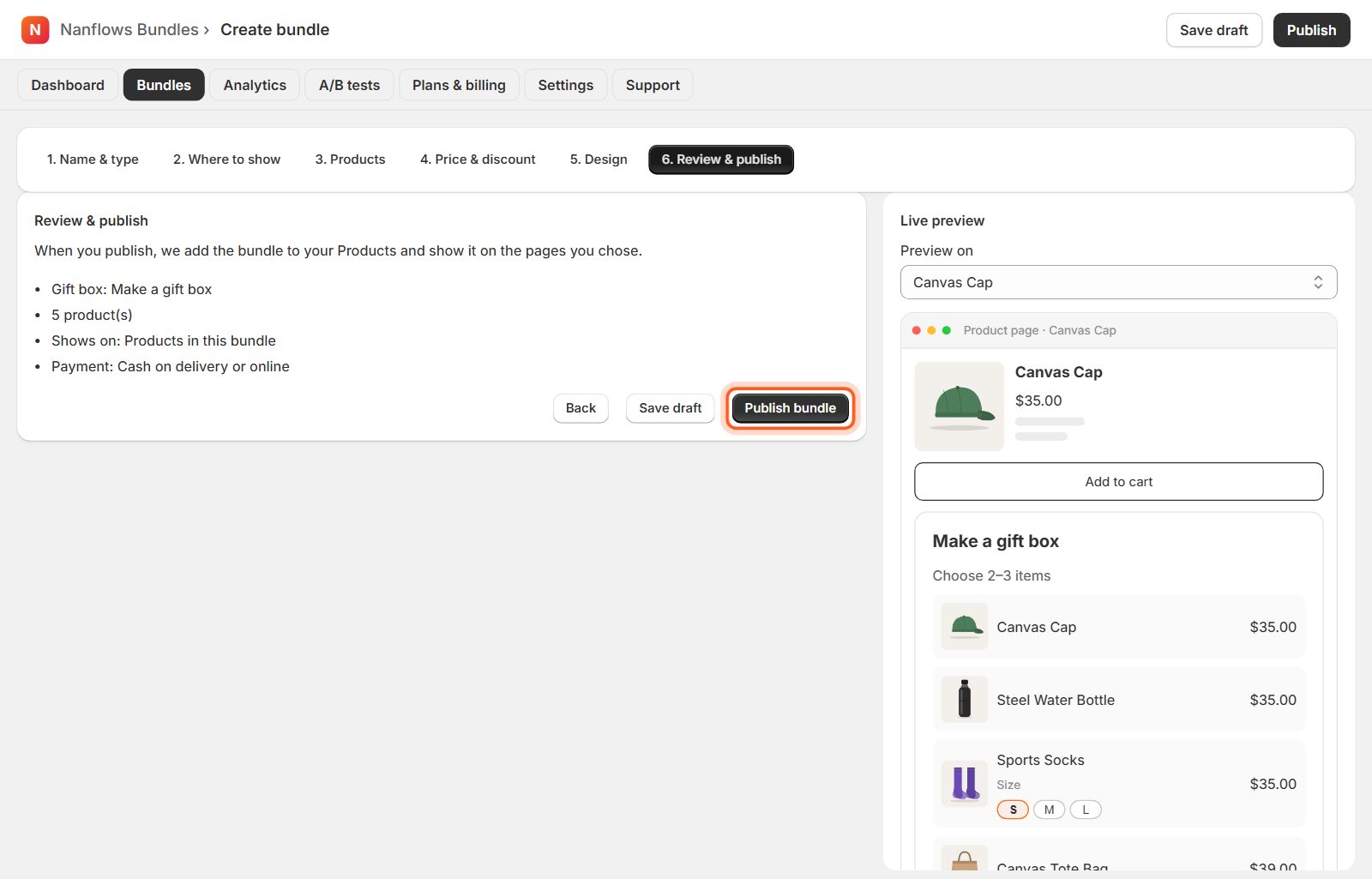
Click Publish bundle
6. Review & publish shows a short summary. Click Publish bundle and it goes live on your store straight away. Save draft keeps it hidden from shoppers until you are ready.
-
What shoppers see
Shoppers tick what goes in the box, add wrapping if they want, and write their message.
Nanflows Bundles for Shopify · Need help? support@nanflows.com