Help center › Bundle settings
Where your bundle shows
Everything in step 2 of the editor: the cart, the bundle's own page, which product pages show it, its position, dates, stock and payment.
-
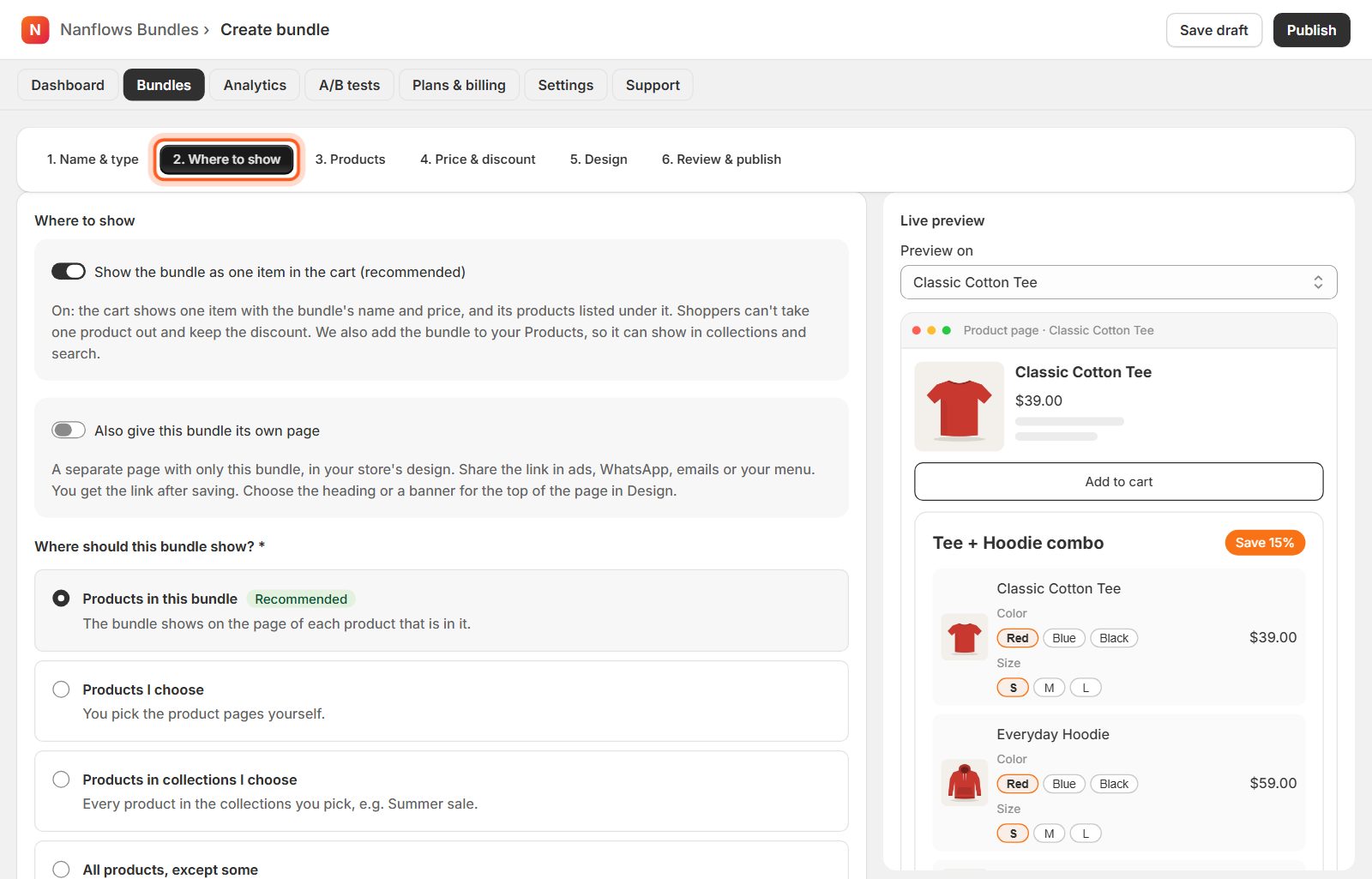
Open 2. Where to show
In the bundle editor, click 2. Where to show in the steps at the top.
-
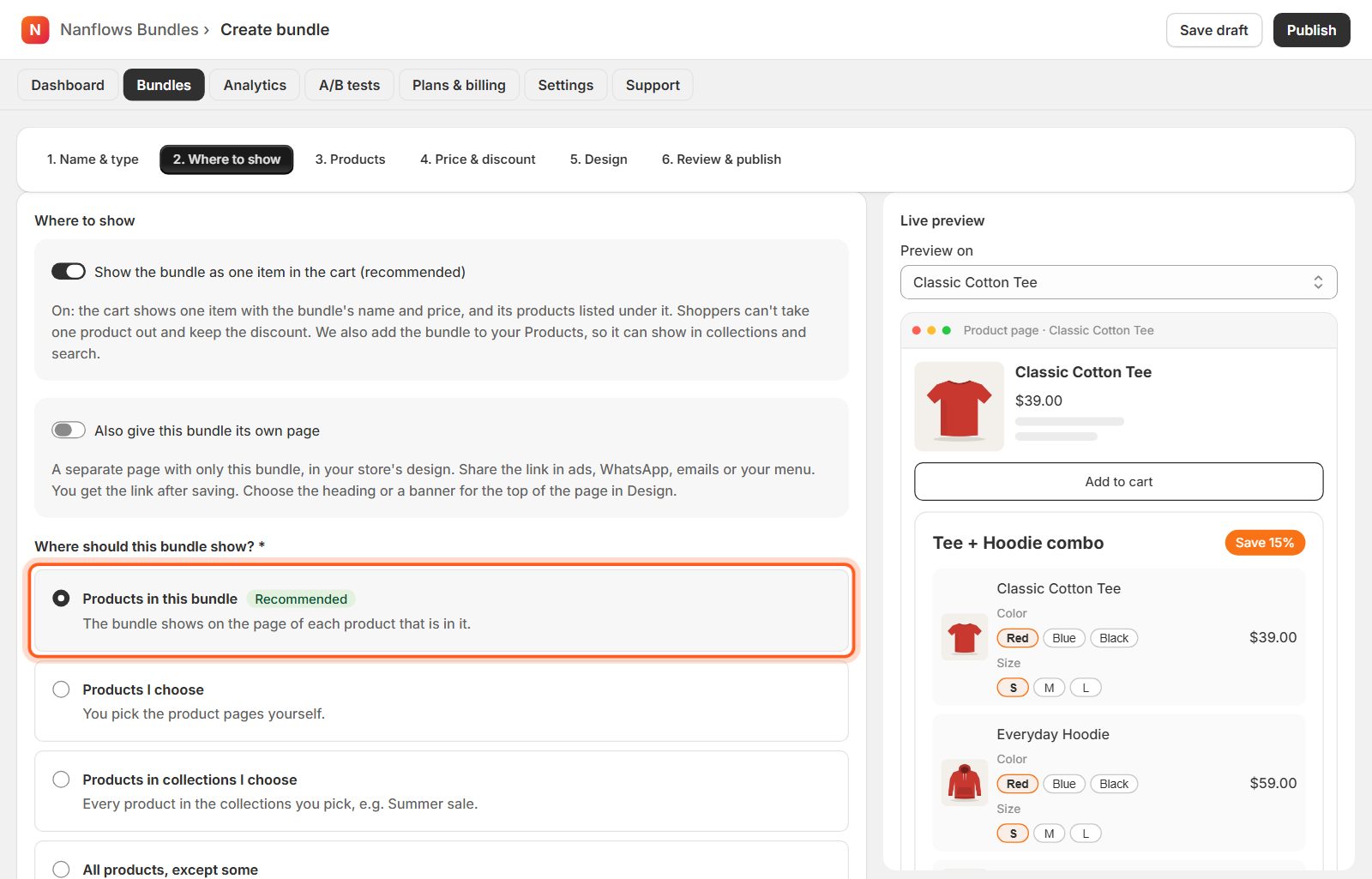
Products in this bundle (recommended)
The bundle shows on the page of each product that is in it.
-
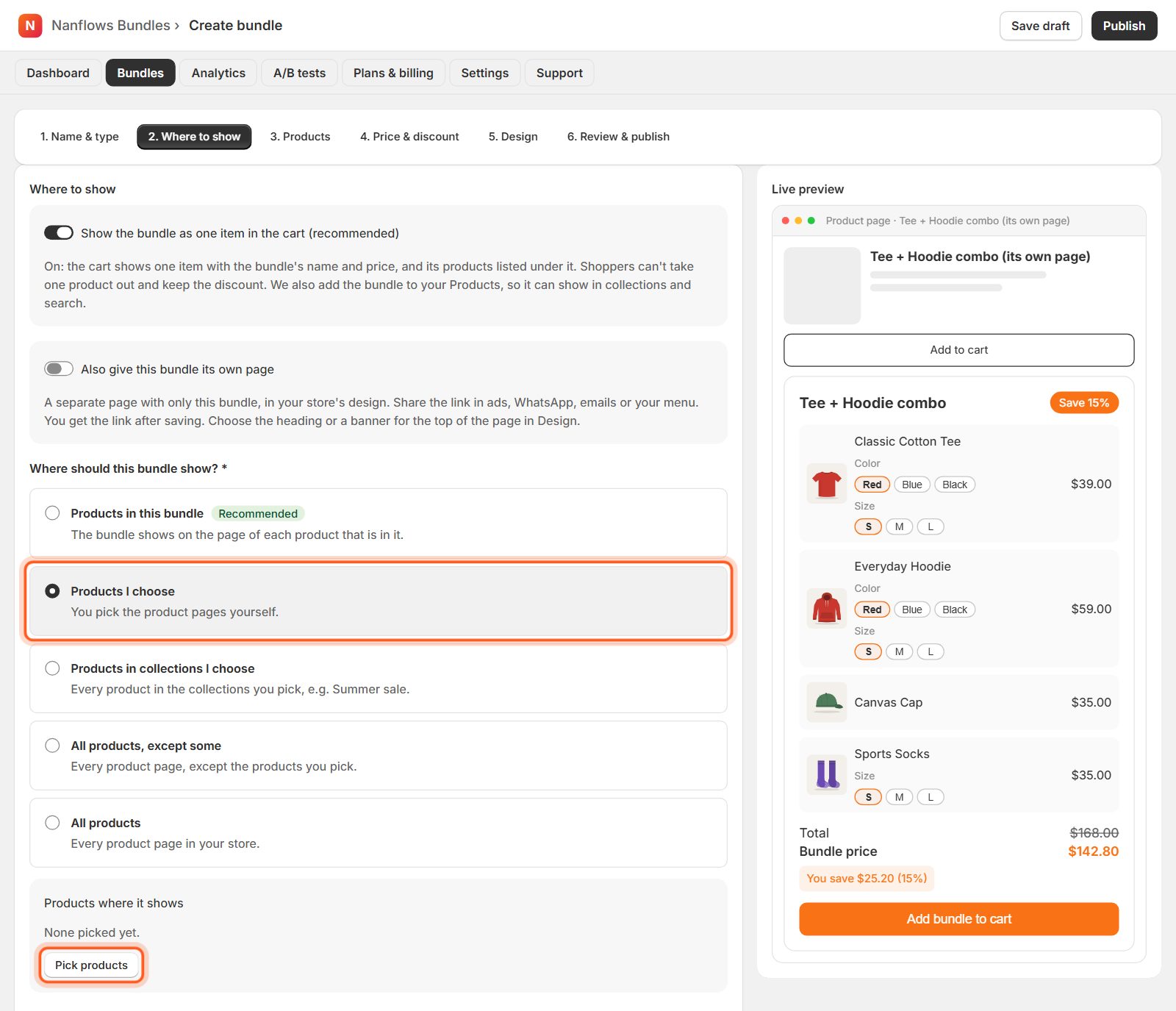
Products I choose
Choose the product pages yourself: click Pick products and tick them. They are listed with their photo; the bin removes one.
-
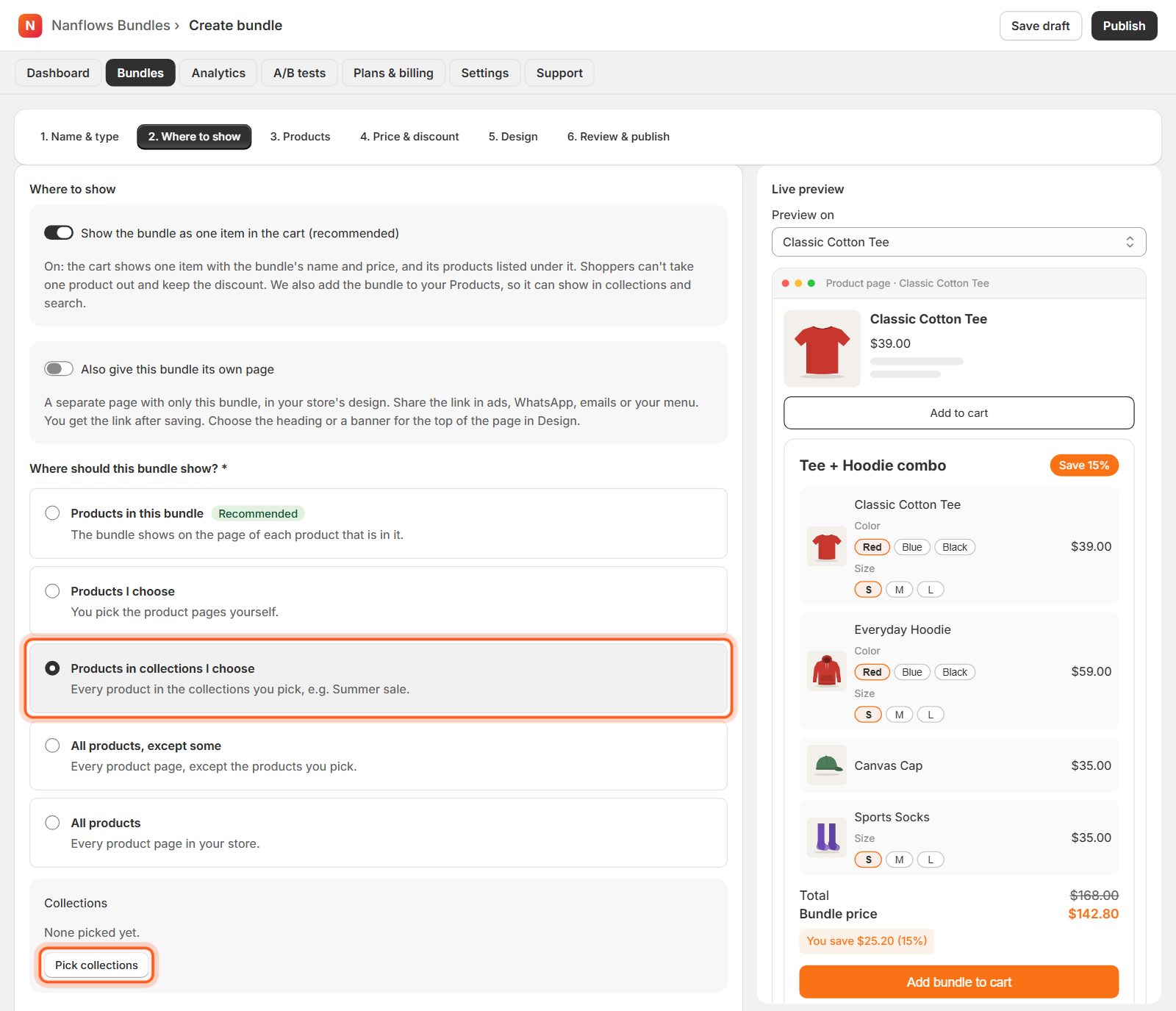
Products in collections I choose
Every product in the collections you pick, for example Summer sale. Products added to the collection later get the bundle too.
-
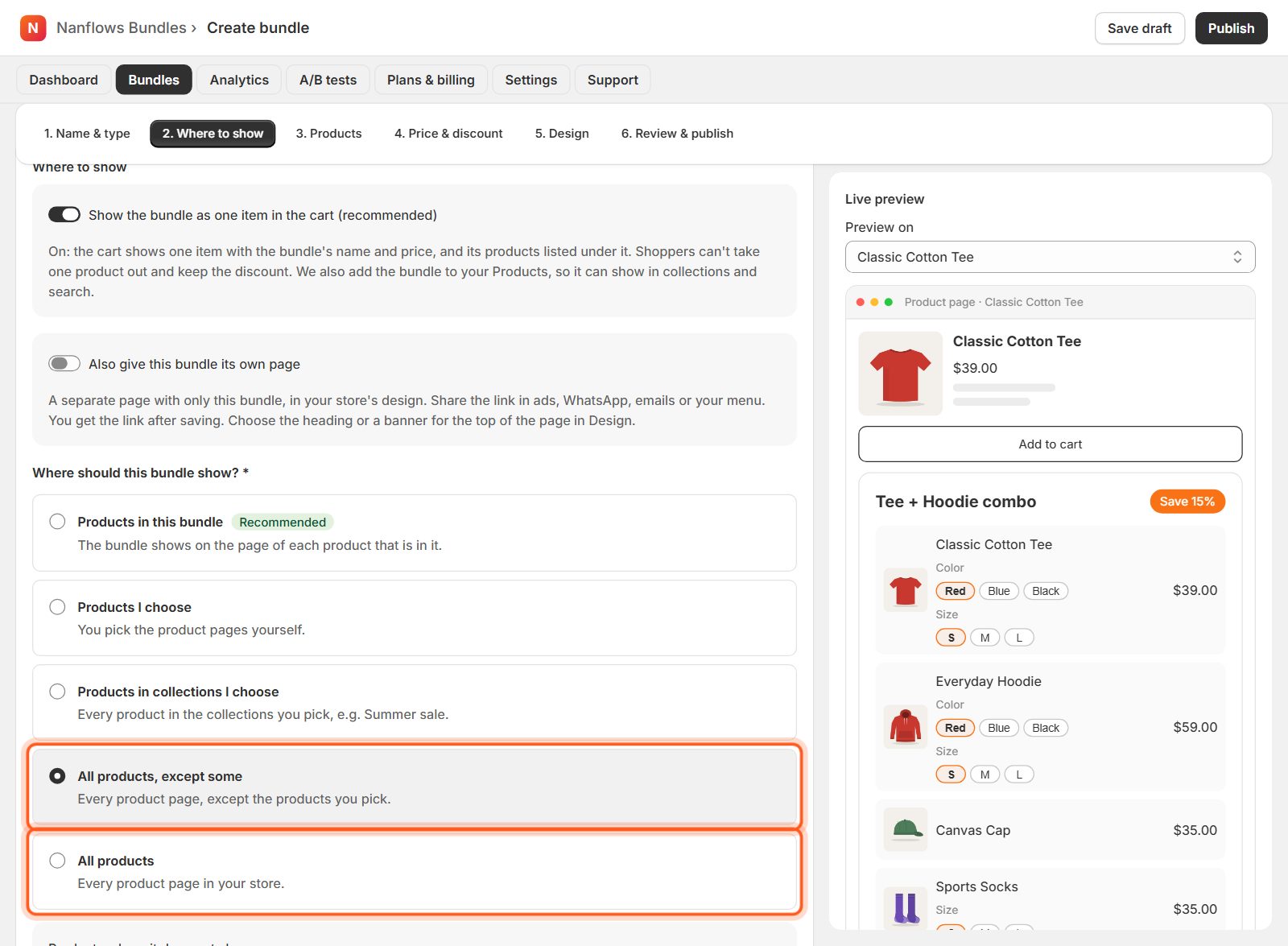
All products, or all except some
All products shows it on every product page. All products, except some lets you pick the pages where it should not show.
-
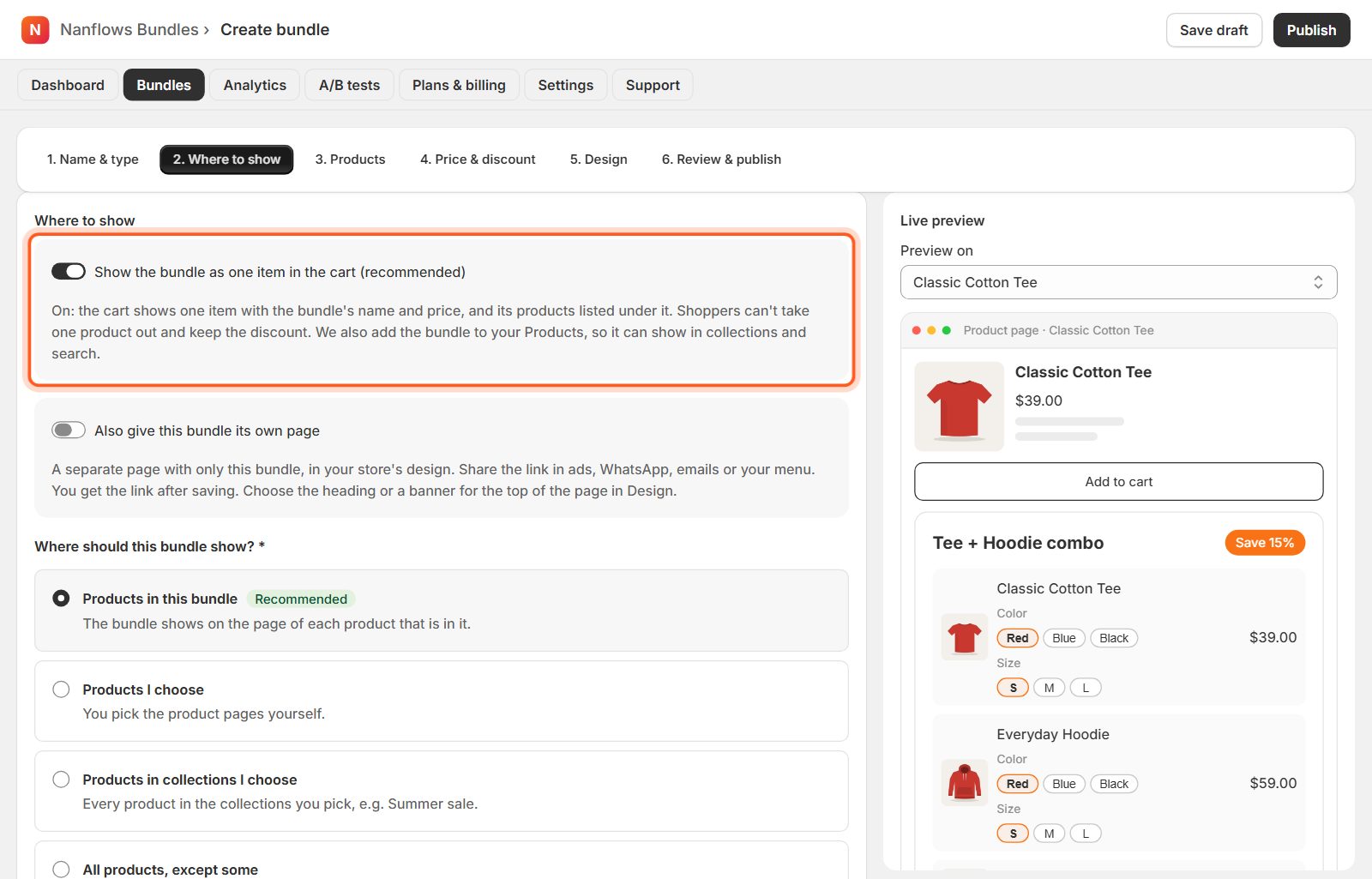
One item in the cart
On (recommended): the cart shows the bundle as one line with its products listed under it, and the bundle is added to your Products so it can appear in collections and search. Off: each product is its own line in the cart. Shown for fixed, mix & match, build your own, gift box and variety pack bundles.
-
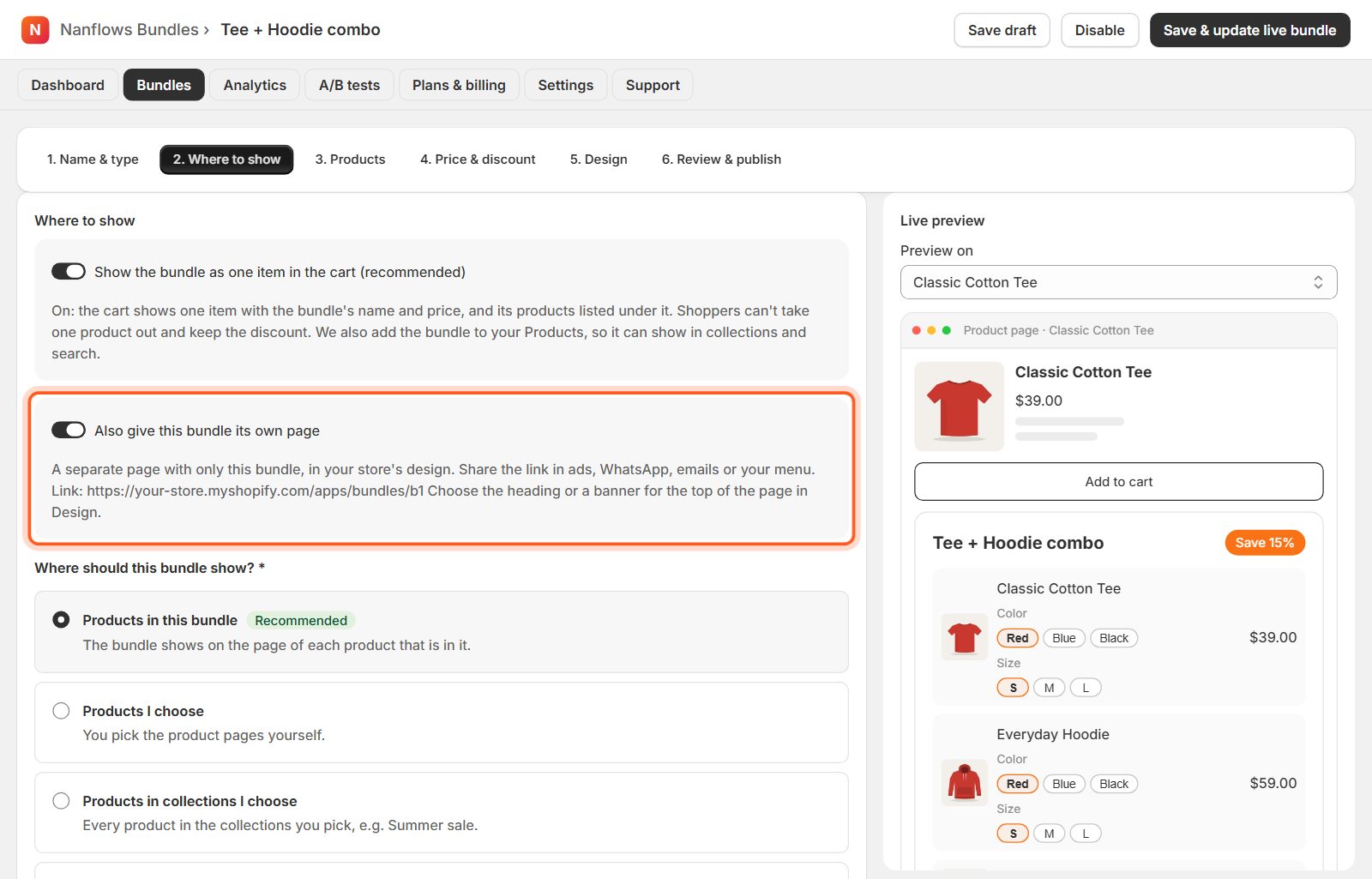
Its own page
Also give this bundle its own page creates a page with only this bundle, at your-store.com/apps/bundles/…. Share it in ads, WhatsApp, emails or your menu. Choose a heading or a banner for the top of that page in Design.
-
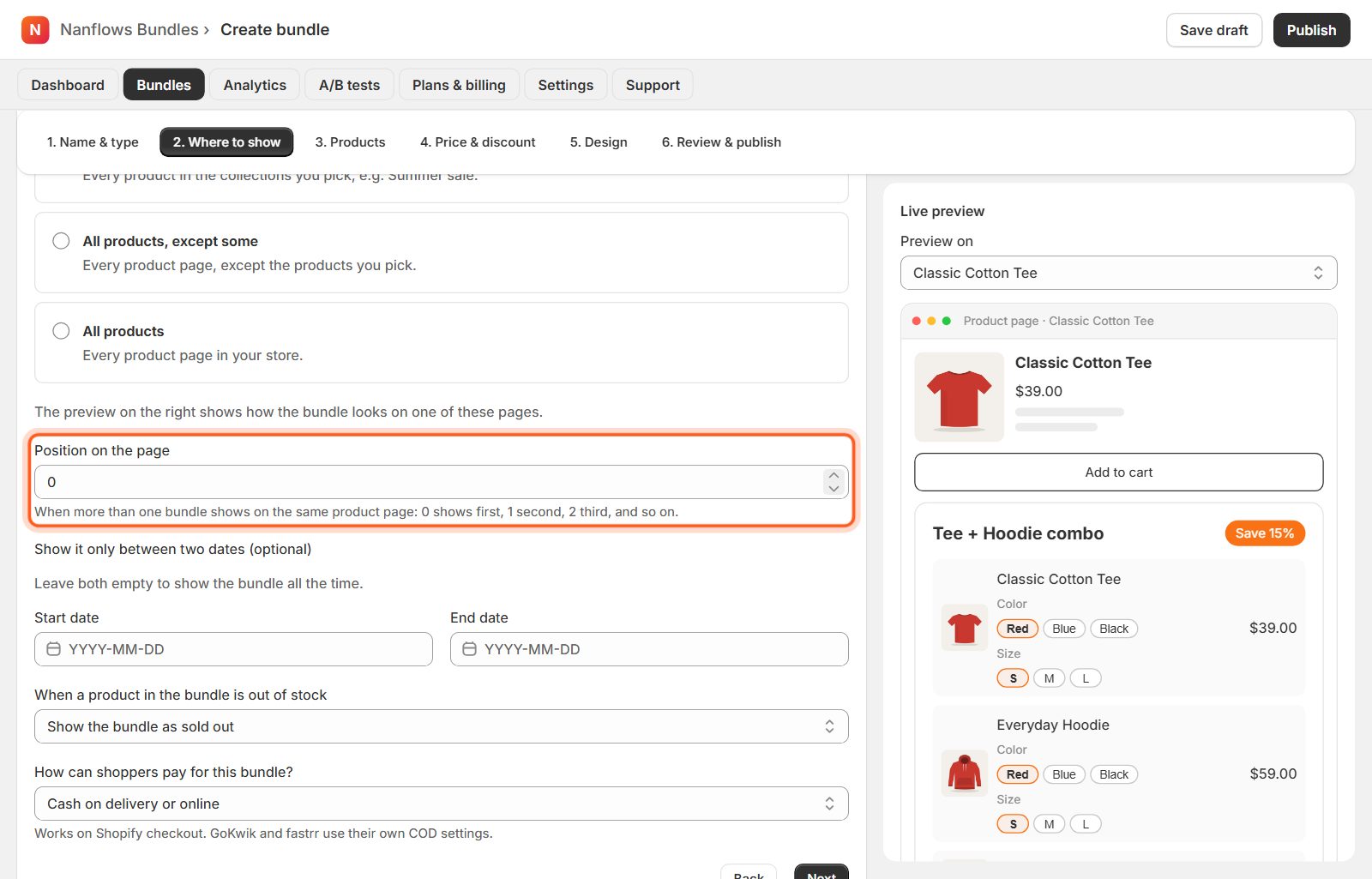
Position on the page
When more than one bundle shows on the same product page: 0 shows first, 1 second, 2 third, and so on.
-
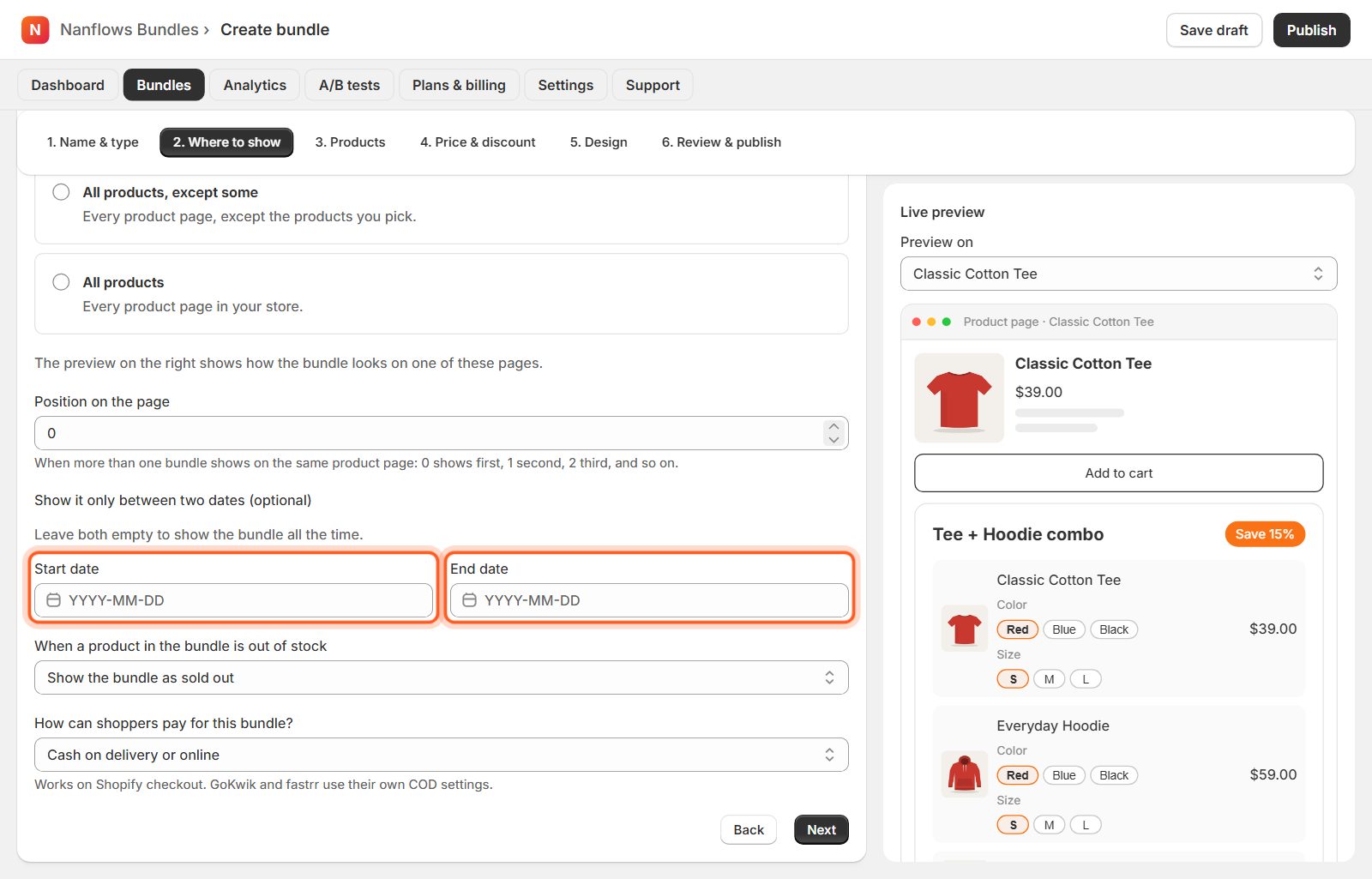
Show it only between two dates
Click Start date or End date and pick a day on the calendar. The bundle appears on the start date and disappears after the end date by itself. Clear removes a date. Leave both empty to show the bundle all the time.
-
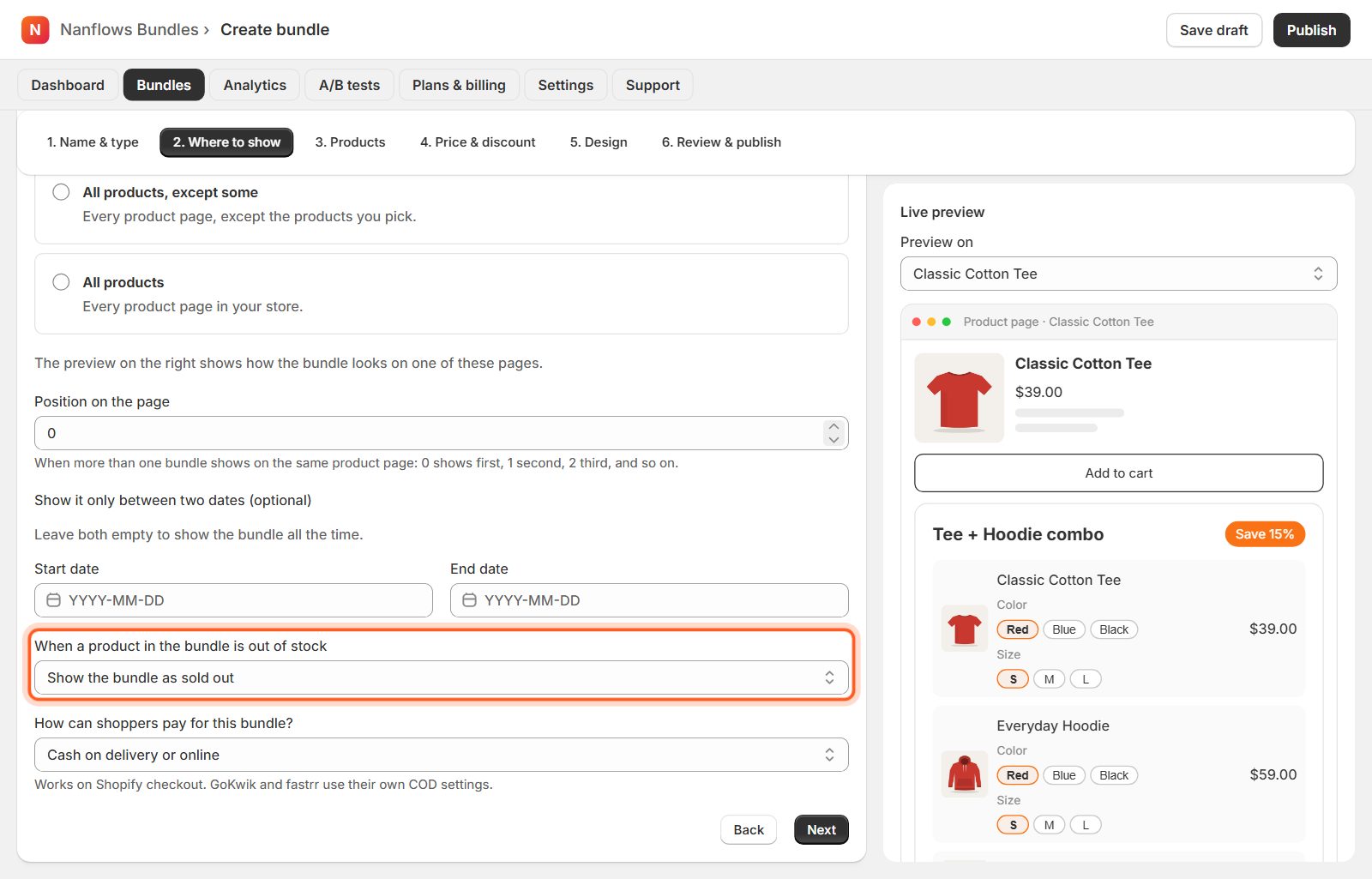
Out of stock
When a product in the bundle sells out, either Show the bundle as sold out (shoppers see it but can't buy it) or Hide the bundle until the product is back.
-
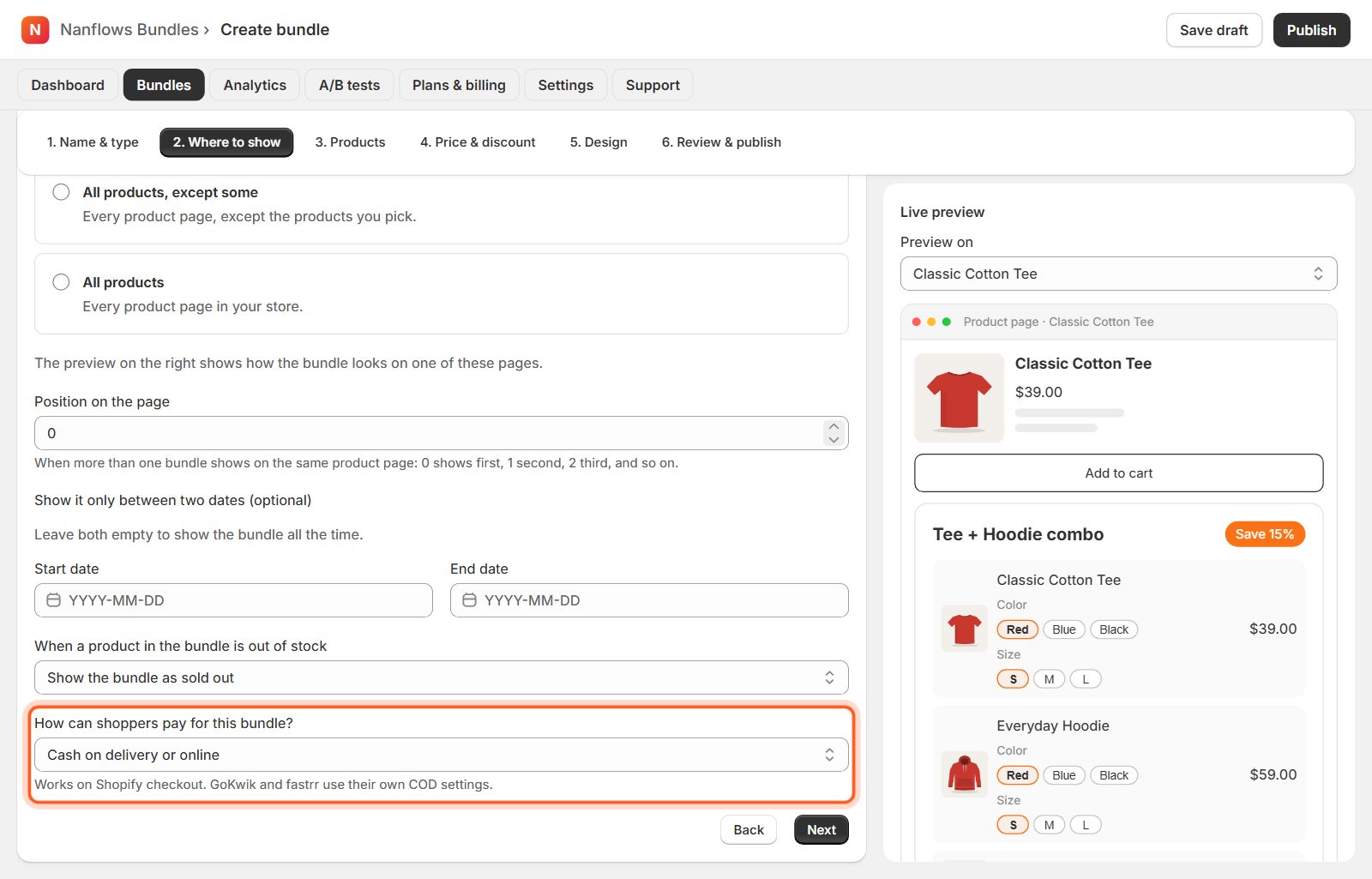
How shoppers can pay
Cash on delivery or online, Online payment only or Cash on delivery only, for orders with this bundle. Works on Shopify checkout; GoKwik and fastrr use their own COD settings. Store-wide COD rules are in Settings.
Nanflows Bundles for Shopify · Need help? support@nanflows.com