Help center › Create a bundle, kind by kind
Create an Add more, save more bundle
Shoppers add products from your list, and every level gives a better deal: a set price or a discount. They always see what one more item gets them. Example: 2 items for $60, 4 items for $110, 6 items 30% off.
-
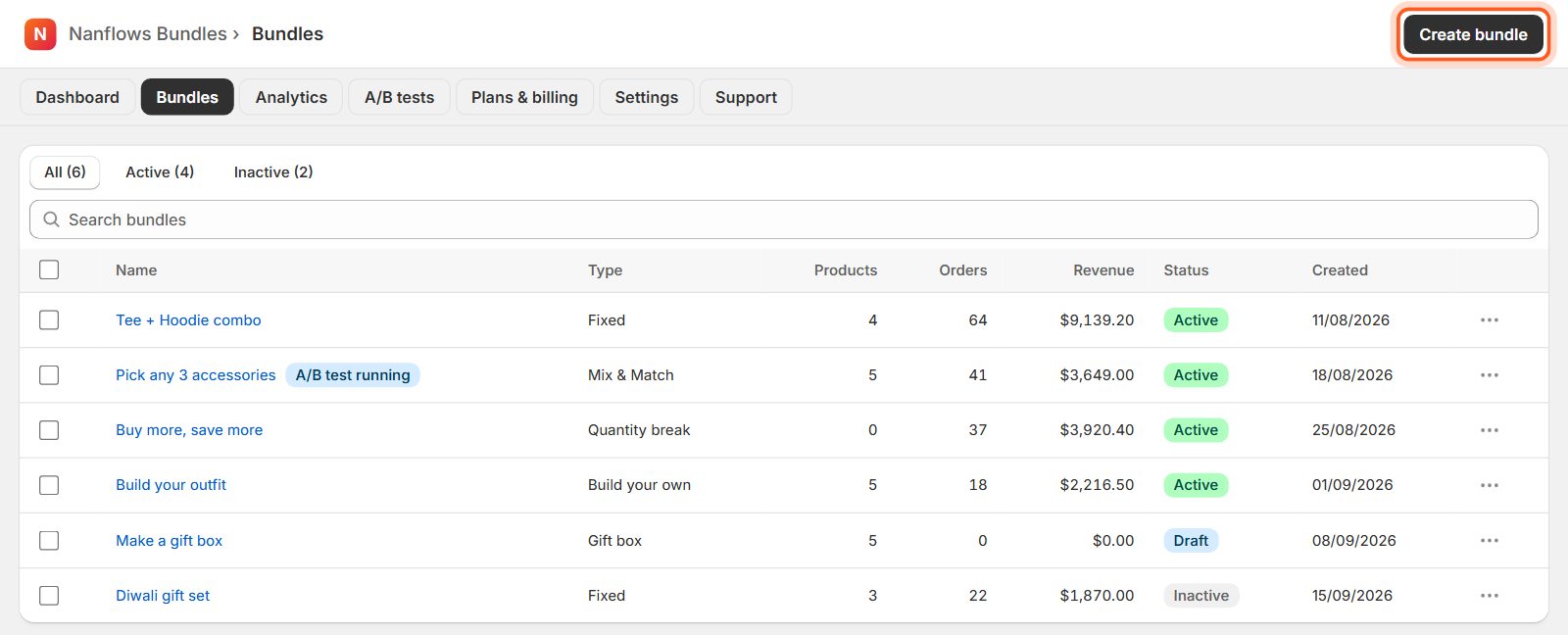
Open Bundles and click Create bundle
In your Shopify admin, open Apps → Nanflows Bundles. Click Bundles in the menu at the top, then Create bundle at the top right.
-
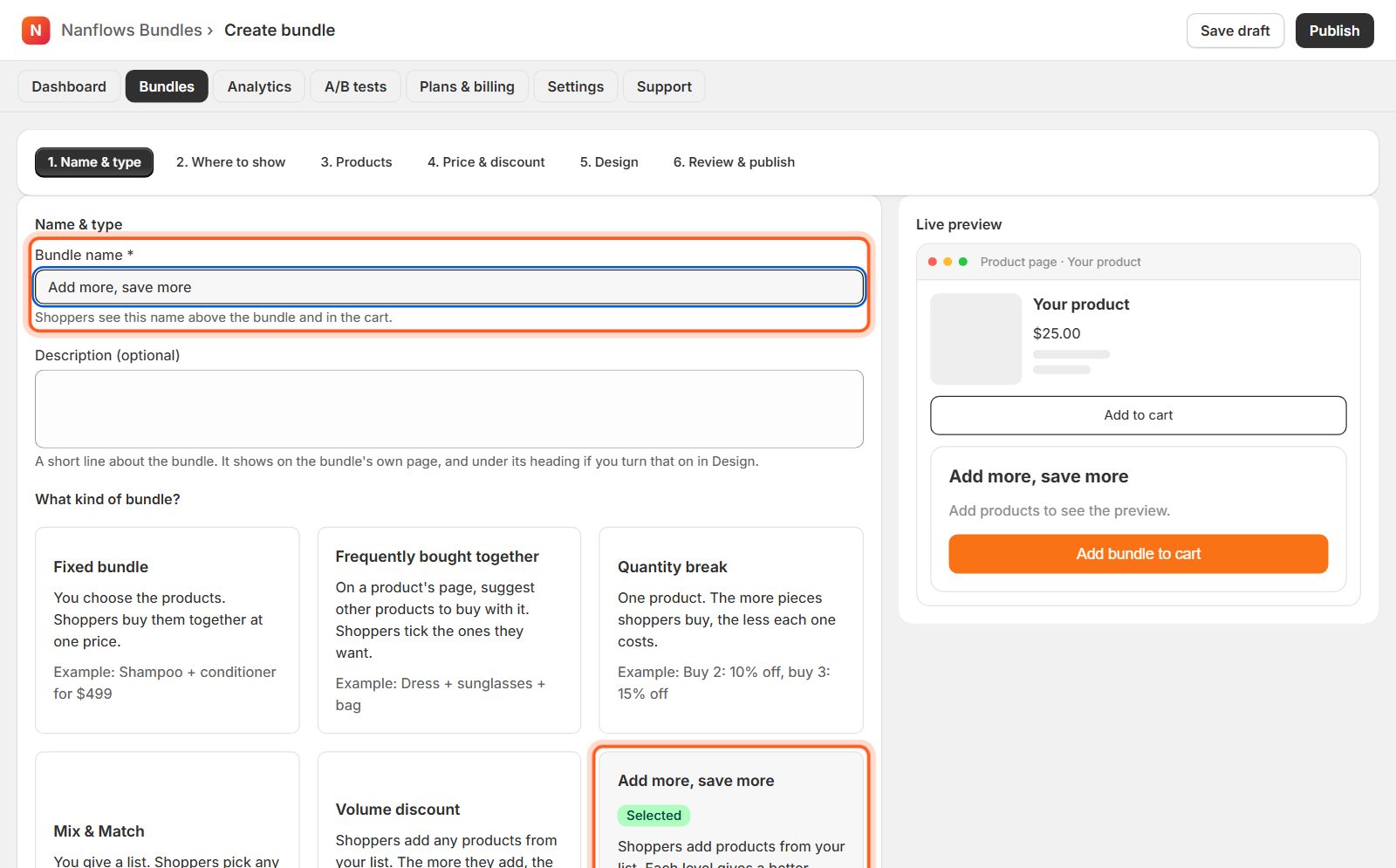
Type a name, then choose Add more, save more
Shoppers see the Bundle name above the bundle and in the cart, for example Add more, save more. The description is optional. Then click the Add more, save more card. Shoppers add products from your list and unlock a better deal at each level.
-
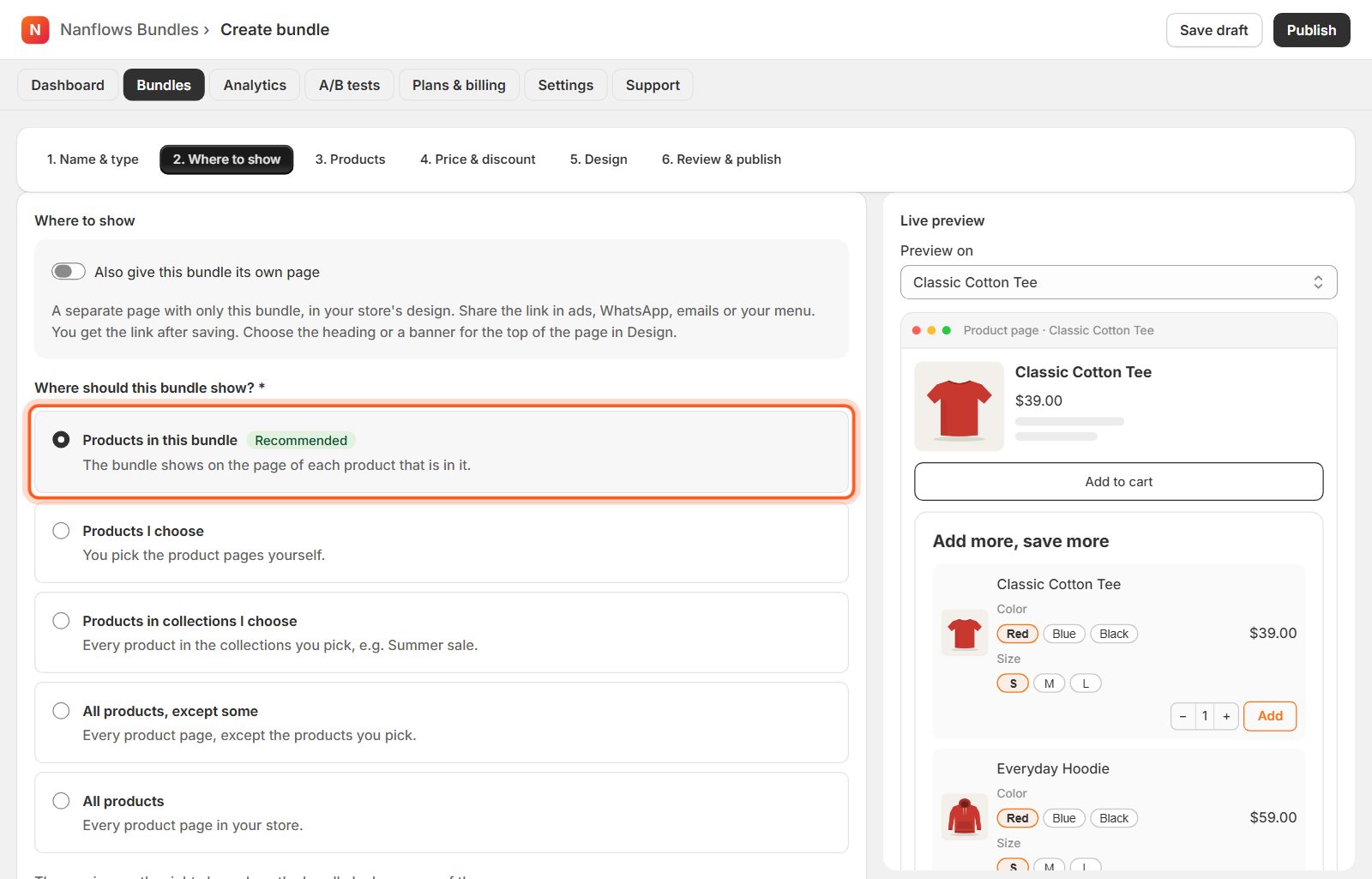
Where to show: keep Products in this bundle
Click 2. Where to show. Products in this bundle (recommended) shows the bundle on the page of every product in it. You can also pick products, collections or every product instead. See Where your bundle shows for all the choices.
-
Products: the list shoppers add from
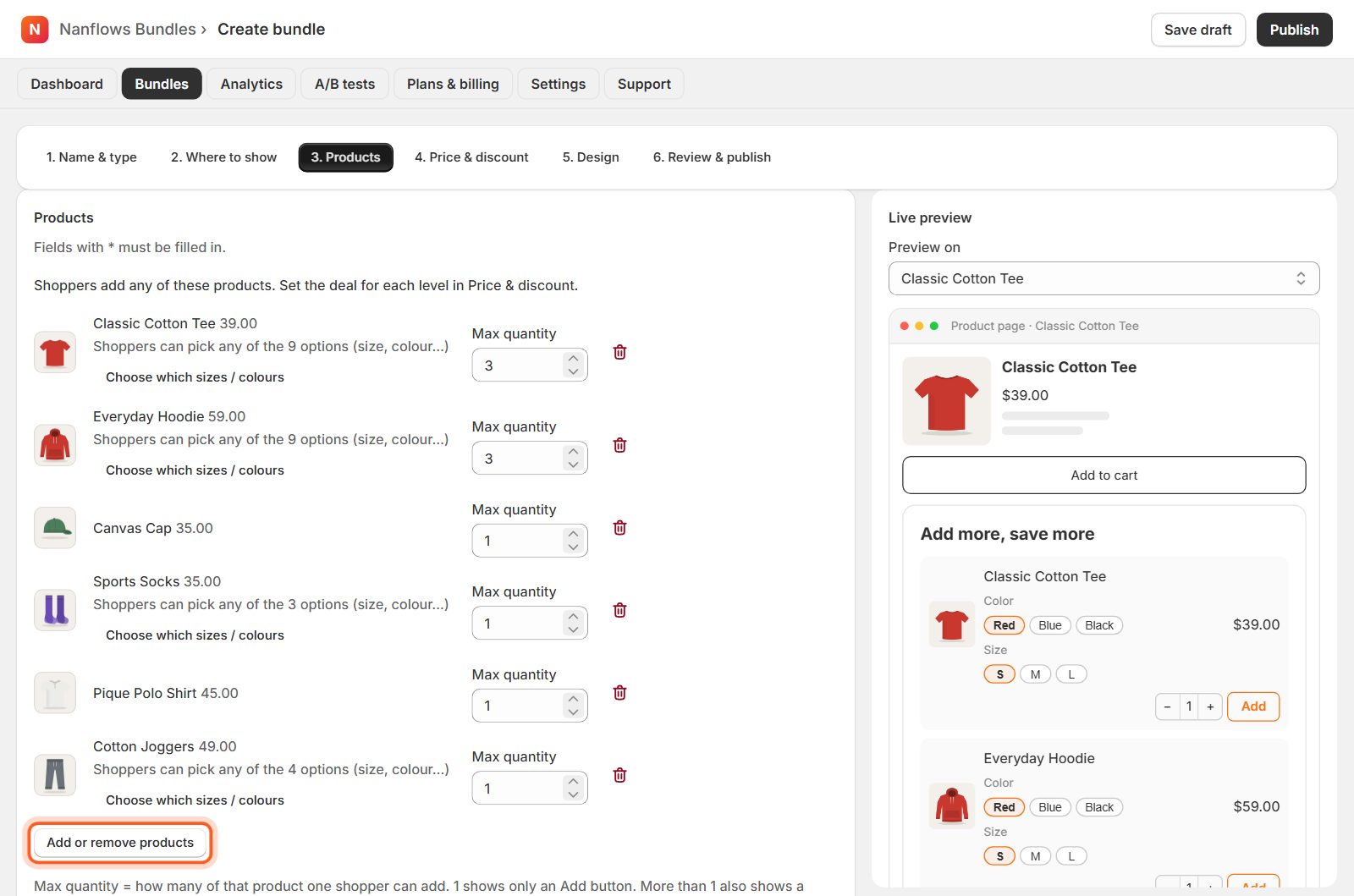
Click 3. Products → Select products and pick every product that counts towards the levels.
-
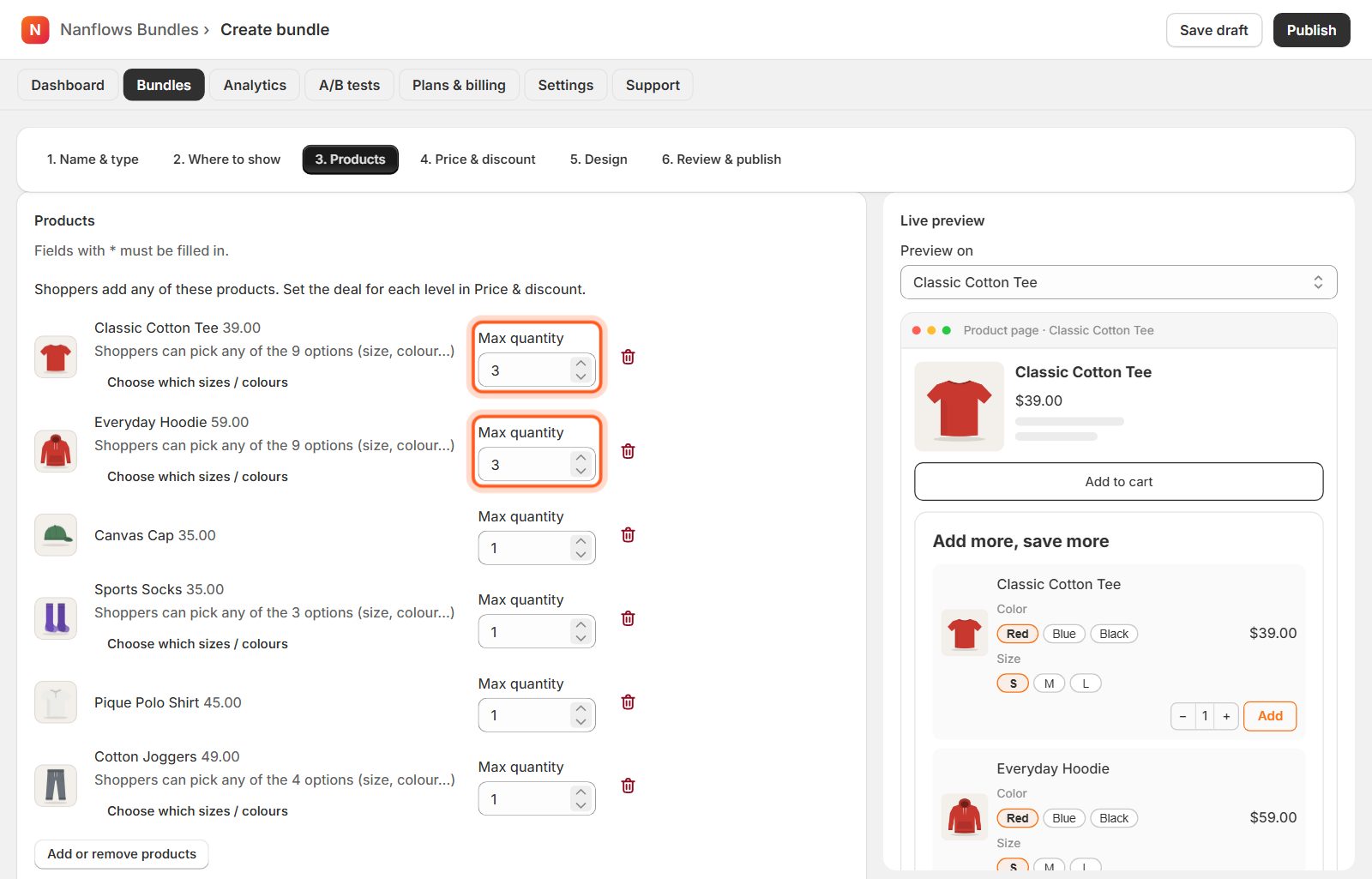
Set the Max quantity of each product
Max quantity is how many of that product one shopper can add. 1 shows only an Add button. More than 1 also shows a quantity box next to it. Here the tee and the hoodie can be added up to 3 times each.
-
Price & discount: a deal for each level
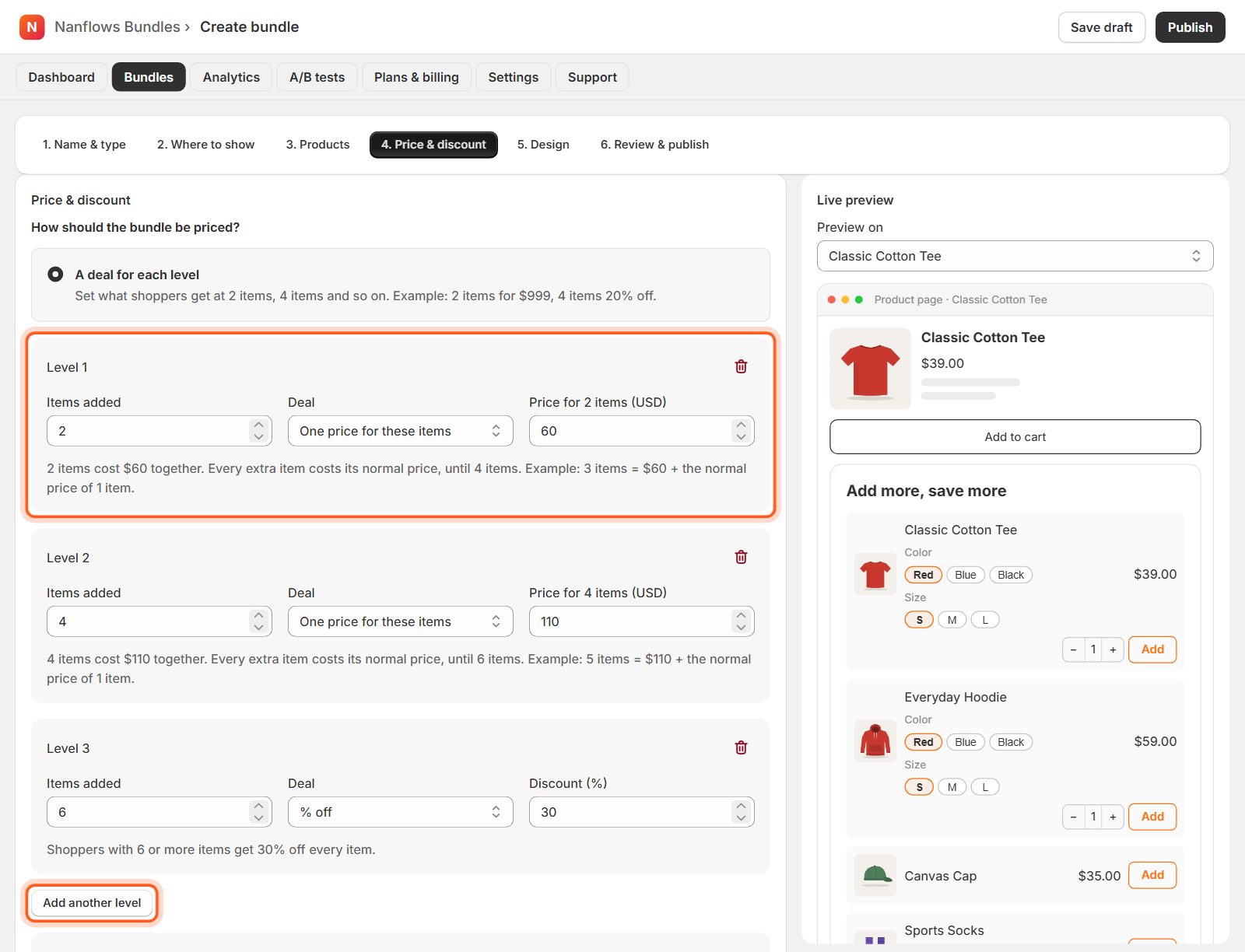
Each box is one level. Choose the Items added, then the Deal: One price for these items, % off or money off. Here: 2 items for $60, 4 items for $110, 6 items 30% off. A line under each level explains it in plain words. Click Add another level for more.
-
How a set price works with extra items
A set price covers exactly that many items, the cheapest ones. Extra items cost their normal price until the next level, so you never lose money. Example with 2 for $60 and 4 for $110: 3 items = $60 + the third item at its normal price. At 6 items, 30% off counts for every item.
Tip Levels must start at different numbers, and a % off can't be more than 100. If something doesn't fit, the level turns red and says what to change.
-
Tell shoppers what adding more gets them
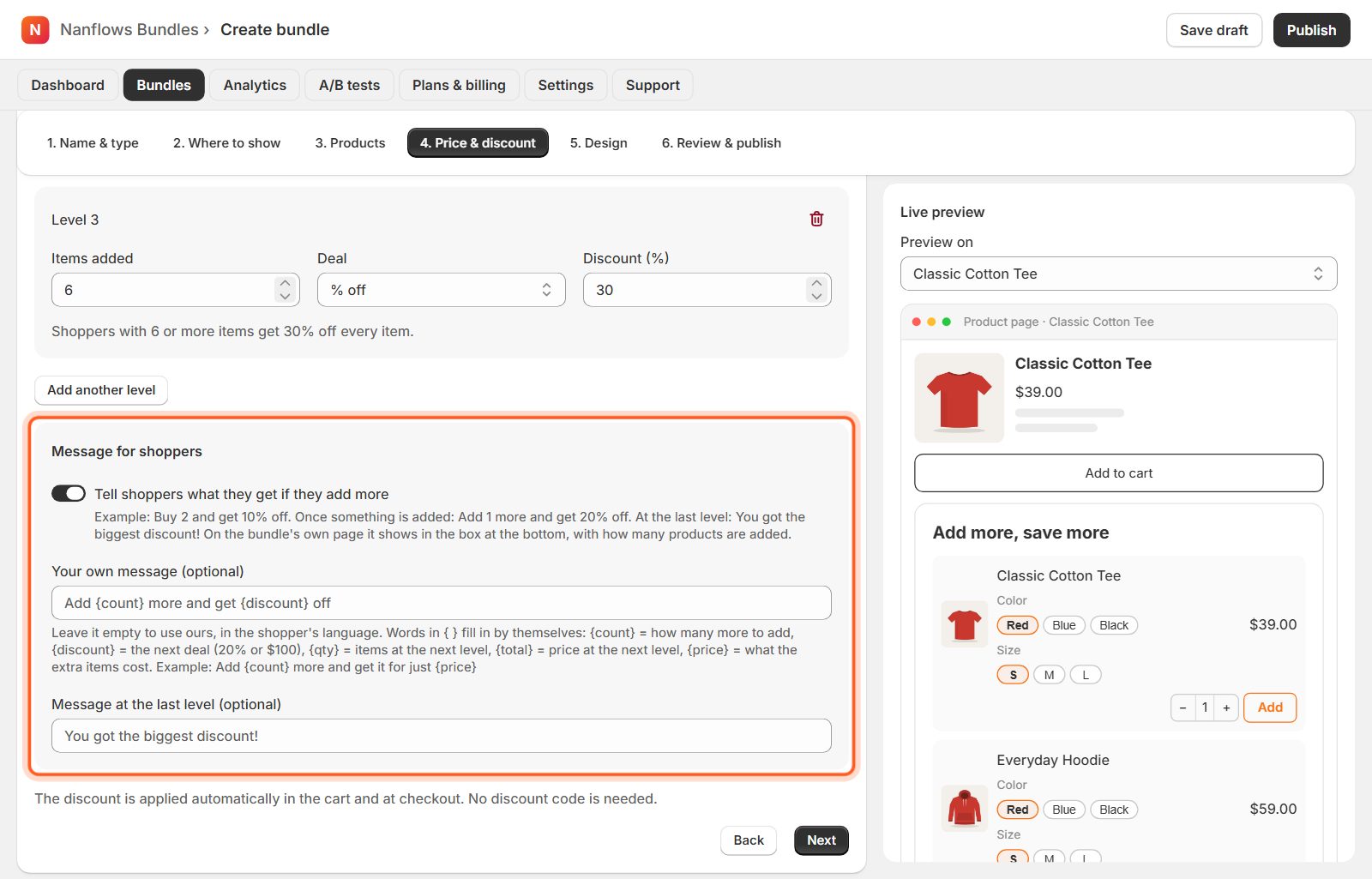
Under the levels, Tell shoppers what they get if they add more is on by default. Shoppers see Buy 2 and get 10% off before adding anything, then Add 1 more and get 20% off, and You got the biggest discount! at the last level. Want your own words? Type them in Your own message: {count} = how many more to add, {discount} = the next deal, {total} = the price at the next level. Leave it empty to use ours, in the shopper's language.
-
Design: change how it looks (optional)
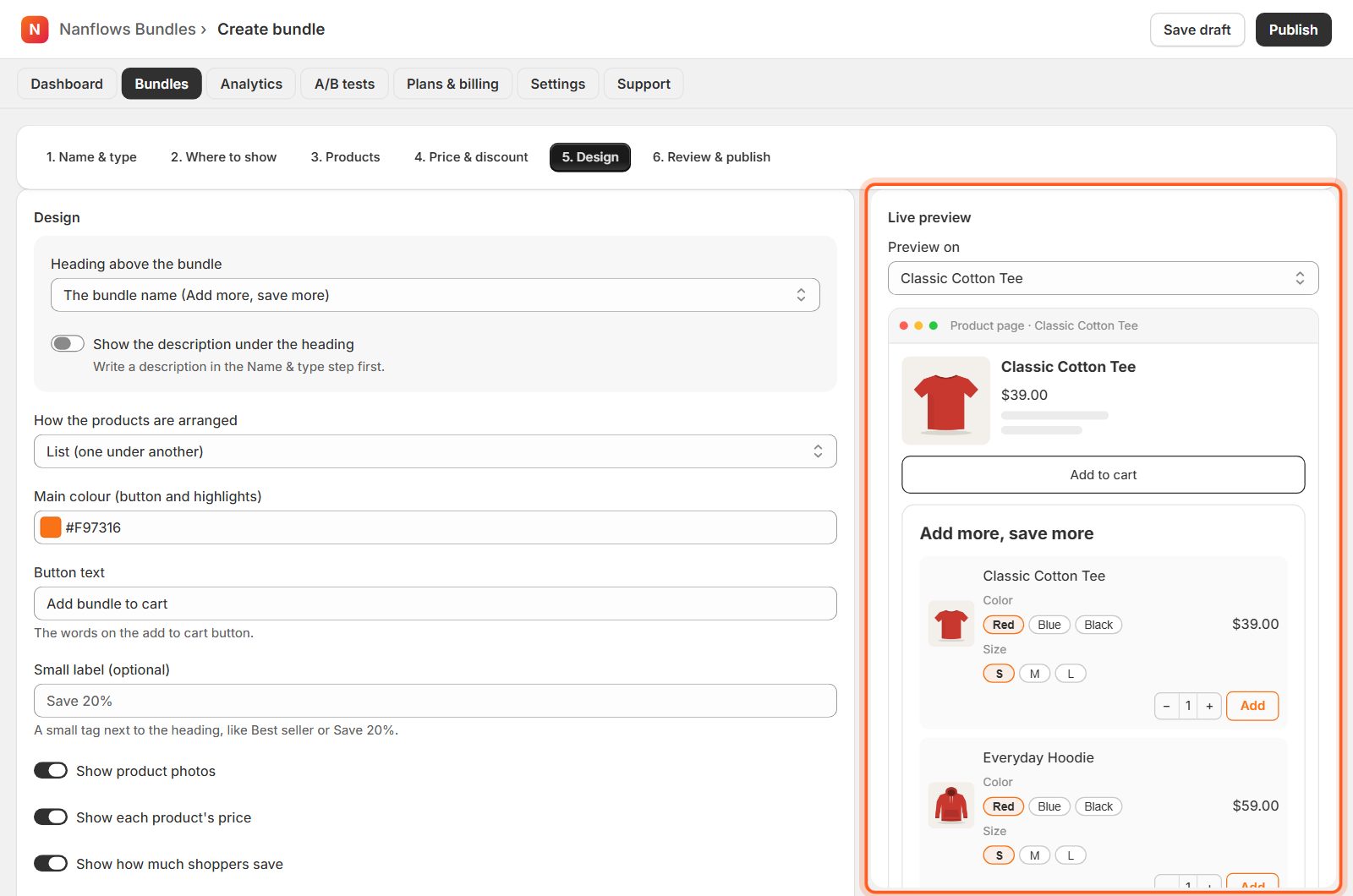
In 5. Design choose the heading, how the products are arranged (list, row or grid), your colour, the button text and a small label such as Save 15%. The Live preview on the right changes as you click. Everything here is optional: the bundle already looks good. See Design your bundle for every option.
-
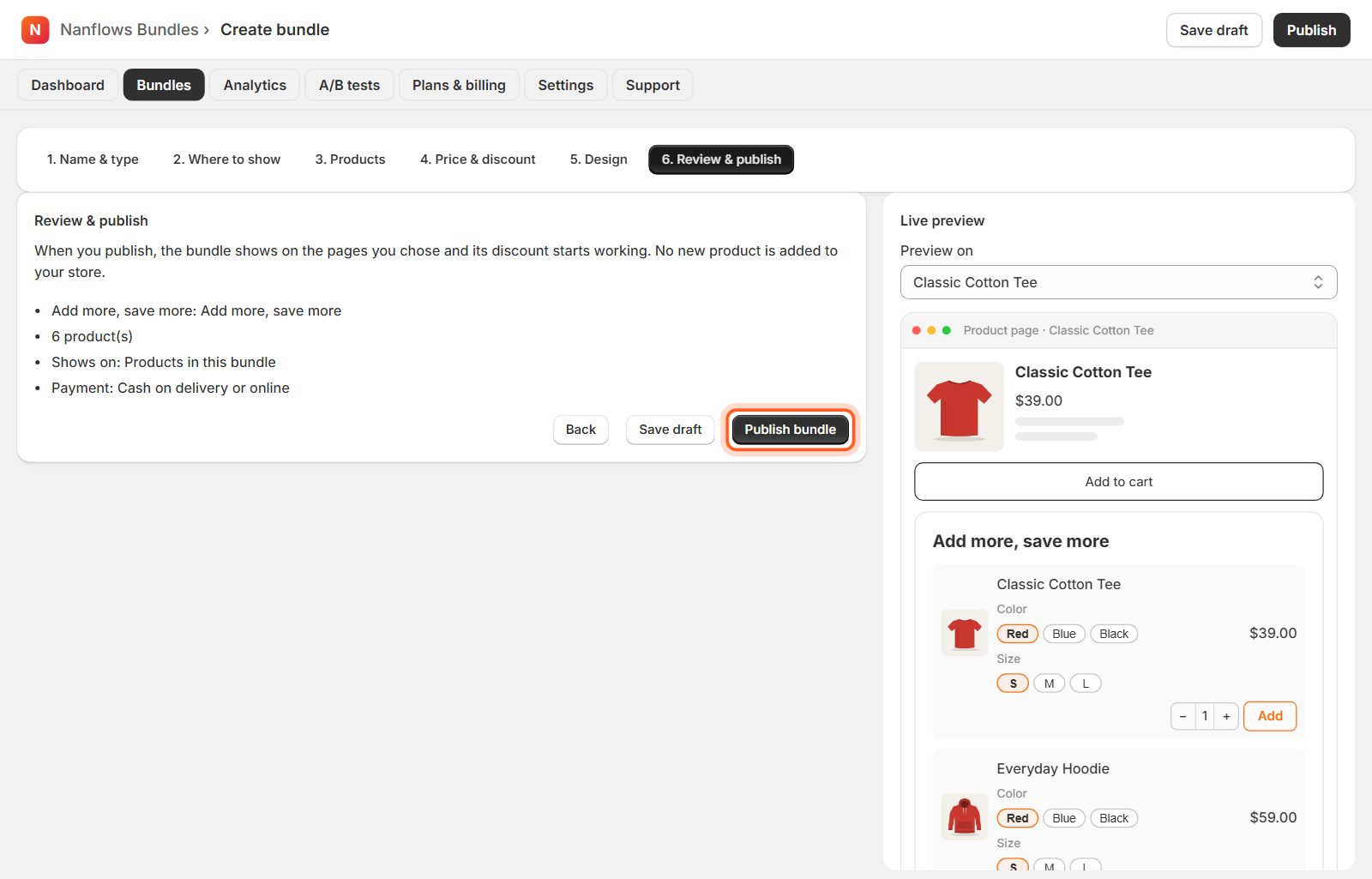
Click Publish bundle
6. Review & publish shows a short summary. Click Publish bundle and it goes live on your store straight away. Save draft keeps it hidden from shoppers until you are ready.
-
What shoppers see
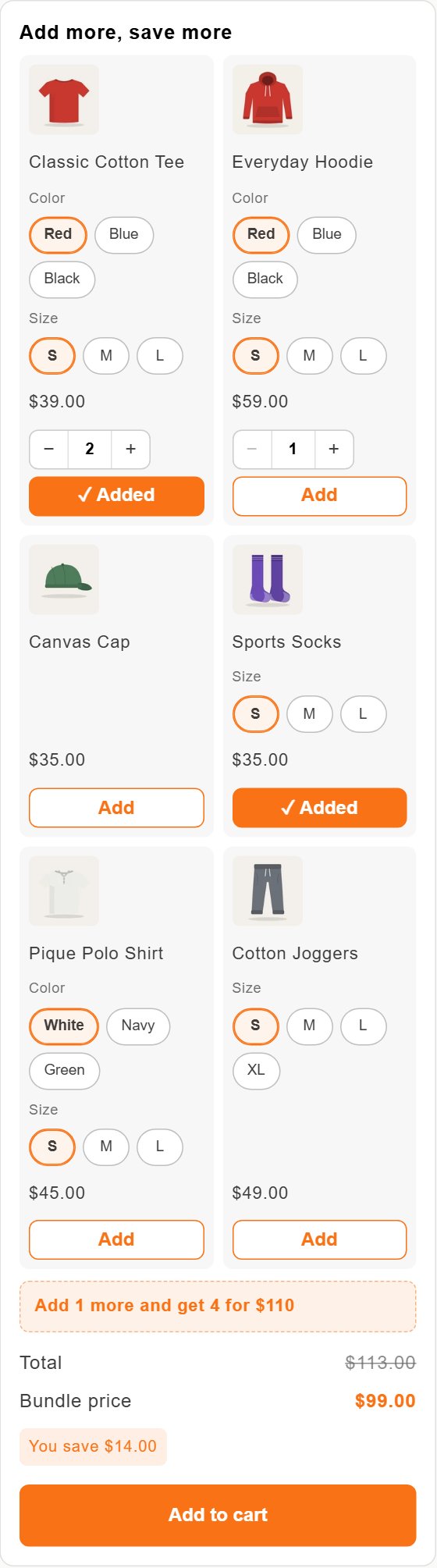
Each product has an Add button (with a quantity box where you allow more than one). Before anything is added, shoppers see Buy 2 for $60. With 3 items: Add 1 more and get 4 for $110. At the last level: You got the biggest discount! The widget price is always the same as the cart.
-
On its own page
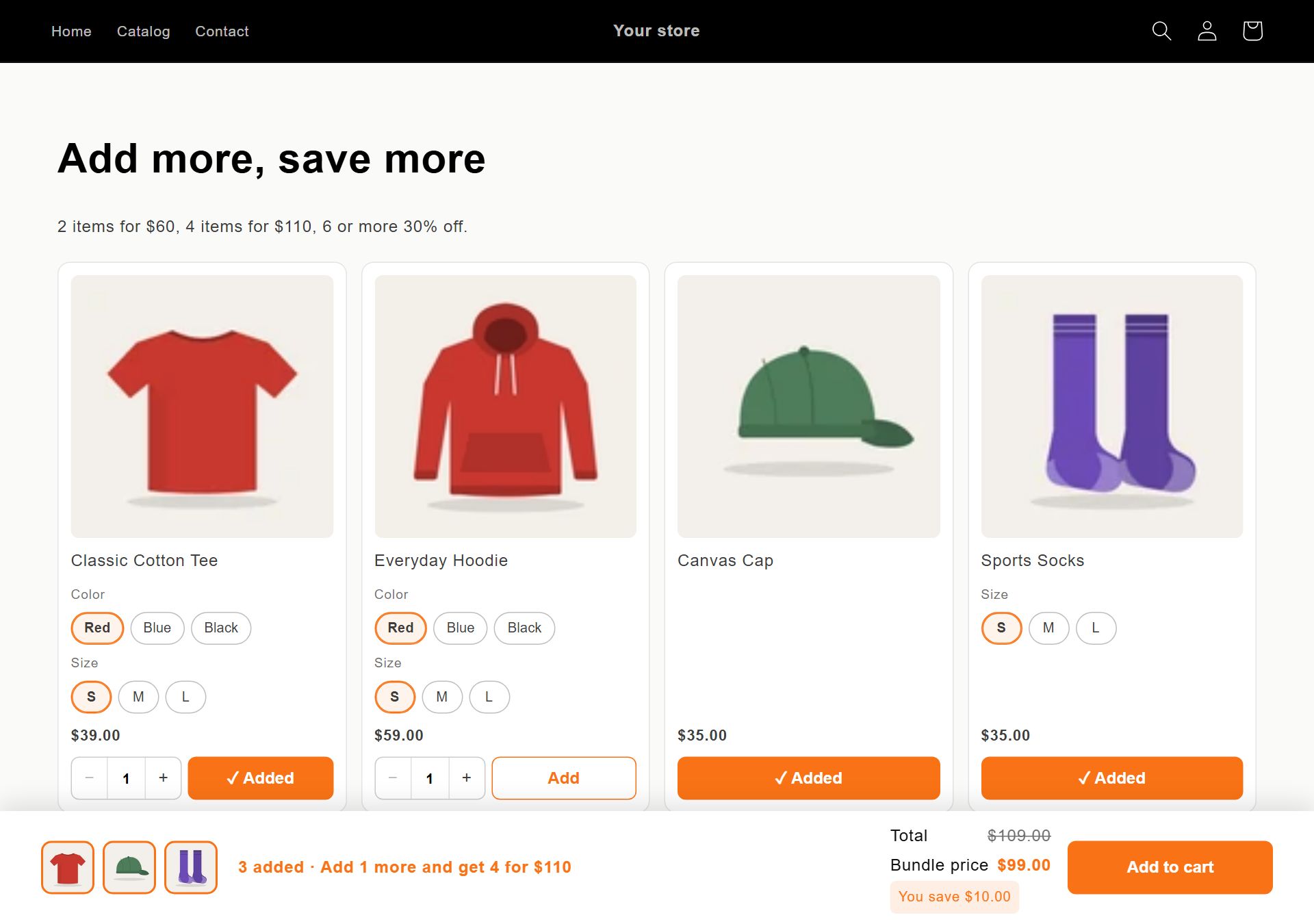
Turn on Also give this bundle its own page in 2. Where to show for a page with only this bundle. Products show 4 in a row on a computer and 2 on a phone. A box at the bottom shows how many items are added and what the next level gives, for example 3 added · Add 1 more and get 4 for $110.
Nanflows Bundles for Shopify · Need help? support@nanflows.com