Help center › Create a bundle, kind by kind
Create a Build your own bundle Pro
Shoppers build the bundle slot by slot, picking from each slot. Example: one top, one pair of bottoms and one extra, 10% off.
-
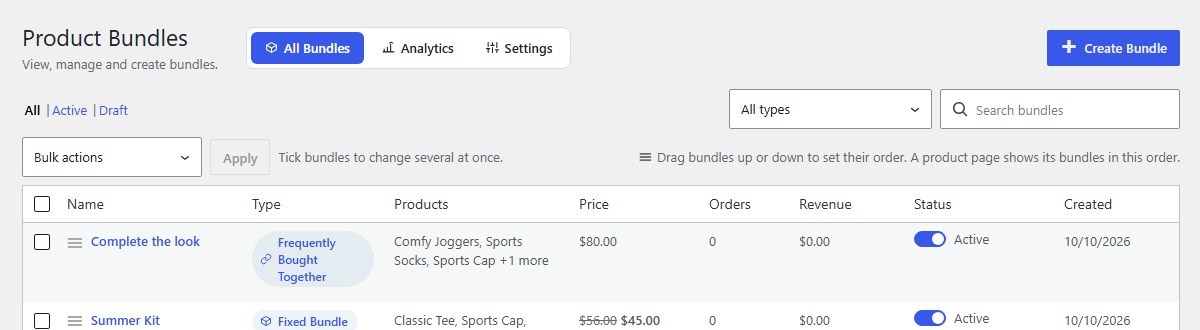
Open Bundles and click Create Bundle
In your WordPress admin, click Bundles in the left menu, then Create Bundle at the top right.
-
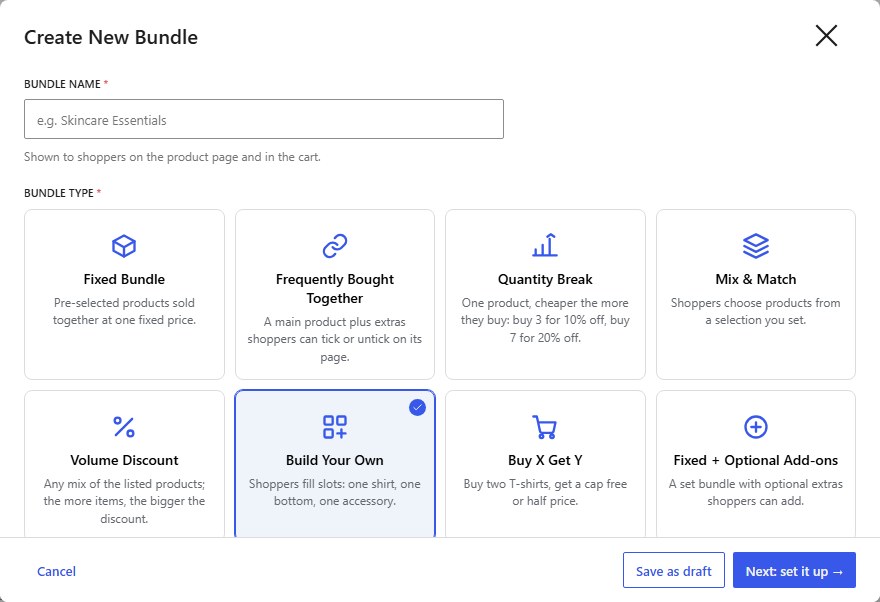
Type a name, then choose Build Your Own
Shoppers see the Bundle name on the product page and in the cart, for example Build your outfit. Then click the Build Your Own card. Shoppers fill slots: one shirt, one bottom, one accessory.
-
Choose where it shows, then click Next: set it up
Under Where should this bundle show?, pick the product pages (or whole categories) that should offer the bundle. Then click Next: set it up. See Where your bundle shows.
-
Products: add the products
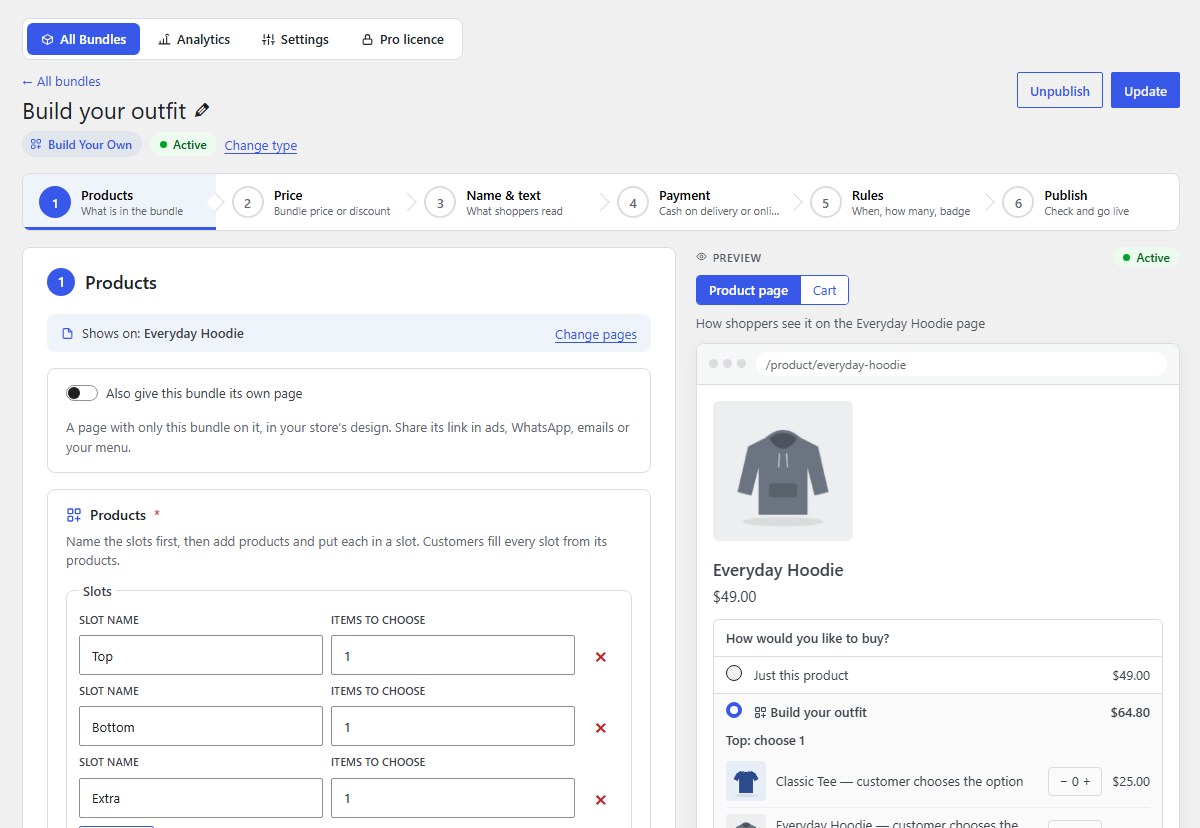
First name the Slots (for example Top, Bottom, Extra) and set Items to choose in each. Click Add slot for more (up to 10).
-
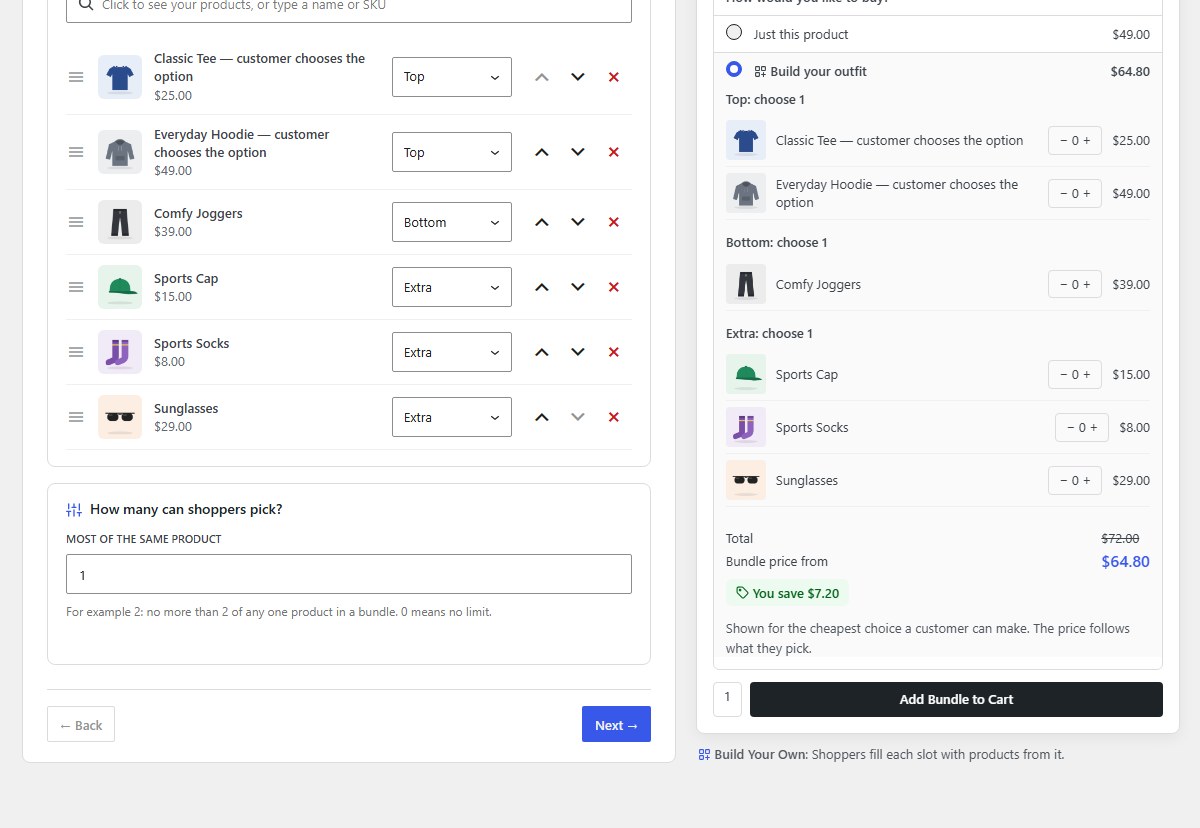
Add products and put each in a slot
Add the products, then choose a slot for each one from the list next to it. Every product must be in a slot, and every slot needs products. Most of the same product limits repeats (0 means no limit).
-
Price: set the discount
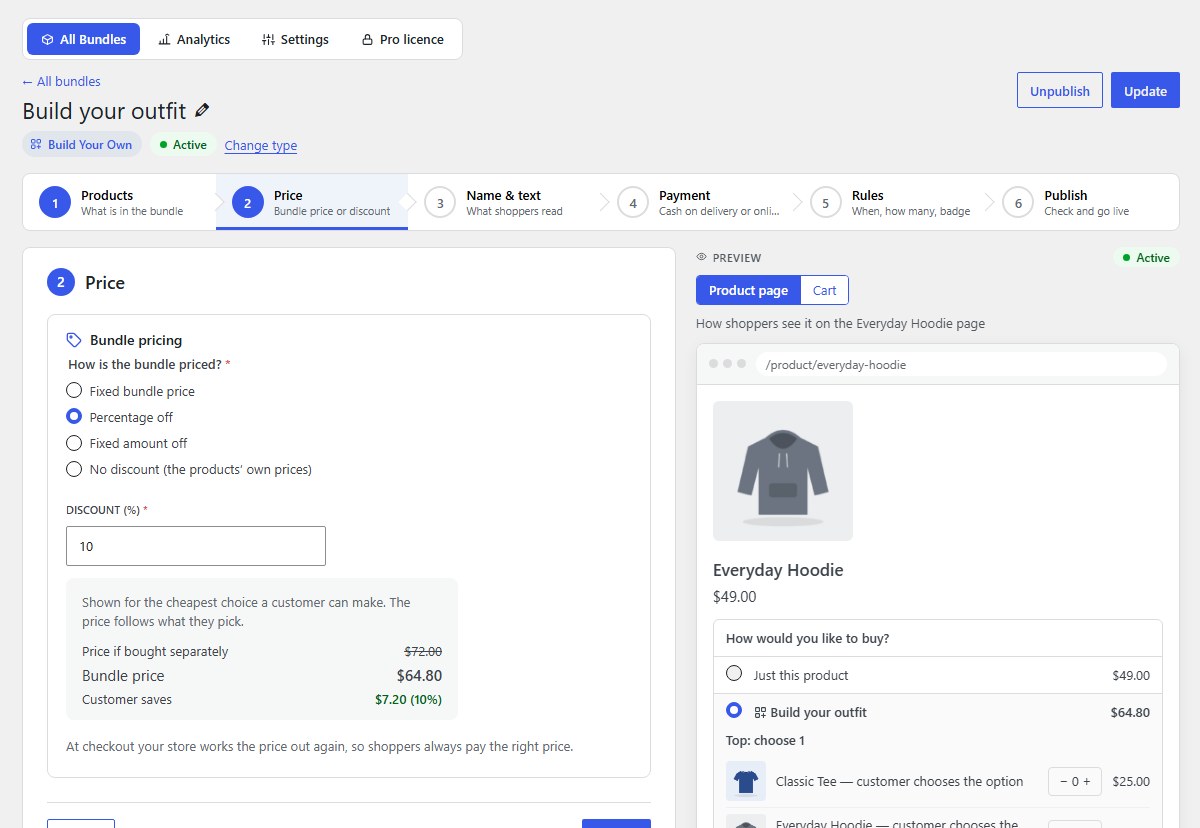
Choose Percentage off, Fixed amount off or Fixed bundle price. The preview shows the price of the cheapest outfit; the real price follows what the shopper picks.
-
Name & text, Payment and Rules (optional)
The next steps work the same for every kind of bundle: a description and picture in 3. Name & text, cash on delivery or prepaid in 4. Payment, and dates, limits and a badge in 5. Rules. See Name, text and picture, Payment and Rules, badge and urgency.
-
Click Publish bundle
6. Publish sums up the bundle. Click Publish bundle and it is on sale straight away. Save as draft keeps it hidden from shoppers until you are ready.
-
What shoppers see
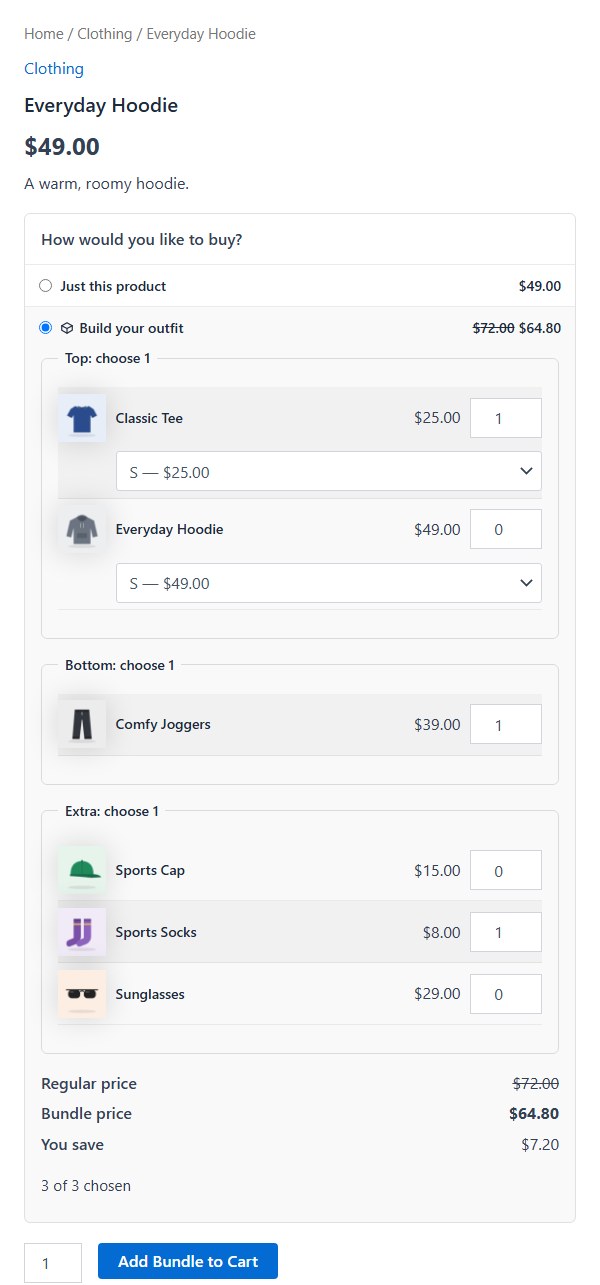
Each slot is its own box (“Top: choose 1”). Shoppers fill every slot, pick sizes, and see the saving.
Nanflows Bundles · Need help? support@nanflows.com