Help center › Create a bundle, kind by kind
Create a Fixed bundle
You choose the products; shoppers buy them together at one price. Example: a tee, a cap and two pairs of socks for $45 instead of $56.
-
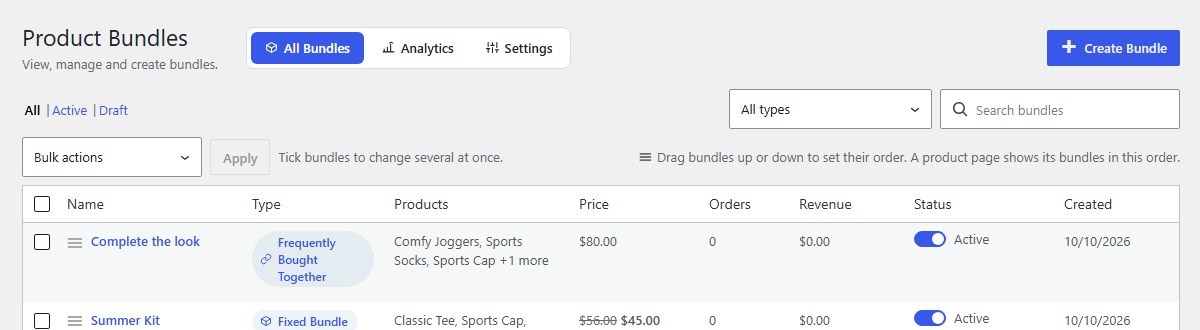
Open Bundles and click Create Bundle
In your WordPress admin, click Bundles in the left menu, then Create Bundle at the top right.
-
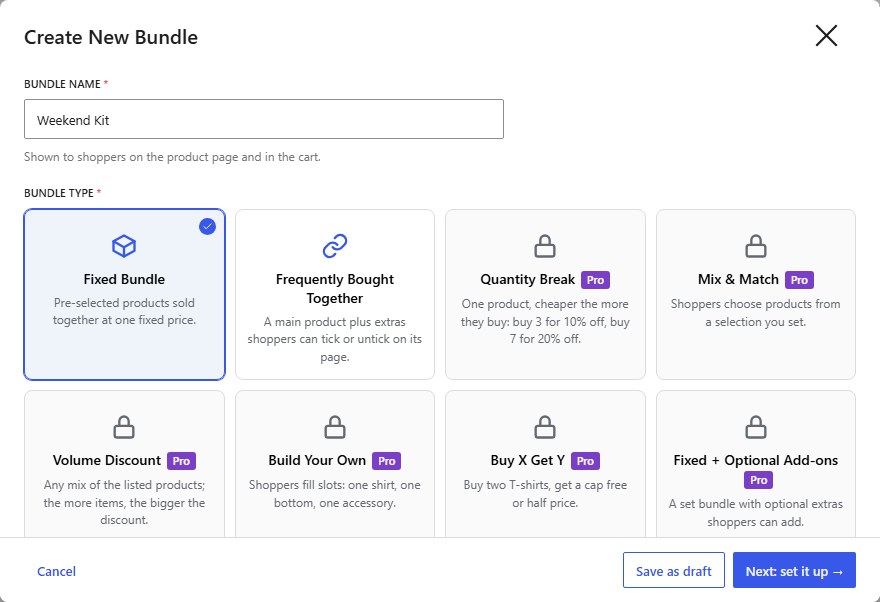
Type a name, then choose Fixed Bundle
Shoppers see the Bundle name on the product page and in the cart, for example Summer Kit. Click the Fixed Bundle card.
-
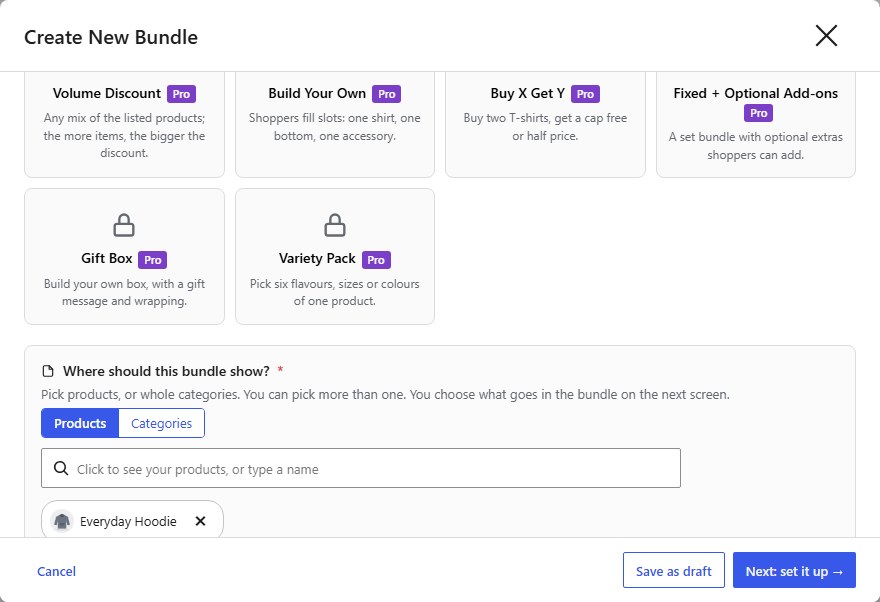
Choose where it shows, then Next: set it up
Pick the product pages, or whole categories, that should offer the bundle. Usually that is the page of the main product in it. See Where your bundle shows.
-
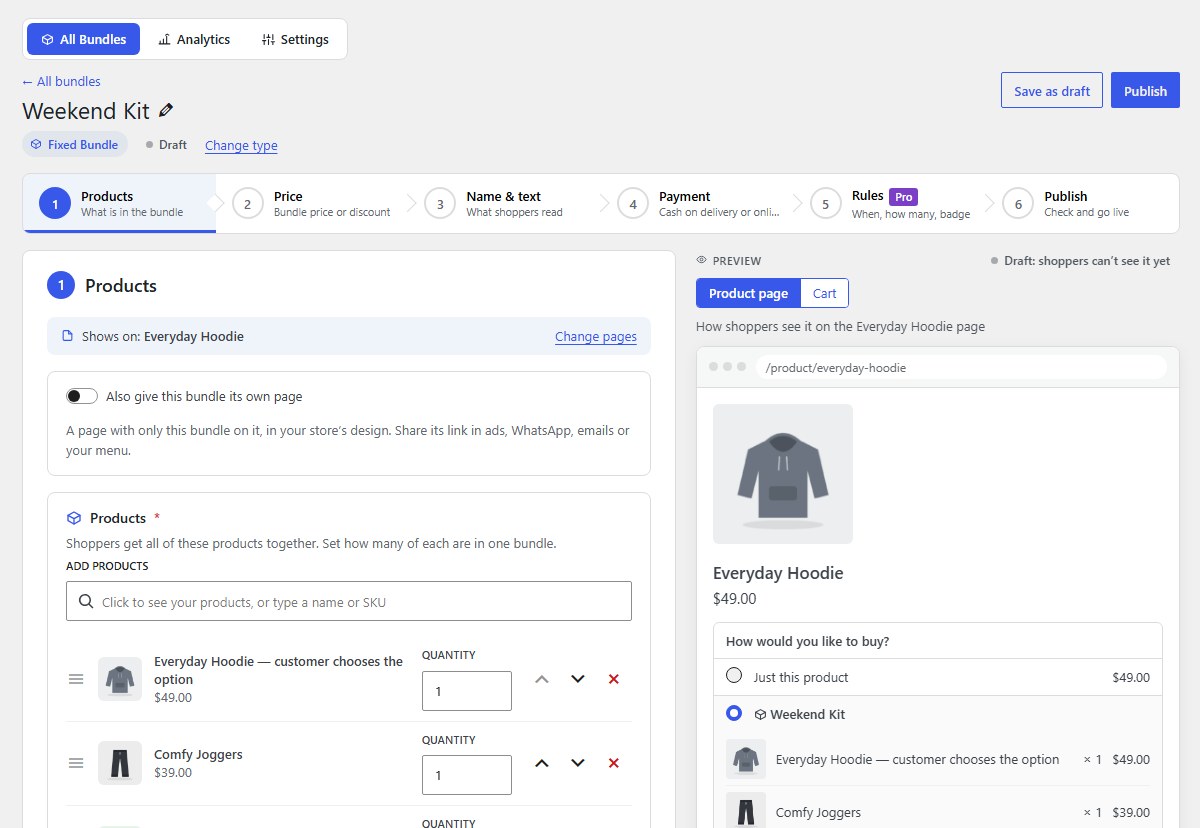
Products: add the products and quantities
Click the Add products box, tick the products and click Add selected. Set how many of each are in one bundle. For products with sizes or colours, shoppers choose on your shop.
-
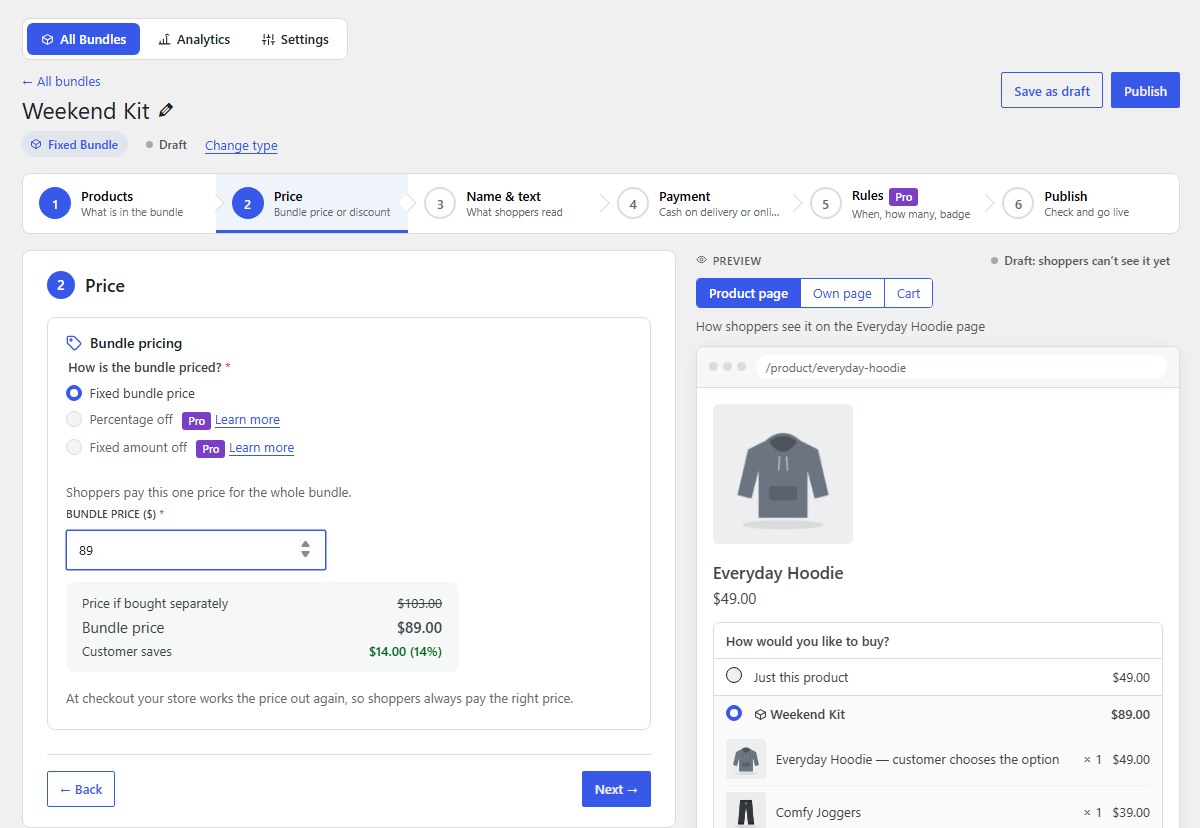
Price: set the bundle price
Type the Bundle price, lower than buying the products one by one. The saving is worked out for you. With Pro you can give Percentage off or Fixed amount off instead.
-
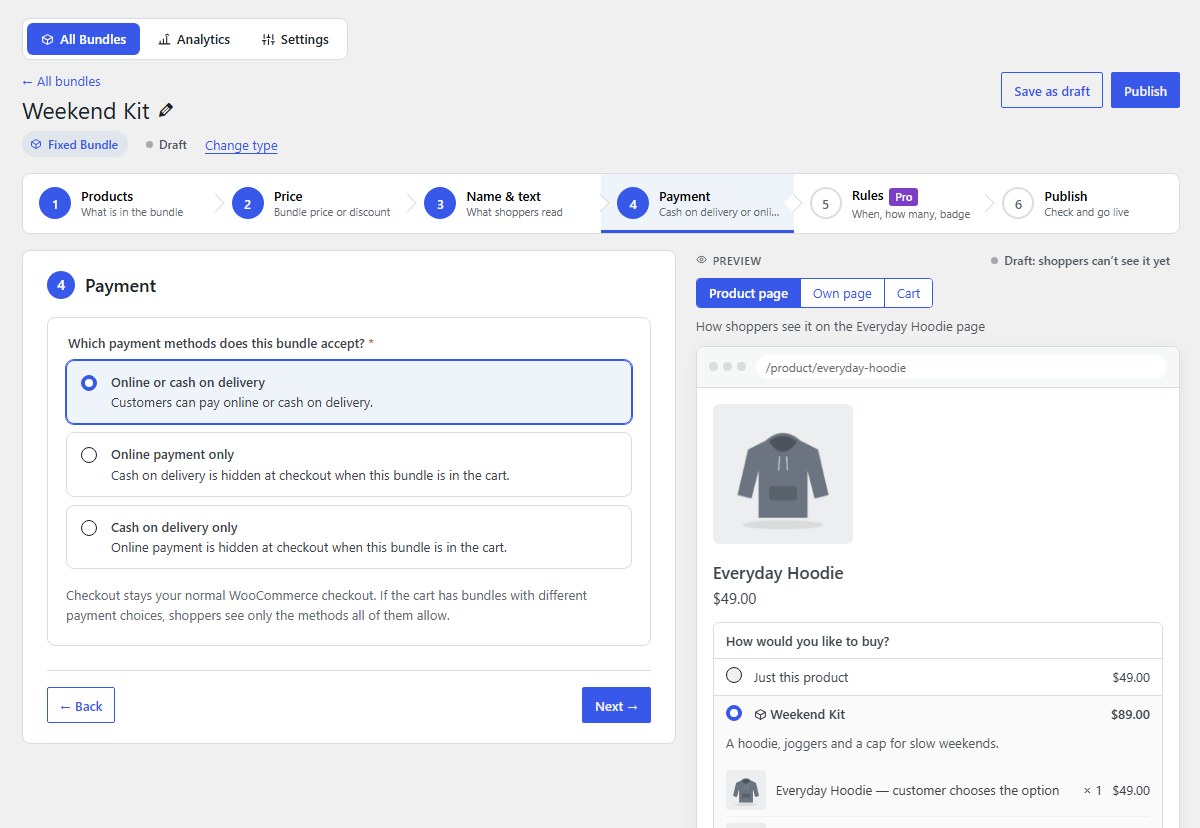
Name & text and Payment (optional)
Add a short description and choose a picture in 3. Name & text; choose cash on delivery or prepaid in 4. Payment. Both have good defaults.
-
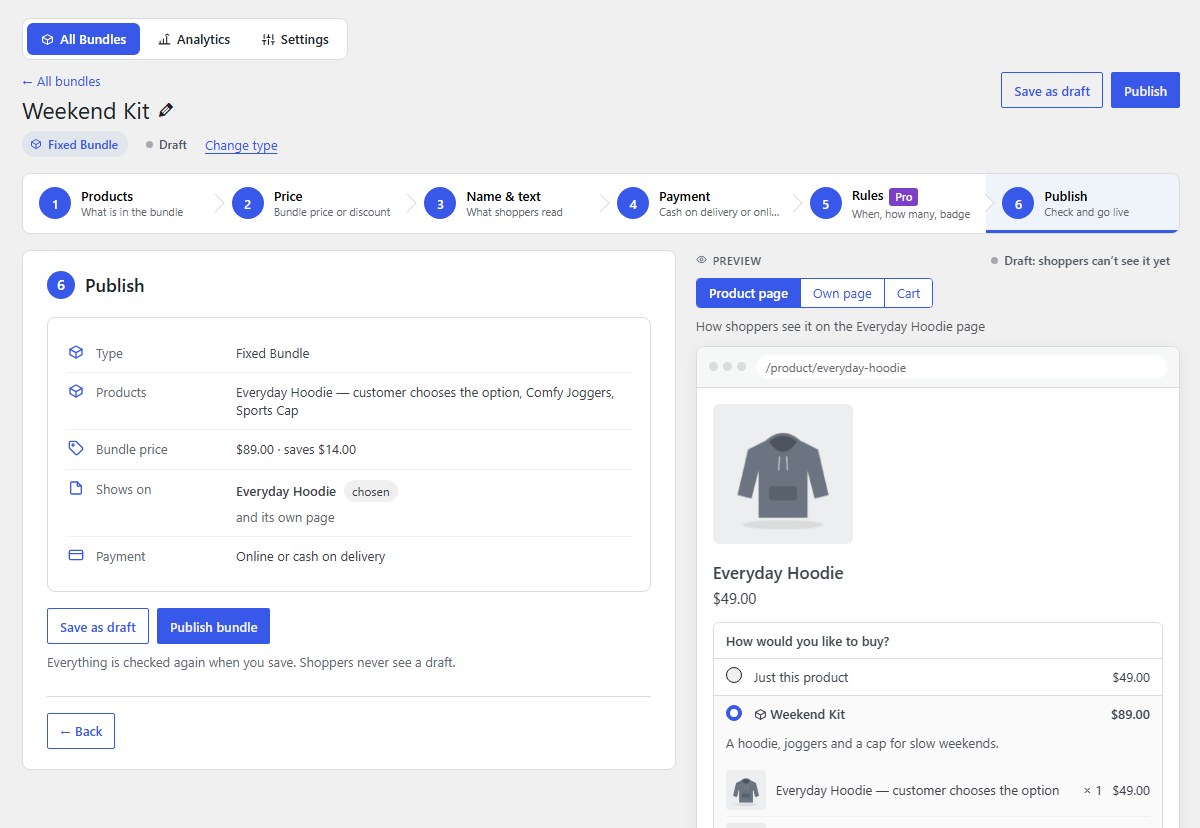
Click Publish bundle
6. Publish shows a short summary. Click Publish bundle and it is on sale straight away.
-
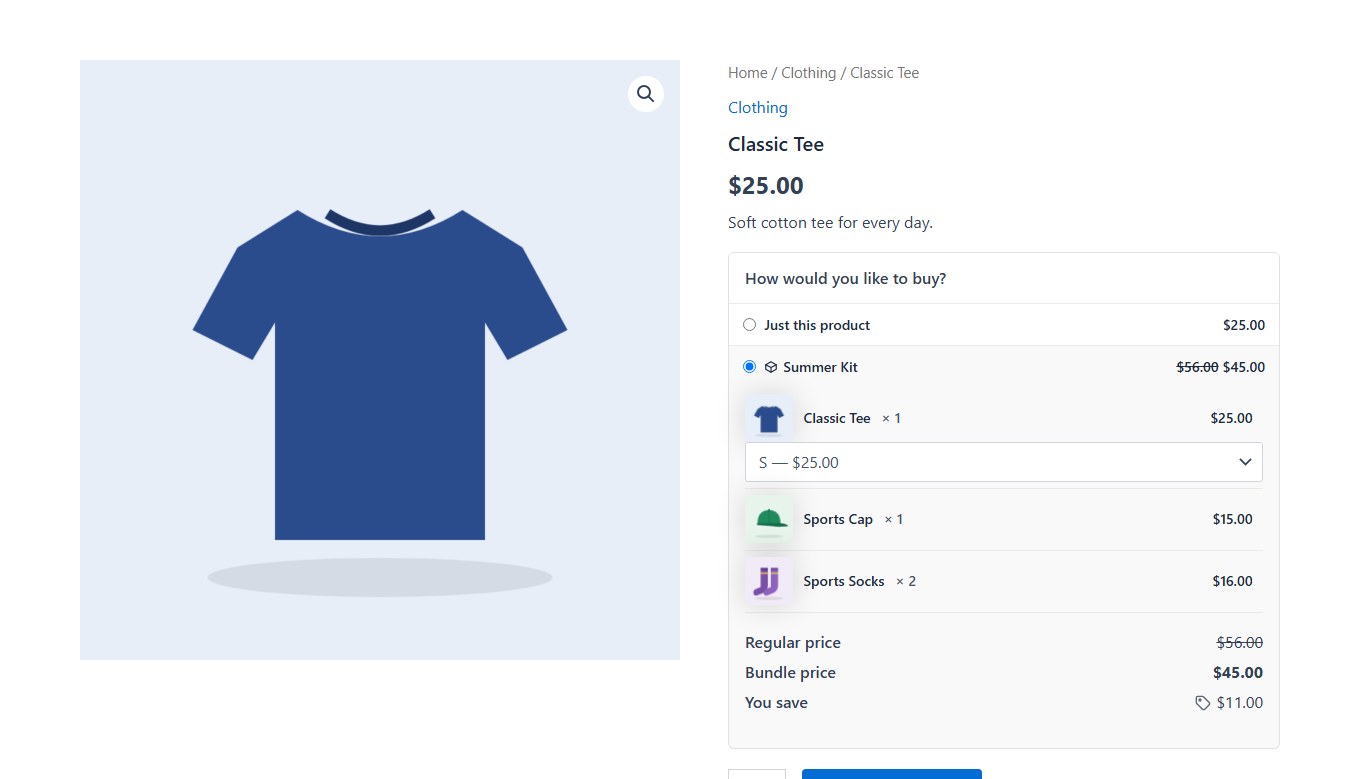
What shoppers see
Shoppers pick sizes, see the regular price, the bundle price and what they save, and add everything with one click.
-
In the cart
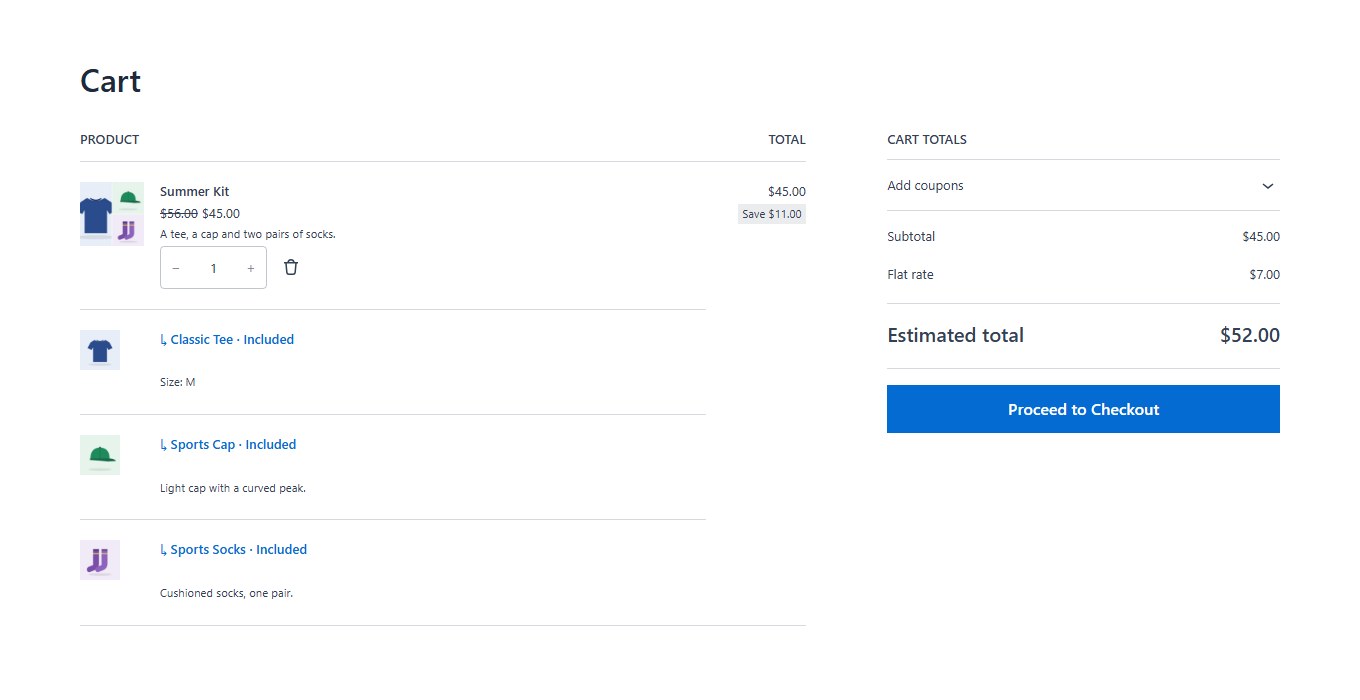
The bundle is in the cart at its price, with its products listed under it.
Nanflows Bundles · Need help? support@nanflows.com