Help center › Bundle settings
Where your bundle shows
Which product pages offer the bundle, what shoppers see when a page has several, the bundle’s own page, and showing a bundle anywhere with a block or shortcode.
-
See where a bundle shows
At the top of 1. Products, Shows on lists the product pages and categories that offer the bundle. Click Change pages to change them.

-
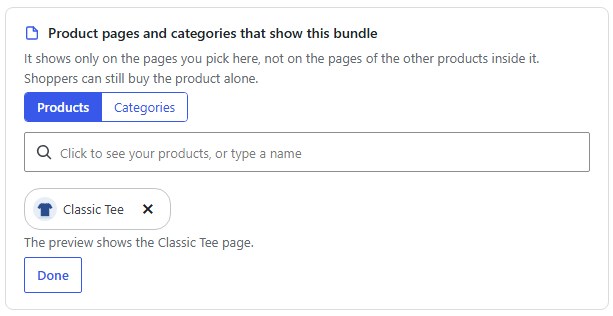
Pick product pages
On the Products tab, click the box and add product pages. The bundle shows only on the pages you pick here, not on the pages of the other products inside it, and shoppers can still buy the product alone. Click Done when finished.
-
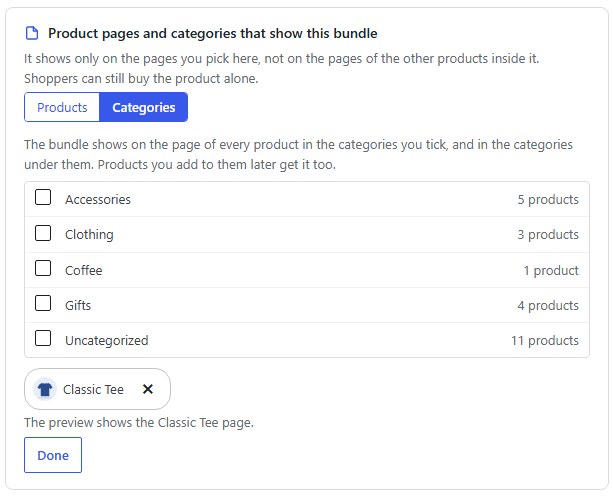
Or pick whole categories
On the Categories tab, tick categories. The bundle shows on the page of every product in them, and in the categories under them. Products you add to them later get it too.
-
“Frequently bought together” shows on its main product
It always shows on the main product’s page. You can add other pages if you like.
-
Several bundles on one product page
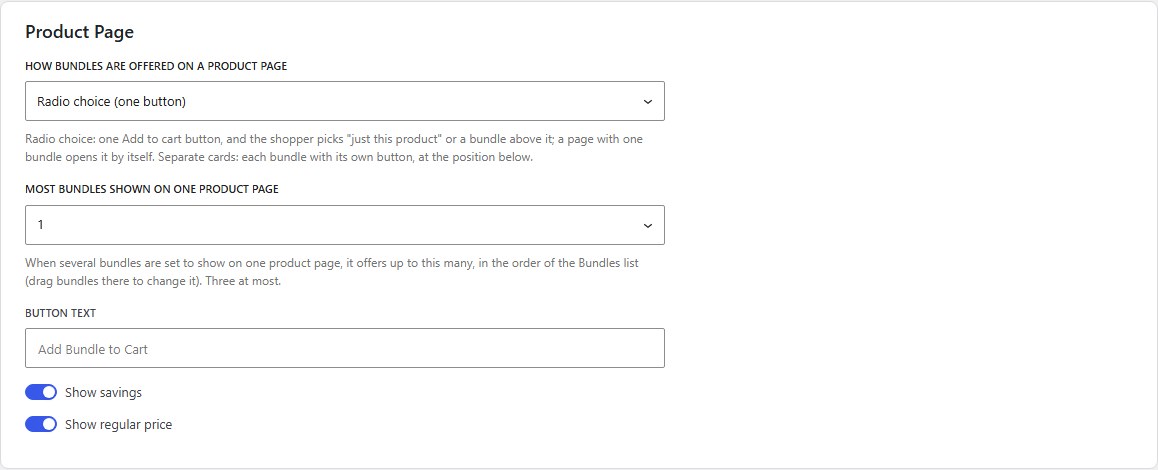
By default a product page offers one bundle. In Settings → Product Page, Most bundles shown on one product page allows up to three; shoppers then pick one from a list. The order follows the Bundles list: drag bundles there to change it. When you pick a page that is already full, the editor tells you.
-
Give a bundle its own page
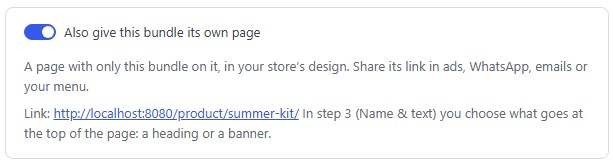
Turn on Also give this bundle its own page in 1. Products. The page shows only this bundle, in your theme’s design, at the bundle’s link. Put a heading or a banner at the top in 3. Name & text (see Name, text and picture). “Frequently bought together” offers belong on their product’s page, so they have no page of their own.
-
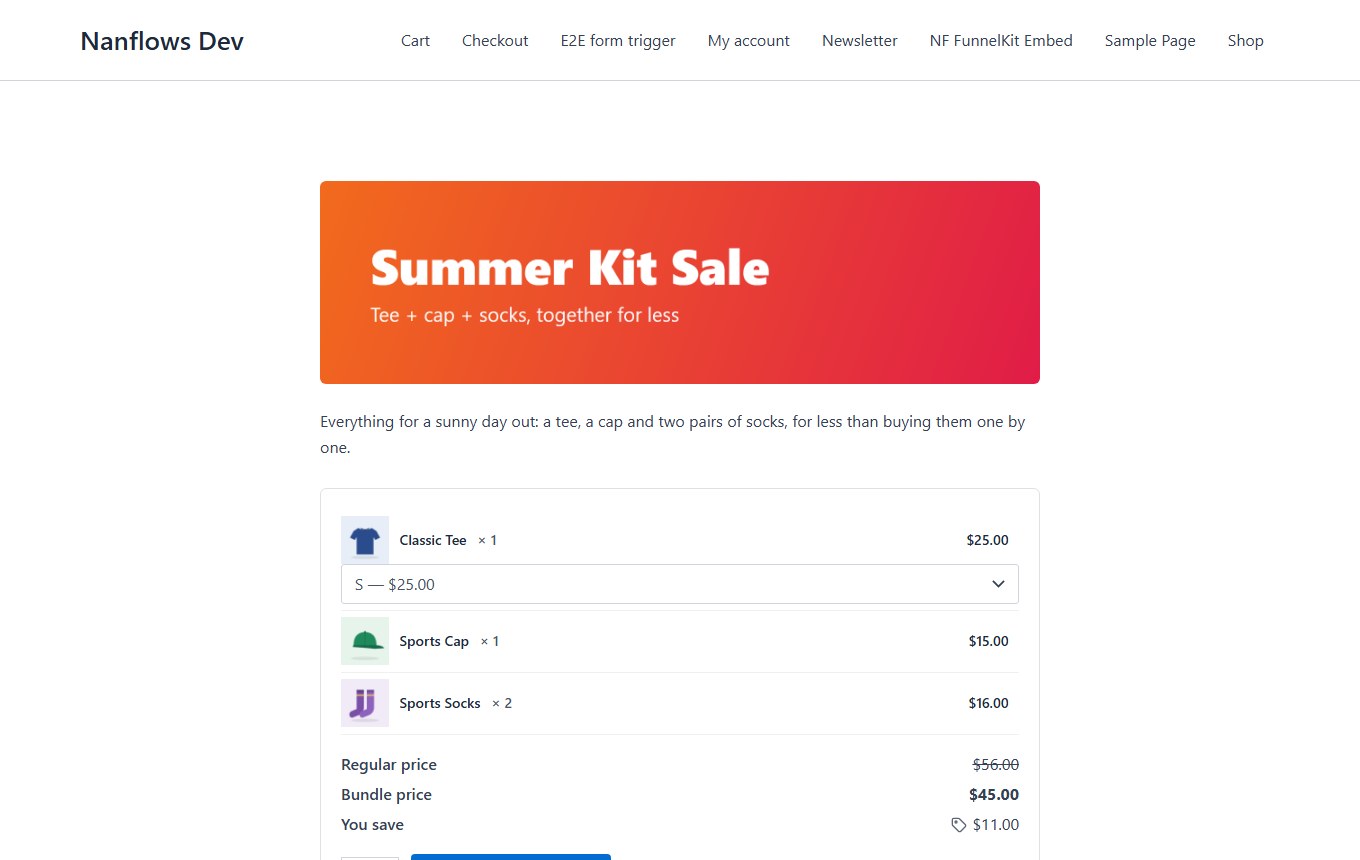
The bundle’s own page on a computer…
Your banner, the description, and the bundle with its Add to cart button.
-
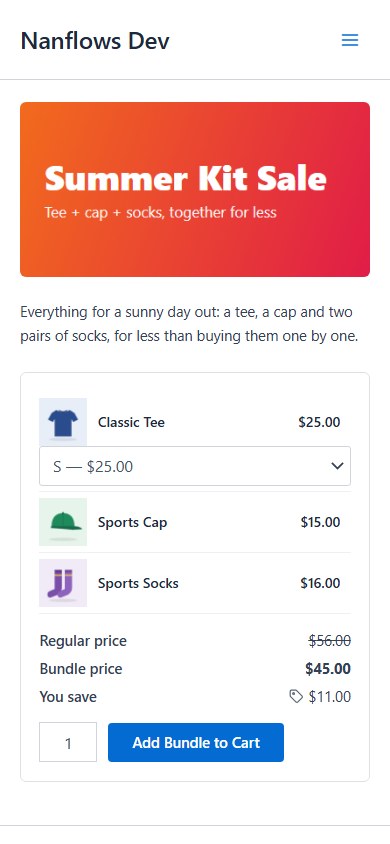
…and on a phone
Phones show the phone banner if you added one, otherwise the computer banner.
-
Show a bundle anywhere: the Bundle block
In the block editor of any page or post, add the Bundle block (in the WooCommerce group) and choose the bundle. It shows the bundle with its products, prices and an Add Bundle to Cart button.
-
Or use the shortcode
In page builders and classic pages, paste the shortcode with the bundle’s ID. The ID is the number after
id=in the address bar when you edit the bundle.[nanflows_bundle id="123"] -
Also list bundles in the shop (optional)
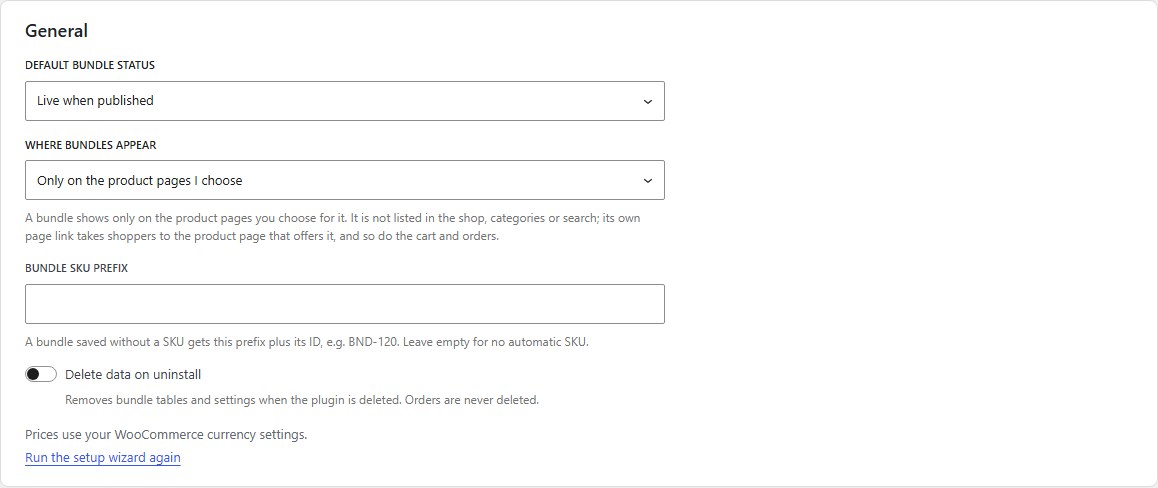
By default a bundle is not listed in the shop, categories, search or sitemap, and its link takes shoppers to the product page that offers it. In Settings → General, Where bundles appear → Also as its own product in the shop lists every bundle like any other product.
Nanflows Bundles · Need help? support@nanflows.com