Help center › Create a bundle, kind by kind
Create a Quantity break (buy more, save more) Pro
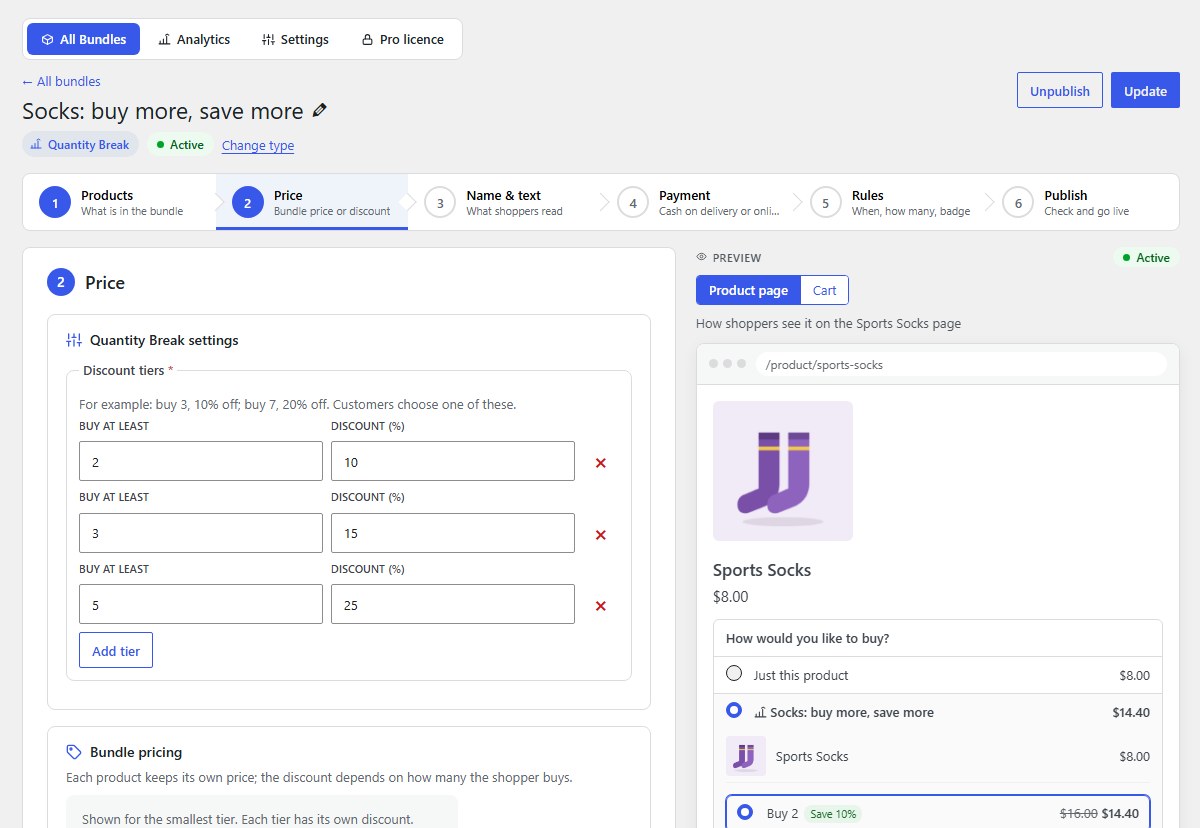
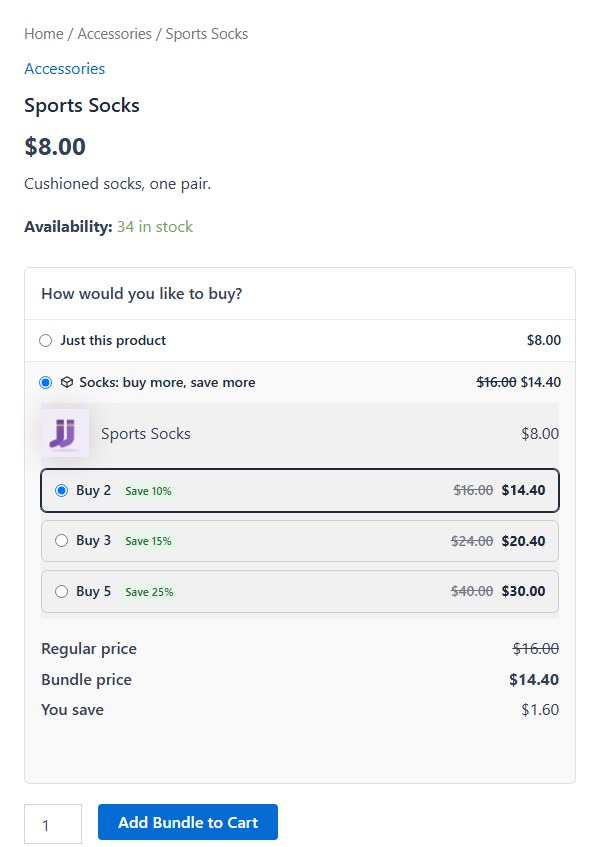
One product: the more pieces shoppers buy, the less each costs. Example: socks, buy 2 for 10% off, buy 3 for 15% off, buy 5 for 25% off.
-
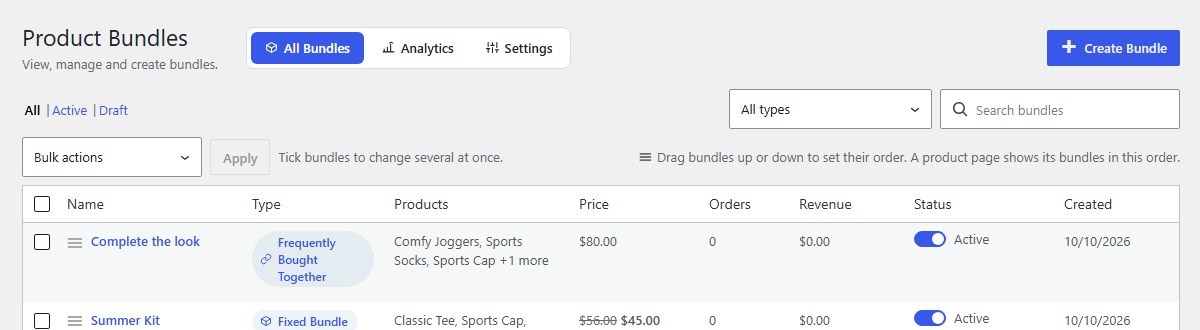
Open Bundles and click Create Bundle
In your WordPress admin, click Bundles in the left menu, then Create Bundle at the top right.
-
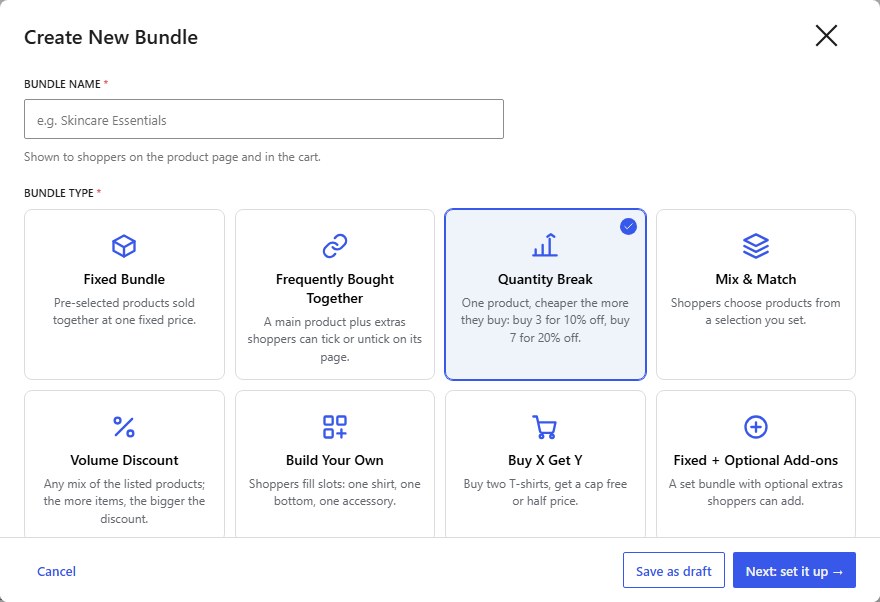
Type a name, then choose Quantity Break
Shoppers see the Bundle name on the product page and in the cart, for example Socks: buy more, save more. Then click the Quantity Break card. A quantity break is for one product.
-
Choose the product, then click Next: set it up
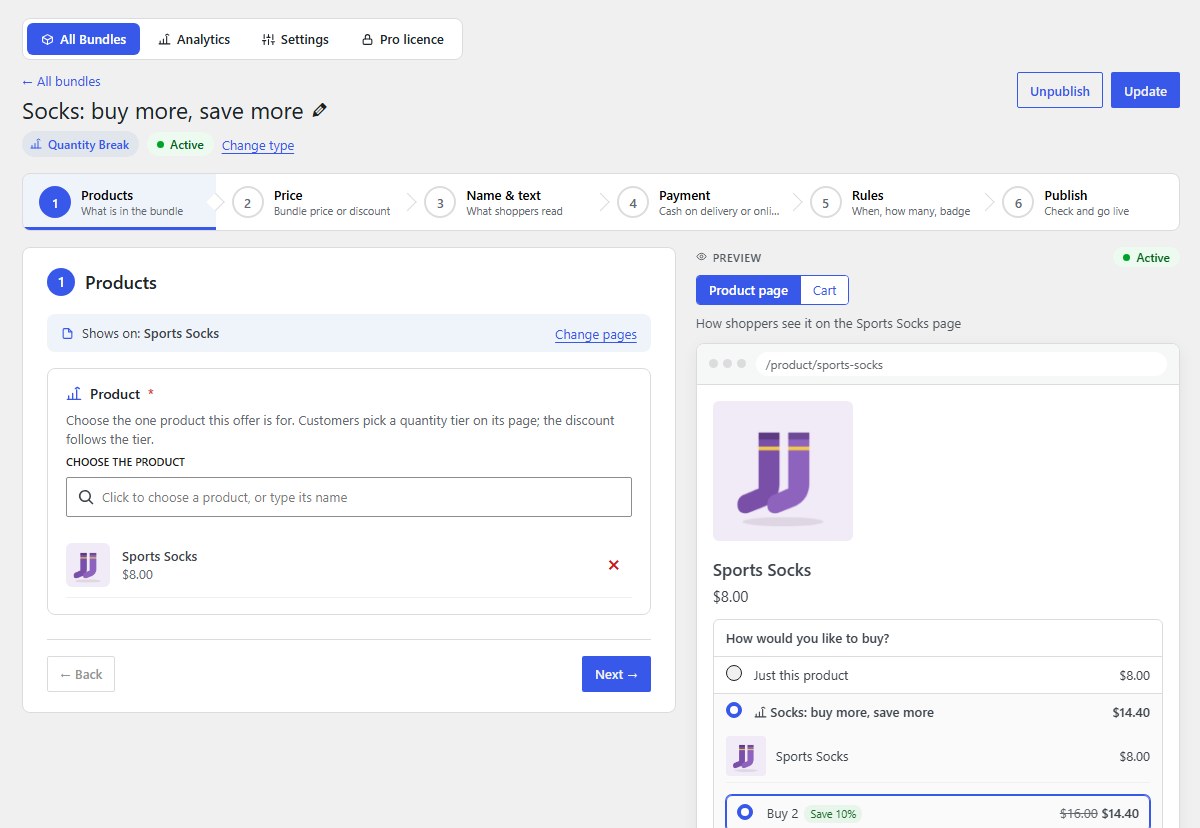
Under Product, choose the one product the offer is for. The offer shows on its page.
-
Products: add the products
The product you chose is listed. A quantity break is for one product only; for a list of products use a Volume discount.
-
Price: set the discount
Under Discount tiers, set each level: Buy at least a quantity (2 or more) and its Discount (%). Click Add tier for another. Shoppers choose one of the tiers on the product page.
Tip Three tiers is plenty: a small saving, a better one, and a best deal.
-
Name & text, Payment and Rules (optional)
The next steps work the same for every kind of bundle: a description and picture in 3. Name & text, cash on delivery or prepaid in 4. Payment, and dates, limits and a badge in 5. Rules. See Name, text and picture, Payment and Rules, badge and urgency.
-
Click Publish bundle
6. Publish sums up the bundle. Click Publish bundle and it is on sale straight away. Save as draft keeps it hidden from shoppers until you are ready.
-
What shoppers see
Shoppers see each tier with its price and saving, and pick one. The bundle price follows the tier.
Nanflows Bundles · Need help? support@nanflows.com